
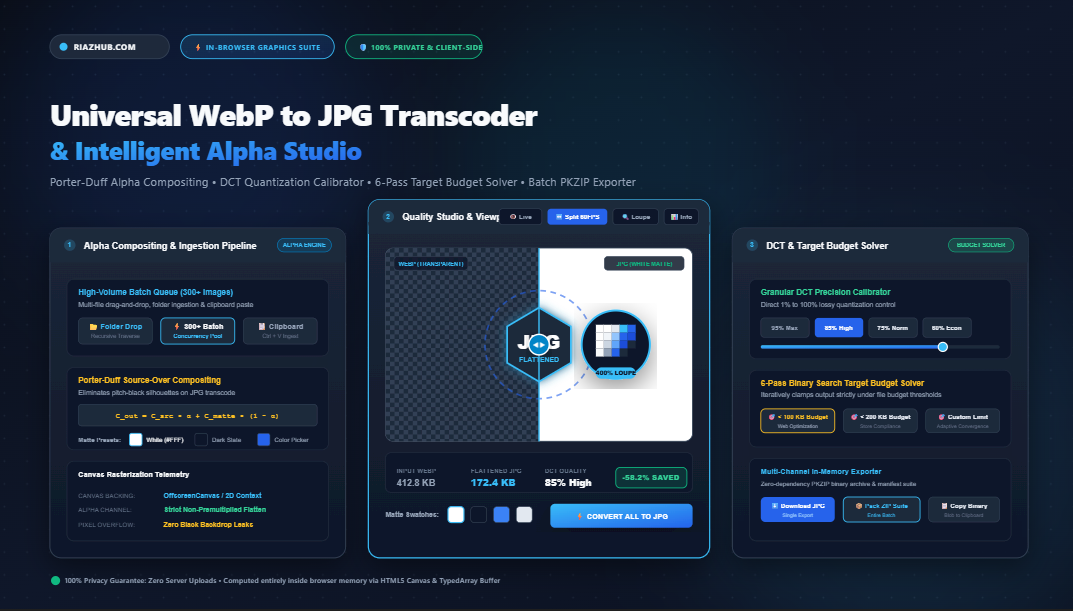
How to Convert WebP to JPG Without Pitch-Black Alpha Bugs: The Complete Guide to Porter-Duff Compositing, DCT Quantization, and Target Budget Solvers
Converting modern transparent WebP graphics to standard JPEG files frequently produces catastrophic pitch-black background artifacts, jagged fringing, or rejected uploads on strict portal forms. Here is how mathematical alpha compositing, Discrete Cosine Transform optimization, and client-side binary budget solving permanently eliminate these issues without server processing.
1. The Anatomy of the WebP to JPEG Compatibility Crisis
Google introduced the WebP image container (based on VP8 intra-frame prediction) to supersede aging web formats. WebP delivers outstanding compression ratios and supports full 8-bit alpha channel transparency ($256$ levels of per-pixel opacity). Consequently, content management systems, modern CDNs, and digital storefronts serve billions of images in WebP.
However, when end users download WebP assets to incorporate them into legacy enterprise desktop applications (Microsoft Office PowerPoint/Word 2013, Adobe InDesign, CAD suites, or government employment and visa portals), they face rigid compatibility roadblocks:
- Legacy Format Lock-in: Many submission portals (e.g., government civil service portals, passport agencies, immigration forms, and university entrance exams) strictly whitelist
.jpgor.jpegMIME types, outright rejecting.webpfiles. - The “Black Backdrop” Alpha Bug: When users attempt to convert a transparent WebP image using standard operating system utilities or naive online converters, the resulting JPEG displays a horrifying, solid pitch-black rectangular backdrop.
- Strict Byte Budget Caps: Portals frequently mandate that submitted JPEG headshots, diplomas, or scanned invoices must be strictly under 100 KB, 200 KB, or 500 KB, forcing users into frustrating guessing games with quality sliders.
2. Why Transparent WebP Turns Solid Black in JPEG
To understand why the black backdrop defect happens, we must look at the ISO/IEC 10918-1 JPEG standard. Designed in 1992 for continuous-tone photographic imagery, standard JPEG defines three color channels (typically $YC_bC_r$ or $RGB$). It possesses zero architectural specification for an alpha (opacity) channel.
In an RGBA WebP image, each pixel is represented as a 4-tuple:
When an image has transparent regions, $\alpha = 0$. In many WebP encoders, fully transparent pixels are zero-initialized to optimize entropy coding: $(R=0, G=0, B=0, A=0)$.
When a naive conversion utility strips the alpha channel to create a 3-channel JPEG, it simply discards the fourth byte ($A$). The decoder then reads the underlying RGB values:
Transparent product cutouts, digital signatures, vector icons, and transparent portrait headshots suddenly acquire an opaque, pitch-black backdrop, rendering them unusable for publishing or printing.
💡 Pro Tip: You can test and inspect this behavior visually using the Universal WebP to JPG Transcoder & Alpha Studio on RiazHub. The tool features an interactive 60 FPS split-screen comparison slider and a 250% zoom loupe specifically designed to verify anti-aliased edge blending over solid mattes.
3. The Solution: Mathematical Alpha Channel Compositing (Porter-Duff)
To convert an image with transparency into an opaque JPEG format without visual degradation, the transcode engine must perform pre-compositing over an explicitly chosen solid background matte ($C_{\text{bg}}$).
This mathematical operation is governed by the classic Porter-Duff Source-Over blending equation. For every subpixel color channel (Red, Green, Blue), the final output intensity $C_{\text{out}}$ is computed as:
Where:
- $C_{\text{src}}$ is the source WebP subpixel color component ($R, G,$ or $B$), normalized to $[0, 1]$.
- $\alpha$ is the normalized alpha channel value ($A / 255$). Fully opaque pixels have $\alpha = 1.0$; fully transparent pixels have $\alpha = 0.0$; semi-transparent edge pixels have $0.0 < \alpha < 1.0$.
- $C_{\text{bg}}$ is the user-selected background matte color (e.g., Studio Pure White
#FFFFFFor Dark Slate#0F172A).
Why Anti-Aliasing Matters for Drop Shadows and Typography
Notice that when $\alpha$ is fractional (e.g., $\alpha = 0.5$ along a curved drop shadow or smooth vector font boundary), the formula mathematically merges half of the foreground color with half of the background matte. This ensures that fine typography, translucent shadows, and anti-aliased hair silhouettes transition smoothly without jagged pixelation or dark fringing.
4. Selecting the Optimal Alpha Matte for Your Output Use Case
Because JPEG cannot remain transparent, selecting the appropriate background matte color depends on where the image will be displayed:
- Studio Pure White (
#FFFFFF): The universal gold standard. Perfect for ecommerce marketplaces (Amazon, eBay), printed office documents, passport applications, and standard light-themed websites. - Off-White / Light Gray (
#F8FAFC): Provides a softer, premium studio editorial look that avoids harsh eye strain on modern SaaS dashboards. - Dark Slate (
#0F172A): Tailored for modern dark-mode digital user interfaces, tech presentations, and gaming media. - Jet Black (
#000000): Ideal for night-sky photography, high-contrast framing, and specialized print layouts. - Eyedropper Custom Sampling: If you are embedding the JPEG into an existing website layout with an unusual background color (e.g.,
#F3E8FFlavender), use an eyedropper tool to sample the destination hex color so the image appears seamlessly integrated.
On the RiazHub WebP to JPG Transcoder, you can click any preset swatch or use the integrated browser EyeDropper API to sample colors directly from your screen with real-time viewport updates.
5. Discrete Cosine Transform (DCT) and the Binary Budget Solver
Once pixels are flattened over the matte canvas, the engine encodes the raw pixel array into a standard JPEG stream using Discrete Cosine Transform (DCT) quantization.
DCT divides the image into $8 \times 8$ pixel blocks and converts spatial color variations into frequency components. Human visual perception is substantially less sensitive to high-frequency color variations than low-frequency luminance changes. Lossy JPEG compression exploits this by aggressively dividing and rounding high-frequency coefficients using quantization matrices scaled by a quality factor $Q \in [0.01, 1.0]$.
The Strict Portal Upload Dilemma
Job recruitment portals, government passport systems, and university admissions systems frequently implement strict server validation:
⚠️ “Error: Uploaded file size (124 KB) exceeds the maximum allowed limit of 100 KB. Please re-upload a compliant JPEG file.”
Manually guessing quality slider numbers (trying 80%, then 72%, then 65%) is time-consuming and often results in over-compressed, pixelated images.
How the 6-Pass Binary Search Convergence Works
To solve this dilemma, the WebP to JPG Transcoder at RiazHub implements an automated Binary Search Target Budget Solver directly in JavaScript.
Given a target limit $S_{\text{target}}$ (e.g., $100\text{ KB} = 102,400\text{ bytes}$), the algorithm executes a binary search across quality bounds:
// Binary Search Target File Budget Solver
async function solveTargetBudget(canvas, targetKb) {
    const targetBytes = targetKb * 1024;
    let low = 0.05;
    let high = 1.0;
    let bestBlob = null;
    let bestQ = 0.85;

    for (let pass = 0; pass < 6; pass++) {
        const mid = (low + high) / 2;
        const blob = await new Promise(res => canvas.toBlob(res, 'image/jpeg', mid));

        if (blob.size <= targetBytes) {
            bestBlob = blob;
            bestQ = mid;
            low = mid; // Fits in budget! Probe higher quality.
        } else {
            high = mid; // Too heavy; compress more aggressively.
        }
    }
    return { blob: bestBlob, quality: Math.round(bestQ * 100) };
}
In just $6$ iterations (executing in under $40$ milliseconds inside modern V8/SpiderMonkey engines), the solver isolates the mathematically highest possible visual fidelity that guarantees your file weighs strictly less than $100\text{ KB}$.
6. High-Volume Batch Processing & Zero-Server In-Memory PKZIP Packaging
When dealing with hundreds of product assets or photo albums, converting files one by one is impractical. An enterprise-grade transcoder must handle batch queues of 300+ images simultaneously.
However, uploading 300 high-resolution WebP files to a remote server introduces major bottlenecks:
- Bandwidth Waste: Uploading hundreds of megabytes consumes immense uplink bandwidth and mobile data.
- Privacy & Security Risks: Confidential legal scans, proprietary branding logos, medical records, or family photos should never be transmitted to third-party cloud servers.
- Server Queue Latency: Remote servers often queue tasks, causing throttling and slow turnaround.
Client-Side Processing with In-Memory ZIP Compilation
The RiazHub Universal WebP to JPG Transcoder circumvents these issues by handling the entire pipeline directly in browser RAM:
- Directory Ingestion: Drag and drop individual files, full folders (via
webkitdirectory), or paste raw image data from your operating system clipboard (Ctrl+V). - Parallel Canvas Demuxing: Each WebP is decoded onto an in-memory
HTMLCanvasElementorOffscreenCanvas, composite-flattened, and quantized. - Pure Native PKZIP Packaging: Rather than forcing the user to click 300 download dialogues, an in-memory ZIP builder computes standard CRC-32 checksums, generates standard ZIP Local File Headers and Central Directory Records, and packages all converted JPEGs into a single archive in milliseconds.
- Audit Manifest Export: The package includes a detailed
batch-conversion-manifest.csvdocumenting original vs. converted dimensions, byte weights, compression percentage, and alpha detection telemetry.
7. Comprehensive Image Format Comparison: WebP vs. JPG vs. PNG
Understanding the architectural trade-offs between image formats ensures you select the correct tool for your project:
| Feature / Metric | WebP (Google) | JPEG (ISO 10918-1) | PNG (W3C) |
|---|---|---|---|
| Primary Compression | Lossy (VP8) & Lossless | Lossy (DCT Quantization) | Lossless (DEFLATE / LZ77) |
| Alpha Transparency | Full 8-bit Alpha ($256$ levels) | ❌ None (Requires Matte) | Full 8-bit Alpha & 1-bit Palette |
| Legacy Software Support | Moderate (Modern browsers only) | 🌟 Universal (100% of all apps) | Very High (99.9% of apps) |
| File Size Efficiency | Superior (25–35% smaller than JPG) | High (Tunable via DCT Quality) | Low (Can be very heavy for photos) |
| Government & Visa Uploads | Frequently Rejected | Mandatory Standard | Rarely Accepted |
| Color Space | sRGB, ICC Profiles | sRGB, Adobe RGB, CMYK | sRGB, Greyscale, Indexed |
8. Step-by-Step Walkthrough: Converting WebP to JPG on RiazHub
Here is how to transcode your images in seconds using the online tool:
- Open the Transcoder: Navigate to the Universal WebP to JPG Transcoder & Alpha Studio on RiazHub.com.
- Load Your Files: Drag and drop your WebP files onto the dropzone. You can also click Select Folder to ingest entire directories at once, or press Ctrl+V to paste images directly from your clipboard.
- Choose Your Alpha Matte: Select your desired background color. For standard web and office use, choose Pure White (#FFFFFF). If you are preparing graphics for a dark interface, select Dark Slate (#0F172A) or use the Eyedropper to sample your exact page color.
- Configure Quality or Target Budget:
- For general web use, leave the quality slider at 85% (high fidelity).
- For strict portal caps, check Target Exact Size Limit and enter your requirement (e.g.
100 KB).
- Inspect the Output: Switch to the Split-Screen tab to verify anti-aliased edges, or use the Zoom Loupe to examine fine typography at 250% magnification.
- Batch Export: Click ⚡ Convert All to JPG. Once processing completes, click 📦 Download ZIP Batch to receive all converted files along with a CSV audit log.
9. Frequently Asked Questions (FAQ)
Q: Why not just convert WebP to PNG instead of JPG?
While PNG preserves transparency natively, PNG files use lossless compression and are typically 300% to 800% larger in byte size than lossy JPEGs. Furthermore, many online portals, visa applications, and real estate MLS systems strictly prohibit PNG uploads and require JPEG files under specific file size caps.
Q: Can this tool convert animated WebP images?
Yes. When an animated WebP file is loaded, the engine extracts the primary visual frame, renders it over your selected solid matte color, and converts it into a high-resolution JPEG still image. If you need full multi-frame animation, use our dedicated WebP to GIF converter tool.
Q: What is the maximum number of WebP files I can convert at once?
Because all processing occurs in browser memory using HTML5 Canvas and vanilla JavaScript, you can easily queue 300+ images simultaneously on modern desktop computers. We recommend processing batches of 100–300 files for optimal memory stability.
Q: Does the converter support Right-to-Left (RTL) languages?
Yes. The user interface features dynamic text alignment (dir="auto") and flexible CSS grid layouts, ensuring smooth usability for both Left-to-Right (LTR) and Right-to-Left (RTL) users worldwide.
Universal WebP to JPG Transcoder & Alpha Studio
Convert modern WebP images to universal JPEG format, eliminate pitch-black transparency bugs with solid color backdrops, clamp file sizes to strict upload budgets, and batch export in real time.
Drag & Drop WebP Images Here
Supports Lossy, Lossless & Animated WebP (up to 300+ files)
🎨 Alpha Matte Backdrop
#FFFFFFJPEGs lack alpha transparency. Flattening over a matte prevents ugly pitch-black silhouette artifacts.
🎚️ DCT Compression Factor
85% QualityAutomatically converges quality via 6-pass binary search to guarantee file weight remains strictly under limit.
No WebP Image Loaded
Drag & drop your WebP files or click Test Sample to preview instant alpha channel flattening in action.
| File | Resolution | WebP Size | JPG Size | Delta | Action |
|---|
📖 WebP vs. JPEG Architecture & Alpha Flattening Guide
Essential technical knowledge regarding image encoding, transparency channels, and compatibility.
❓ Why do transparent WebP files turn pitch-black when converted to JPG?
The JPEG format (ISO/IEC 10918-1) does not specify or support an alpha (transparency) channel. When naive converters discard alpha data, transparent pixels default to $(0,0,0)$ RGB values, producing ugly pitch-black halos or solid black backdrops. Our engine pre-composites pixels using Porter-Duff source-over blending onto your chosen matte color prior to JPEG quantization.
🎨 How do I choose the optimal Alpha Matte Color?
For typical documents, product listings, or web articles, Studio Pure White (#FFFFFF) provides seamless integration with white web backgrounds. For dark mode websites, select Dark Slate (#0F172A). You can also use the integrated Eyedropper Tool to sample the exact background color of your target page.
🎯 How does the Target Budget Solver work?
Many government visa portals, university admission forms, and job applications impose hard upload limits (e.g., strictly under 100 KB). Our built-in solver runs an iterative 6-pass binary search across the DCT quality spectrum ($Q \in [0.05, 1.0]$) to find the absolute highest visual fidelity that stays under your exact byte budget.
🔒 Is my data safe and private?
100% Guaranteed. Every single step — decoding, color sampling, alpha flattening, JPEG DCT quantization, and ZIP archiving — happens completely in your web browser using HTML5 Canvas and vanilla JavaScript. No images or files are ever sent to any remote server or cloud service.