
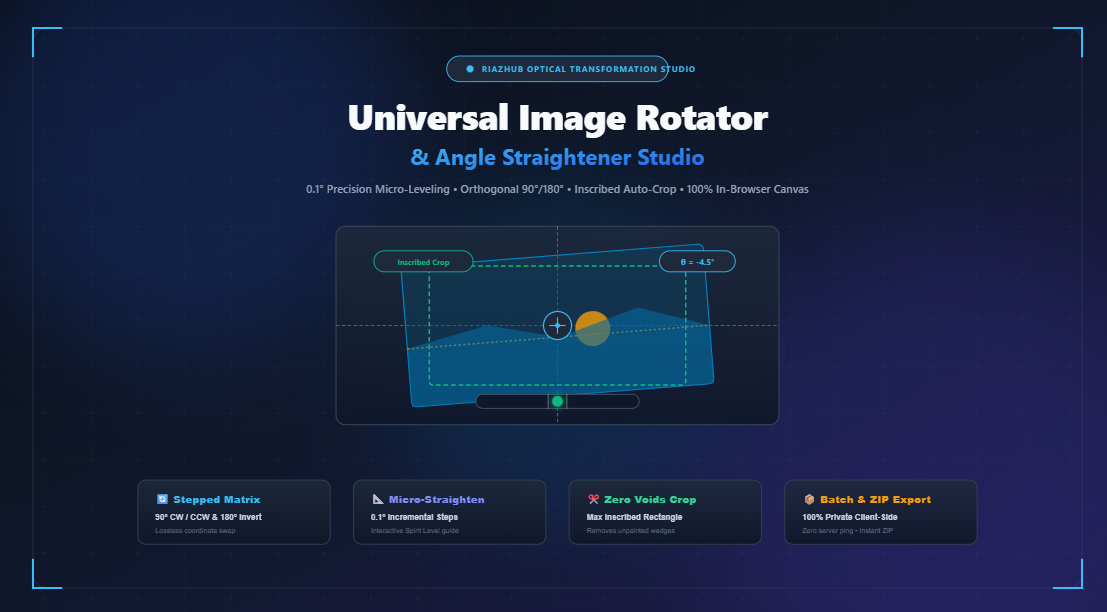
The Complete Guide to In-Browser Image Rotation, Trigonometric Straightening, and Inscribed Cropping
Every photographer, content creator, and digital archivist has encountered the frustration of a crooked photo. Whether it is an ocean sunset whose horizon tips slightly downward, an architectural facade that leans unsettlingly off-vertical, or a document scan captured upside-down on a smartphone, rotated visual artifacts undermine professionalism.
Yet traditional photo editors often force users through clumsy interfaces, lossy re-encoding steps, or heavy software installations just to perform a simple two-degree leveling tweak. Worse still, rotating an image by an arbitrary angle in most basic software leaves behind ugly, black triangular corner voids that demand tedious manual cropping.
To eliminate these bottlenecks, the RiazHub Universal Image Rotator & Angle Straightener introduces an entirely client-side 2D transformation studio. In this deep dive, we will unpack the mathematics of 2D affine rotation, explore how camera EXIF orientation flags work, and explain the algorithmic mechanics of inscribed rectangular auto-cropping.
⚡ Level Your Crooked Photos in Real Time
Straighten horizons with 0.1° micro-precision, auto-crop corner wedges, or rotate images orthogonally by 90°/180° with zero server uploads using the Image Rotator & Angle Straightener on RiazHub.
1. Orthogonal vs. Arbitrary Micro-Angle Rotation
Digital rotation fundamentally splits into two distinct mathematical categories:
A. Orthogonal Stepped Rotation (90°, 180°, 270°)
Orthogonal rotations are discrete grid permutations where pixels are swapped directly along rows and columns. In a 90° clockwise rotation:
- The new image width becomes the original height ($W_{\text{new}} = H_{\text{orig}}$).
- The new image height becomes the original width ($H_{\text{new}} = W_{\text{orig}}$).
- Pixel $(x, y)$ moves to $(H_{\text{orig}} – 1 – y, x)$.
Because pixel coordinates remain on whole integer grid points without fractional intersections, orthogonal rotation does not introduce interpolation blur or triangular boundary voids. It is crisp, exact, and computationally trivial.
B. Arbitrary Micro-Angle Rotation (-45.0° to +45.0°)
Straightening a horizon or architectural pillar requires fractional angular adjustments—frequently between $-3.5^\circ$ and $+2.0^\circ$. Once an angle $\theta$ is not a multiple of 90 degrees, the rectangular boundaries of the original image spin into a tilted diamond inside the Cartesian coordinate space.
This creates two critical challenges that any professional tool must solve:
- Triangular Corner Voids: Empty, unpainted wedges are created between the tilted rectangular photo and the horizontal screen envelope.
- Subpixel Interpolation: Target raster coordinates map to non-integer source pixel locations, requiring bilinear or bicubic filtering to preserve sharpness without aliasing or jagged lines.
2. The Mathematics of 2D Affine Transformation
In classical Euclidean geometry, rotating a point $(x, y)$ around the origin $(0, 0)$ by an angle $\theta$ follows standard trigonometry:
y’ = x \cdot \sin(\theta) + y \cdot \cos(\theta)
However, applying this directly to digital graphics results in clipping, because the image’s origin $(0, 0)$ sits at the top-left corner. Rotating around the top-left corner would swing the majority of the image off-screen into negative coordinate space.
To rotate a photo around its visual center, modern canvas engines like the RiazHub Image Rotator execute a 3-step affine matrix pipeline:
x_c = x – \frac{W_{\text{orig}}}{2}, \quad y_c = y – \frac{H_{\text{orig}}}{2}
Step 2: Apply Trigonometric Rotation Matrix
x’_c = x_c \cdot \cos(\theta) – y_c \cdot \sin(\theta)
y’_c = x_c \cdot \sin(\theta) + y_c \cdot \cos(\theta)
Step 3: Translate to New Canvas Center
x_{\text{final}} = x’_c + \frac{W_{\text{canvas}}}{2}, \quad y_{\text{final}} = y’_c + \frac{H_{\text{canvas}}}{2}
By chaining these matrices inside an offscreen CanvasRenderingContext2D, the rotation occurs cleanly around the image’s centroid, preserving symmetry and visual balance.
3. Eliminating Corner Voids: Inscribed Cropping vs. Canvas Expansion
When you rotate a photograph by $5^\circ$, the canvas expands into a larger bounding box. What should happen to the empty triangular wedges surrounding the tilted edges? The RiazHub Image Straightener provides three distinct mathematical framing modes:
| Framing Mode | Canvas Sizing Formula | Visual Outcome | Best For |
|---|---|---|---|
| Auto-Crop (Inscribed) | $W_{\text{crop}} = \frac{W}{|\cos\theta| + r \cdot |\sin\theta|}$ | Zero corner voids; maximum inner rectangular crop sharing original aspect ratio. | Landscape horizons, ocean panoramas, travel photography. |
| Expand Canvas | $W_{\text{new}} = |W\cos\theta| + |H\sin\theta|$ | 100% of all original pixels preserved; outer bounding box expanded with transparent/colored wedges. | Graphic design, product collages, diamond-angle spins. |
| Background Fill | Matches expanded canvas with custom color or blurred edge cushion. | Corners filled with custom solid hex color or dynamic Gaussian blurred replica of photo. | Social media square posts, artistic framing. |
The Inscribed Rectangle Crop Formula
The most elegant solution for horizon leveling is the maximum inscribed rectangle. Given an image with width $W$, height $H$, and original aspect ratio $r = W / H$, rotating by an angle $\theta$ yields the following inner crop dimensions:
H_{\text{crop}} = \frac{W_{\text{crop}}}{r}
This closed-form trigonometric formula guarantees that the cropped viewport will never touch the empty corner wedges while preserving the original aspect ratio (such as 16:9 or 4:3). It completely replaces the tedious trial-and-error manual cropping required in conventional photo editing apps.
💡 Pro-Tip: Horizon Calibration Dial
Instead of guessing the tilt angle, open the Horizon Dial tab in the RiazHub Image Rotator Tool. Simply drag the guideline to follow the crooked ocean or waterline, and the tool will automatically calculate the angle and level it with one click!
4. Demystifying Smartphone EXIF Orientation Flags
Have you ever taken a photo on an iPhone or Android device that looked perfect on your phone, but appeared sideways or upside-down when transferred to your computer or uploaded to WordPress? This occurs because modern smartphones rarely rotate the physical camera sensor. Instead, the gyroscope records an embedded EXIF orientation tag into the JPEG metadata.
The EXIF specification defines eight distinct orientation values:
| Tag Value | Camera Sensor Physical Position | Required Normalization Action |
|---|---|---|
1 |
Normal (Top is 0°) | No transformation needed. |
2 |
Mirrored Horizontally | Flip horizontal. |
3 |
Upside Down (180° rotation) | Rotate 180°. |
4 |
Mirrored Vertically | Flip vertical. |
5 |
90° CCW + Mirrored Horizontally | Rotate 90° CW + Flip horizontal. |
6 |
Rotated 90° CW (Sideways Portrait) | Rotate 90° CW to display upright. |
7 |
90° CW + Mirrored Horizontally | Rotate 90° CCW + Flip horizontal. |
8 |
Rotated 90° CCW (Sideways Landscape) | Rotate 270° CW (90° CCW) to display upright. |
When you load photos into the RiazHub Angle Straightener, its built-in binary parser scans the JPEG APP1 marker and TIFF header for tag 0x0112. Clicking Auto-Fix EXIF Orientation automatically normalizes the camera angle in milliseconds.
5. How to Straighten Photos Step-by-Step
Follow this rapid workflow to level and export crooked photographs:
- Load Your Photos: Navigate to the RiazHub Image Rotator Studio and drag one or more photos into the dropzone (supports JPG, PNG, WebP, AVIF, BMP, and SVG).
- Correct Orthogonal Orientation: If the photo is sideways or inverted, click
90° CW,90° CCW, or180° Flipto bring it upright. - Calibrate Micro-Tilt:
- Use the fine-angle slider to calibrate between $-45.0^\circ$ and $+45.0^\circ$ with $0.1^\circ$ precision.
- Watch the integrated Virtual Spirit Level; it lights up bright emerald green when the image reaches perfect leveling ($\pm 0.1^\circ$).
- Alternatively, open the Horizon Align Dial tab and drag the guideline across your water or landscape line to auto-measure the exact tilt.
- Select Framing Mode: Choose Auto-Crop to remove triangular corners automatically, or Expand Canvas to preserve all pixel edges.
- Export or Download Batch: Choose your target format (PNG, WebP, or JPEG), adjust the quality slider, and click Download Rotated Image or Download Batch as ZIP.
6. Privacy & Performance: Why In-Browser Processing Matters
Most online converters upload your personal photos to a third-party server where they sit in cloud storage buckets before returning a processed file. This exposes private document scans, smartphone family albums, and confidential graphics to security vulnerabilities and network latency.
The RiazHub Image Rotator & Angle Straightener executes 100% of all matrix transformations, subpixel interpolation, and ZIP compilation directly inside your device’s browser memory using HTML5 Canvas and TypedArrays. Zero bytes of your photographs are ever transmitted across the internet, guaranteeing complete privacy and instantaneous zero-latency exports.
🚀 Ready to Perfect Your Image Angles?
Transform crooked photos into professional, level assets in seconds with zero uploads or installations.
Universal Image Rotator & Horizon Straightener
Rotate photos by 90°/180°, level tilted horizons with 0.1° micro-precision, auto-crop corner voids, and export lossless images or batch ZIP archives in real time.
Batch Rotation Queue
Inspect dimensions, applied angles, and download images individually or in a ZIP archive.
| Preview | Filename | Original | Rotated | Angle | Void Mode | Action |
|---|---|---|---|---|---|---|
| No images loaded yet. Drag photos into the uploader! | ||||||
1. Center-Origin Trigonometric Rotation
Standard Euclidean rotation spins around $(0,0)$. To rotate an image cleanly without clipping off-screen, the 2D affine matrix first translates coordinates to $(W/2, H/2)$, applies the trigonometric rotation, then projects back:
x' = (x - W/2)·cos(θ) - (y - H/2)·sin(θ) + W'/2
y' = (x - W/2)·sin(θ) + (y - H/2)·cos(θ) + H'/2
2. Auto-Crop Inscribed Rectangle (Zero Voids)
Rotating by arbitrary micro-angles (e.g., $3.5^\circ$) creates empty triangular corner wedges. The inscribed rectangle formula calculates the maximum inner dimensions that perfectly fit inside without showing unpainted corners:
r = W / H (Original Aspect Ratio)
W_crop = W / (|cos θ| + r · |sin θ|), H_crop = W_crop / r
3. Expanded Canvas Bounding Envelope
To retain 100% of the image without any crop clipping, the outer canvas bounding envelope is dynamically expanded to envelop the outer tilted perimeter:
W_new = |W · cos θ| + |H · sin θ|
H_new = |W · sin θ| + |H · cos θ|
4. Privacy & Lossless In-Browser Pipeline
All matrix calculations, bilinear interpolations, EXIF tags parsing, and export generation happen directly inside your browser memory using HTML5 Canvas & TypedArrays. Zero data ever leaves your computer.
Client-Side Memory • OffscreenCanvas • Zero Server Ping