
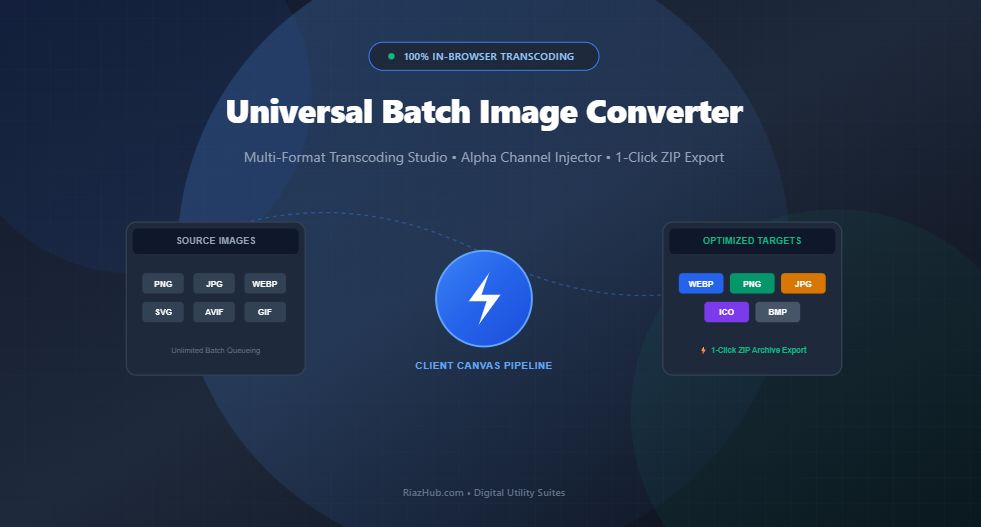
How to Batch Convert & Transcode Images to WebP, PNG, JPG, BMP & ICO Directly in Your Browser
Whether optimizing e-commerce product catalogs for Google Core Web Vitals or packaging multi-size favicons for an app deployment, image format conversion is a daily necessity. Discover how the browser-based Universal Batch Image Converter on RiazHub allows instant, zero-upload transcoding right inside your browser.
Jump straight to the Universal Batch Image Converter Studio to drag, drop, and convert unlimited PNG, JPG, WEBP, AVIF, GIF, BMP, and SVG files with 1-click ZIP archiving.
The Modern Image Format Landscape: Why Web Performance Demands Format Flexibility
In modern web design and digital publishing, images represent over 60% of total web page payload. When websites serve unoptimized legacy graphics, mobile visitors abandon slow pages, bounce rates climb, and search engines penalize rankings under Google’s Core Web Vitals (specifically Largest Contentful Paint – LCP).
However, digital creators often struggle with a fragmented matrix of formats:
- Marketing teams upload massive 10MB JPEG camera masters directly into CMS media libraries.
- Graphic designers export high-fidelity transparent 24-bit PNG logos that cause severe bandwidth bloat.
- Web developers need ultra-lightweight WebP files to maintain sub-second load times.
- App engineers require valid multi-resolution
.icopackages containing 16px, 32px, 48px, and 64px bitmaps for browser bookmarking and Windows desktop environments.
Solving this format fragmentation previously meant switching between heavy desktop software like Photoshop or trusting sensitive corporate imagery to obscure cloud conversion websites. With the RiazHub Batch Image Converter, the entire transcoding pipeline executes locally inside client-side browser memory.
Deep Dive: WebP vs. PNG vs. JPG vs. BMP vs. ICO
Choosing the proper encoding format determines whether an image appears crisp and responsive or sluggish and pixelated. Here is a technical breakdown of each supported target format in the online image transcoding studio:
| Target Format | Compression Algorithm | Alpha (Transparency) | Best Use Case |
|---|---|---|---|
| WEBP | VP8 Predictive / Entropy (Lossy & Lossless) | Yes (Full 8-bit Alpha) | Modern websites, blogs, e-commerce stores, and high-speed web apps (25%–35% smaller than JPEG). |
| PNG | DEFLATE (Zip-based Lossless) | Yes (Full 8-bit Alpha) | Logos, UI badges, sharp line art, vector screenshots, and graphics requiring transparent backgrounds. |
| JPG / JPEG | Discrete Cosine Transform (DCT Lossy) | No (Flattened) | High-resolution photography, print assets, social media banners, and legacy device compatibility. |
| BMP | Uncompressed RGB Bitmap / DIB Header | No (Raster Array) | Embedded hardware interfaces, legacy Windows software, raw machine vision, and uncompressed archival. |
| ICO | Multi-Resource Icon Directory (PNG embedded) | Yes (per icon slice) | Browser tab favicons, web bookmark icons, desktop application shortcuts, and PWA manifests. |
The Alpha Transparency Problem: Why Converting Transparent Images to JPG Causes Black Borders
One of the most common pitfalls in digital image processing occurs when converting a transparent PNG, SVG, or WebP graphic into a JPEG or 24-bit BMP. Because the JPEG and standard BMP specifications possess zero alpha channel channels, the rendering engine must decide what color to place behind transparent pixels.
In most converters, this results in transparent areas turning pitch black (#000000) or creating unsightly dark artifacts around curved anti-aliased logo contours.
To prevent this, the Universal Batch Image Converter incorporates an automated Alpha Transparency Flattening Matte Injector. Prior to drawing the source image, the canvas rasterizer composites a solid background:
- Solid White Matte (#ffffff): The standard web and print default, rendering transparent product photos cleanly on white backgrounds.
- Solid Black Matte (#000000): Ideal for night mode mockups or dark-themed photography.
- Custom Hex Palette Picker: Allows creators to match brand colors or website background hex codes seamlessly.
Why In-Browser Transcoding is Superior to Traditional Cloud Converters
Most legacy online converters operate using server-side pipelines powered by ImageMagick, Libvips, or FFmpeg running on remote Linux servers. While functional, cloud conversion tools present significant drawbacks:
- Data Privacy & Security Hazards: Uploading confidential legal paperwork, unreleased product blueprints, proprietary brand assets, or personal family photos to third-party cloud servers risks data leakage and unauthorized retention.
- Bandwidth & File Size Bottlenecks: Uploading 50 high-resolution camera photos (often exceeding 500 MB) consumes precious upload bandwidth and causes browser timeouts on slower connections.
- Arbitrary Queue Limits: Free cloud services routinely throttle batch jobs to 5 or 10 files per session, forcing users to pay for subscriptions or wait through artificial cooldown timers.
In contrast, the RiazHub Batch Image Converter operates on a 100% Client-Side Architecture. By leveraging HTML5 Canvas 2D rendering contexts, browser FileReader streams, and a native client-side PKZIP packaging routine:
- Images are decoded and re-encoded in your local system’s RAM.
- Zero bytes of your graphic data are ever uploaded to any web server.
- Transcoding happens concurrently at the native speed of your device’s GPU and CPU.
How to Use the Universal Batch Image Converter on RiazHub (Step-by-Step)
Transcoding dozens of files takes under 15 seconds. Follow this straightforward workflow:
Step 1: Open the Transcoding Studio
Navigate to the Universal Batch Image Converter on RiazHub.com. No account registration, API keys, or software downloads are required.
Step 2: Add Images to the Queue
Drag and drop your photos directly onto the interactive uploader zone, or click Select Images. The studio supports all standard input formats: PNG, JPG, JPEG, WEBP, AVIF, GIF, BMP, SVG, and ICO. You can also test the pipeline instantly using the Load Demo Batch button.
Step 3: Select Master Target Format & Compression Settings
In the left parameters panel, choose your master conversion format:
- WEBP: Set the compression slider between 10% and 100% (90% is recommended for the sweet spot between visual fidelity and small file weight).
- JPG: Select your desired quality and pick your Alpha Flattening Matte color for transparent areas.
- PNG: Lossless 24-bit output with transparency fully preserved.
- ICO: Check the desired favicon resolution slices (16×16, 32×32, 48×48, 64×64).
- BMP: Standard uncompressed bitmap raw output.
Pro-Tip: If you need to output a single image in a different format than the rest of the batch, use the Per-Item Format Override dropdown located directly on that image’s queue card.
Step 4: Execute Batch Conversion
Click the primary ⚡ Convert All Queued Files button. The asynchronous pipeline will transcode all files in parallel with animated progress indicators and real-time size delta metrics.
Step 5: Inspect Metrics & 1-Click ZIP Download
Review the results across the 3 interactive tabs:
- Conversion Queue Cards: Individual thumbnail previews with original vs. converted size badges and single-file save buttons.
- Format Comparison Matrix: A tabulated overview comparing dimensions, formats, and exact percentage savings.
- Storage Delta & Stats: Visual summary metrics illustrating total megabytes saved across your batch.
When finished, click 📦 Download All as ZIP. The built-in in-memory archiver packages all converted assets into an uncompressed PKZIP archive and triggers an immediate download.
Frequently Asked Questions (FAQ)
Is there a limit to how many images I can convert at once?
No. Because processing takes place entirely in your local browser’s memory without hitting server limits, you can queue 50+ files at a time depending on your computer’s RAM.
Will converting PNG to WebP reduce visual quality?
At the default 90% quality setting, WebP compression is visually lossless to the human eye while reducing overall file size by 30% to 70%. If you need 100% bit-for-bit mathematical preservation, choose PNG as your target format.
Are my uploaded images stored or logged anywhere?
Never. The RiazHub Batch Image Converter operates strictly on client-side JavaScript. Not a single pixel is ever uploaded to a remote server or stored in a database.
Can I generate a valid favicon.ico from a high-resolution PNG or SVG logo?
Yes! Simply upload your high-resolution PNG or vector SVG graphic, select ICO as your target format, and our multi-resolution generator scales and embeds standard 16px, 32px, 48px, and 64px icons into a single valid .ico container ready for web deployment.
Universal Batch Image Converter
High-performance browser studio to transcode, resize, flatten transparency, and package images across WEBP, PNG, JPG, BMP, and ICO formats with instant 1-click ZIP archiving.
No Images in Queue
Drag & drop photos into the uploader, click "Select Images", or load the instant demo batch.
| Preview | File Name | Source Format | Target Format | Dimensions | Original Size | Converted Size | Variance Delta | Action |
|---|---|---|---|---|---|---|---|---|
| No files converted yet. Add items and click "Convert All". | ||||||||
Batch Compression & Storage Efficiency
Format Distribution in Queue
Image Architecture, Encodings & Transcoding Best Practices
1. Structural Differences Between Modern Raster Formats (WEBP vs PNG vs JPEG vs BMP)
Digital images are stored using distinct raster compression models. PNG is a lossless raster format using DEFLATE compression with full 8-bit alpha channel transparency, ideal for logos and UI graphics. JPEG uses lossy Discrete Cosine Transform (DCT) frequency quantization, making it optimal for high-resolution photographs without transparency. WebP combines predictive frame intra-coding from VP8 with entropy coding, reducing web image payloads by 25% to 35% compared to JPEG/PNG while supporting both lossy/lossless modes and alpha channels. BMP stores raw uncompressed RGB bitmaps directly with Windows DIB headers.
2. Why Alpha Channel Matte Flattening is Required for JPEG & BMP
Unlike PNG or WebP, standard JPEG and 24-bit BMP file specifications have no alpha channel (transparency). When a transparent image is converted without explicit alpha blending, the browser's rasterizer renders transparent pixels as default black (RGB 0,0,0) or causes corrupted edge halos. The RiazHub Transcoder studio applies a 2D composite pass by painting a solid background (White, Black, or custom hex) onto the canvas before drawing the source image, guaranteeing clean anti-aliased borders and professional output.
3. Multi-Resolution Favicon (.ICO) Standards for Web & Windows
An .ico file is not a single image, but an archive container conforming to the Microsoft Windows Icon specification (ICONDIR + ICONDIRENTRY).
It packages multiple sub-raster resolutions into one file: 16x16 for browser address bars and tabs, 32x32 for taskbars, 48x48 for desktop shortcuts, and 64x64 for high-DPI displays.
Our built-in engine scales your graphic down using high-quality bi-cubic canvas filtering and embeds PNG-compressed streams into a single valid .ico container.
4. Privacy & Security Architecture: 100% In-Browser In-Memory Transcoding
Conventional online image converters upload your files to remote cloud servers for batch processing via ImageMagick or FFmpeg, posing privacy risks for confidential documents, brand assets, and personal photos.
This studio operates 100% inside your local web browser using native HTML5 Canvas, FileReader, and an embedded PKZIP binary packager. Zero bytes of your images ever leave your computer.