
How to Merge & Combine Video Clips Online (100% Free & Private)
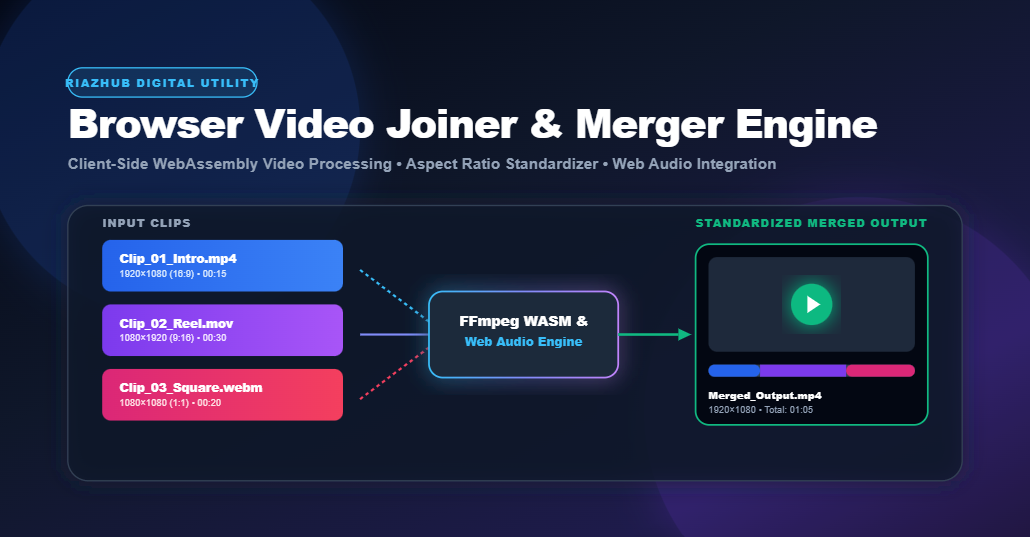
Combining video clips into a single seamless video file traditionally required installing bulky desktop video editing suites or uploading massive video files to remote cloud servers. RiazHub’s Browser-Based Video Joiner / Merger provides a client-side alternative powered by WebAssembly (FFmpeg WASM) and Web Audio API technology. This tool processes 100% of video decoding, aspect ratio scaling, track concatenation, and container encoding directly inside your browser sandbox. Your video files never leave your device, ensuring maximum privacy, zero bandwidth waste, and high-speed local processing for MP4, WebM, MOV, AVI, MKV, and FLV video clips.
In modern content creation—whether producing YouTube tutorials, Instagram Reels, TikTok videos, corporate presentations, or personal home movies—merging separate video segments into a unified video is one of the most common tasks. However, relying on traditional cloud-based video converters introduces significant privacy concerns, long upload wait times, restrictive file size limits, and aggressive watermarking.
The RiazHub Browser Video Joiner & Merger resolves these challenges by bringing high-performance video processing directly into your web browser. In this comprehensive guide, we will explore the technical underpinnings of client-side WebAssembly video concatenation, resolution standardizing, aspect ratio fitting modes, audio mixing architectures, and step-by-step instructions for getting the best results.
1. The Architecture of In-Browser WebAssembly Video Processing
Historically, web browsers lacked the raw computational capacity to perform heavy video rendering or stream muxing locally. Developers were forced to transmit raw video files across the network to server clusters equipped with FFmpeg or GPU hardware.
The introduction of WebAssembly (WASM) changed web engineering forever. By compiling FFmpeg’s low-level C codebase into WebAssembly bytecode, the RiazHub Video Joiner executes native multimedia pipelines directly inside your browser’s V8 or JavaScript engine sandbox:
When you select video files in the RiazHub Video Joiner Tool, FileReader reads the files into RAM ArrayBuffers and writes them to an in-memory Virtual File System (Emscripten FS). FFmpeg WASM filtergraphs read these memory blocks directly, ensuring zero disk writing latency and 100% data privacy.
2. Solving Aspect Ratio & Resolution Mismatches
One of the most frustrating aspects of joining video clips captured from different devices (e.g., an iPhone portrait video combined with a 1080p camera landscape clip) is mismatched dimensions. If left unstandardized, merged videos will display distorted stretching or sudden aspect ratio jumps.
The RiazHub Video Joiner Tool features an automated Canvas & Resolution Standardizer that harmonizes all queued clips into a consistent output canvas:
Standard Target Resolutions
- Match First Video Clip (Auto): Automatically inherits the resolution and aspect ratio of your first uploaded clip.
- 16:9 Landscape (1080p – 1920×1080): Standard widescreen format for YouTube, TV screens, and desktop displays.
- 9:16 Portrait (Reels / Shorts – 1080×1920): Vertical orientation optimized for Instagram Reels, TikTok, and YouTube Shorts.
- 1:1 Square (Social Media – 1080×1080): Balanced square canvas popular on Instagram feed posts and LinkedIn.
- 4:3 Classic (1440×1080): Traditional video standard for classic content and retro displays.
Canvas Fitting Modes
- Letterbox (Fit with Black Bars): Preserves the full visible frame of every video clip without cropping, placing neat black pillarboxes or letterboxes where dimensions differ.
- Crop to Fit (Fill Canvas): Scales video clips to fill the entire target canvas dimensions, trimming excess outer edges for a seamless full-screen presentation.
- Stretch to Fit: Forces all video frames to stretch to the selected dimensions without padding or cropping.
3. Fast Stream Copy vs. Full Transcoding Modes
Depending on your source video clips, the RiazHub Video Merger provides two powerful export modes:
If all your uploaded video clips share identical video codecs (e.g., H.264), audio codecs (AAC), resolutions, and frame rates, selecting Fast Concatenation bypasses re-encoding entirely. It generates an in-memory stream manifest (-f concat -c copy) to splice streams in seconds with 0% quality loss.
If your clips originate from mixed sources, formats, or resolutions, Full Transcode builds a dynamic complex filtergraph (scale=w:h, pad=w:h, transpose=rot) to re-encode all frames and audio tracks into a uniform MP4 (H.264/AAC) or WebM (VP8/Opus) container.
4. Web Audio API Integration & Sound Retention
A common issue with browser canvas video stitchers is lost audio tracks. Simple HTML5 canvas recording only captures visual pixels, producing silent output videos.
The RiazHub Video Joiner solves this by combining Web Audio API’s AudioContext and createMediaStreamDestination() nodes. As clips render, their audio outputs are intercepted via createMediaElementSource(video) and routed directly into the MediaRecorder stream. You can choose to:
- Merge All Audio Tracks: Retains full original sound across all clips.
- Mute Audio / Remove Sound: Strip out all audio tracks for silent reel generation.
- Standardize Audio Bitrate (128k / 192k): Normalize sound quality across merged segments.
5. Step-by-Step Guide: How to Join Video Clips on RiazHub
-
1Access the Tool
Open the RiazHub Video Joiner & Merger Tool on any desktop computer, laptop, tablet, or smartphone browser.
-
2Add Your Video Files
Drag and drop your video files into the upload box or click to select files. Supported input formats include MP4, WebM, MOV, AVI, MKV, and FLV.
-
3Re-order & Rotate Clips
Use the queue controls to move clips up/down, apply 90° rotation to fix sideways smartphone clips, or preview individual clips in a pop-up modal.
-
4Customize Canvas & Output Settings
Select your target aspect ratio (16:9, 9:16, 1:1, 4:3), canvas fitting mode (Letterbox or Crop), container format (MP4/WebM/GIF), and audio preference.
-
5Merge & Download
Click Merge & Download Video. Monitor real-time status updates and progress percentage, and your merged file will instantly save to your device.
6. Frequently Asked Questions (FAQ)