
The Ultimate Guide to Image Alt Text: How to Audit, Eliminate Screen Reader Clutter, and Comply with WCAG 2.2
Images make digital content engaging, memorable, and visually compelling. However, for more than 285 million visually impaired internet users worldwide who rely on screen readers like NVDA, JAWS, or Apple VoiceOver, an unoptimized image is either an impenetrable wall of silence or an exasperating flood of robotic file URLs.
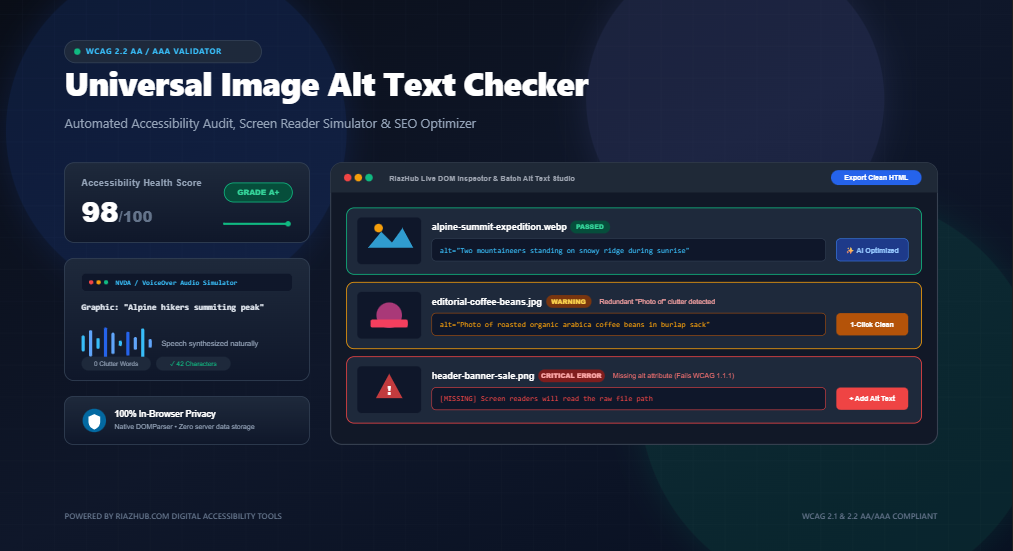
In this comprehensive guide, we will unpack the mechanics of image alternative text (alt text), dissect the requirements of WCAG 2.1 & 2.2 Guideline 1.1.1 (Non-text Content), identify the most destructive copywriting mistakes, and demonstrate how you can immediately audit your web pages using the browser-based Universal Image Alt Text Checker & Accessibility Audit Studio on RiazHub.
An <img> element without an alt attribute violates WCAG 1.1.1 Level A. Screen readers have no choice but to read out the full, scrambled file path (e.g., “Graphic: slash wp-content slash uploads slash DSC_0921 dot png”). You can check your site in seconds with the RiazHub Image Alt Text Checker.
1. What Is Image Alt Text and Why Does It Matter?
Alternative text—commonly referred to as an “alt tag” or “alt attribute” is HTML markup added to an image element (<img src="..." alt="...">) to describe the appearance and function of the graphic on a web page.
Alt text serves three distinct, critical functions across modern web architecture:
- Digital Accessibility (a11y): Screen readers synthesize written alt text into synthesized voice output or braille displays for blind and low-vision visitors.
- Network Resilience & Data Fallback: If a visitor has a poor internet connection or images fail to load due to a CDN timeout, browsers display the alt text in place of the missing graphic.
- Search Engine Optimization (Image SEO): Search engine crawlers (like Googlebot) cannot “see” images with human eyes. Alt text provides semantic context, helping your photos and diagrams rank prominently in Google Image Search and Core Web Vitals contextual indexing.
2. Understanding WCAG Guideline 1.1.1 (Non-text Content)
The Web Content Accessibility Guidelines (WCAG 2.1 & 2.2), managed by the World Wide Web Consortium (W3C), form the international gold standard for accessibility legislation, including the Americans with Disabilities Act (ADA Title III), Section 508, and the European Accessibility Act (EAA).
Guideline 1.1.1 states: “All non-text content that is presented to the user has a text alternative that serves the equivalent purpose.”
Depending on how an image functions within the DOM, WCAG divides images into distinct categories:
| Image Type | Purpose & Usage | Correct Alt Text Implementation |
|---|---|---|
| Informative | Conveys editorial information, context, or visual instructions not present in text. | Concise, descriptive text: alt="Two developers reviewing code on a laptop" |
| Decorative | Stylistic flourishes, dividers, background patterns, or duplicate visual cues. | Empty null attribute: alt="" or role="presentation" |
| Functional | Clickable images that initiate actions (e.g., logo linking home, search icon button). | Describes destination/action: alt="RiazHub Home" or alt="Submit Search" |
| Complex Graphic | Data charts, detailed infographics, architecture schematics, or maps. | Short alt summary + detailed text breakdown in adjacent paragraphs or table. |
If you are unsure whether your website graphics are categorized properly, paste your HTML markup directly into the Image Alt Text Checker & Accessibility Studio to automatically evaluate compliance across all categories.
3. How Screen Readers Actually Announce Images
Understanding how assistive technologies interpret your markup is the secret to crafting world-class alt text. Popular screen readers such as NVDA (Windows), JAWS (Windows), and Apple VoiceOver (macOS / iOS) read images using predefined synthesized patterns.
When a screen reader encounters an <img> element, it announces the HTML element role first by stating “Graphic” or “Image” before reading the alt text.
Code:
alt="Image of blue running sneakers"
What Screen Reader Speaks Aloud:
“Graphic: Image of blue running sneakers”
The visitor hears “Graphic: Image of”, creating irritating, time-wasting repetition.
Code:
alt="Blue lightweight mesh running sneakers"
What Screen Reader Speaks Aloud:
“Graphic: Blue lightweight mesh running sneakers”
Natural, concise, and delivers instant editorial context without clutter.
You can experience this firsthand using the built-in Screen Reader Speech Simulator inside the Universal Image Alt Text Checker, which leverages browser speech synthesis to play aloud the exact auditory transcript heard by assistive tech users.
4. The Top 6 Image Alt Text Mistakes (and How to Fix Them)
1. Completely Omitting the alt Attribute
This is the single most severe accessibility failure under WCAG 1.1.1. When an <img> tag has no alt attribute at all, screen readers attempt to guess what the image is by reading out the raw source URL:
<!-- CRITICAL ACCESSIBILITY VIOLATION -->
<img src="/assets/uploads/2026/08/IMG_849204_compressed.jpg">
<!-- Screen Reader Speaks: "Graphic: slash assets slash uploads slash 2026 slash 08 slash IMG_849204..." -->
The Fix: Every image MUST have an alt attribute. If the image is purely decorative, use alt="". If it is informative, write a crisp description.
2. Using Phrases Like “Image of”, “Photo of”, or “Graphic Depicting”
As explained above, screen readers already announce the presence of an image. Starting your description with “Picture of…” or “Graphic showing…” is redundant.
The Fix: Remove introductory nouns and describe the subject directly. Use RiazHub’s Alt Text Validator to automatically flag and strip redundant clutter in 1 click.
3. Dumping Raw Filenames into the Alt Attribute
Content management systems (like WordPress or Shopify) sometimes auto-fill the alt field with the uploaded file name if the author leaves it blank. This results in horrific descriptions like alt="DSC_00294.jpg" or alt="banner-final-v2-edit.png".
The Fix: Replace filenames with descriptive human language describing what the graphic actually communicates.
4. Exceeding the 125-Character Screen Reader Threshold
Most modern screen readers stop reading or break into multiple speech chunks around 125 to 150 characters. If your alt text is an essay of 300 words, it will frustrate visitors and disrupt reading cadence.
The Fix: Keep alt text concise (typically under 125 characters). If a chart or infographic requires detailed analysis, place that explanation directly into the article’s body text or a table caption.
5. Keyword Stuffing for SEO
cramming search keywords into alt tags (e.g., alt="cheap shoes best shoes discount footwear buy shoes online free shipping") not only ruins accessibility for blind visitors, but it also triggers Google’s Search Spam Policies, leading to keyword stuffing penalties.
The Fix: Write natural sentences that fit the surrounding context. Keywords should appear only if they accurately describe the graphic.
6. Reusing Identical Alt Text Across Distinct Images
Having five different photos on a product page all tagged with alt="Running Shoes" provides zero differentiating context to a blind shopper trying to understand product angles, colorways, or sole patterns.
The Fix: Clarify the distinct perspective: “Side profile of blue running shoe highlighting cushioned sole” vs. “Top view showing breathable engineered mesh upper”.
5. How to Audit Your Website with the Universal Image Alt Text Checker
Conducting manual image audits across dozens of blog posts or hundreds of e-commerce catalog items is painfully slow. The Universal Image Alt Text Checker & Accessibility Studio on RiazHub automates this workflow directly inside your browser:
- Select Your Ingestion Method:
- Paste HTML Source: Paste raw HTML snippets, WordPress post content, or full page source.
- Scan Webpage URL: Enter any public URL to scrape and parse images via client-side proxy.
- Batch Local Image Uploader: Drop local JPG, PNG, WEBP, SVG, or GIF assets to analyze filename semantics before publishing.
- Live Alt Text Writer: Craft individual descriptions with real-time character meters and readability scoring.
- Run the Automated Heuristic Audit:
The client-side DOM engine audits your images against WCAG 2.1 & 2.2 rules in sub-milliseconds, calculating a comprehensive 0–100 Accessibility Health Score. - Inspect Issues & Simulate Screen Reader Audio:
Review errors (missing alt tags, filenames in alt) and warnings (redundant phrases, length violations). Switch to the Screen Reader Simulator to listen to exact VoiceOver/NVDA speech output. - Inline Fix & Export Clean HTML:
Edit descriptions directly inside the audit cards. Once satisfied, click “Copy Cleaned HTML” to paste your accessible markup directly back into WordPress, or export a detailed CSV / JSON report for client QA audits.
6. Frequently Asked Questions (FAQ)
Does every image require an alt tag?
Yes. Every <img> element in HTML must contain an alt attribute. However, not every image needs descriptive words. Purely decorative images (such as divider lines or background shapes) should have an empty attribute (alt="") so screen readers silently ignore them.
What is the ideal character length for alt text?
The sweet spot is between 40 and 125 characters. Keeping text under 125 characters prevents screen readers from splitting sentences awkwardly and ensures optimal mobile readability.
Can I use punctuation inside alt text?
Yes! Screen readers use periods, commas, and question marks to add natural pauses and intonation to synthesized speech. Always end your alt text with a period if it forms a complete thought.
Is my image data kept private when using RiazHub’s tool?
Absolutely. The Universal Image Alt Text Checker runs 100% client-side using your browser’s native DOMParser. No proprietary images, confidential HTML snippets, or audit data are ever stored or uploaded to an external server.
7. Summary: Building an Inclusive, SEO-Friendly Web
Accessible web design is not a luxury or an afterthought it is a foundational principle of modern web engineering. Writing thoughtful, descriptive alt text ensures that your digital experiences are welcoming to every visitor, regardless of physical ability or assistive device.
Make image auditing a standard part of your pre-publishing routine. Bookmark the Image Alt Text Checker & Accessibility Audit Studio on RiazHub to verify every blog post, product catalog, and landing page with speed and confidence.
Universal Image Alt Text Checker & Accessibility Studio
Scan web pages, HTML snippets, or image batches to detect missing alt text, eliminate screen reader clutter, and audit WCAG compliance in real time. 100% private, client-side browser execution.
No Images Audited Yet
Paste HTML source, enter a webpage URL, or click "Load Sample Blog HTML" to launch the audit.
| Thumbnail | Filename / Path | Current Alt Text | Length | WCAG Status | Quick Actions |
|---|
📚 Web Content Accessibility Guidelines (WCAG 2.2) & Screen Reader Master Guide
Assistive screen readers like NVDA, JAWS, and Apple VoiceOver automatically announce "graphic", "image", or "photo" whenever they encounter an <img> element in the DOM.
If your alt text begins with "Picture of our team celebrating", the screen reader reads aloud: "Graphic: Picture of our team celebrating". This redundant clutter degrades comprehension for blind and low-vision users. Always jump straight to the description (e.g., "Team members celebrating quarterly success at annual retreat").
Informative Images: Convey functional information, diagrammatic data, or editorial context that is not duplicated in adjacent body copy. These require concise, context-rich alt text.
Decorative Images: Graphic dividers, aesthetic flourishes, background patterns, or icons paired with clear text labels (such as a search magnifying glass beside the word "Search"). Under WCAG 1.1.1, decorative graphics must have an empty attribute (alt="") or role="presentation" so screen readers completely skip them without distracting the user.
Most popular screen readers truncate image alt text reading or force break into multiple chunks around 125 to 150 characters. Keeping descriptions within this threshold ensures crisp, digestible communication.
From an SEO perspective, Google Image Search and Core Web Vitals evaluate alt text to understand visual content and semantic page intent. Avoid keyword stuffing (e.g., "cheap shoes, buy shoes online, discount shoes"). Instead, write natural, context-specific descriptions that seamlessly integrate your primary topic.
All parsing, attribute inspections, lexical heuristics, screen reader speech generation, and report downloads run strictly inside your local web browser using native DOMParser and modern Web APIs. No private code snippets, proprietary images, or audit reports are ever logged or transmitted to external servers.