
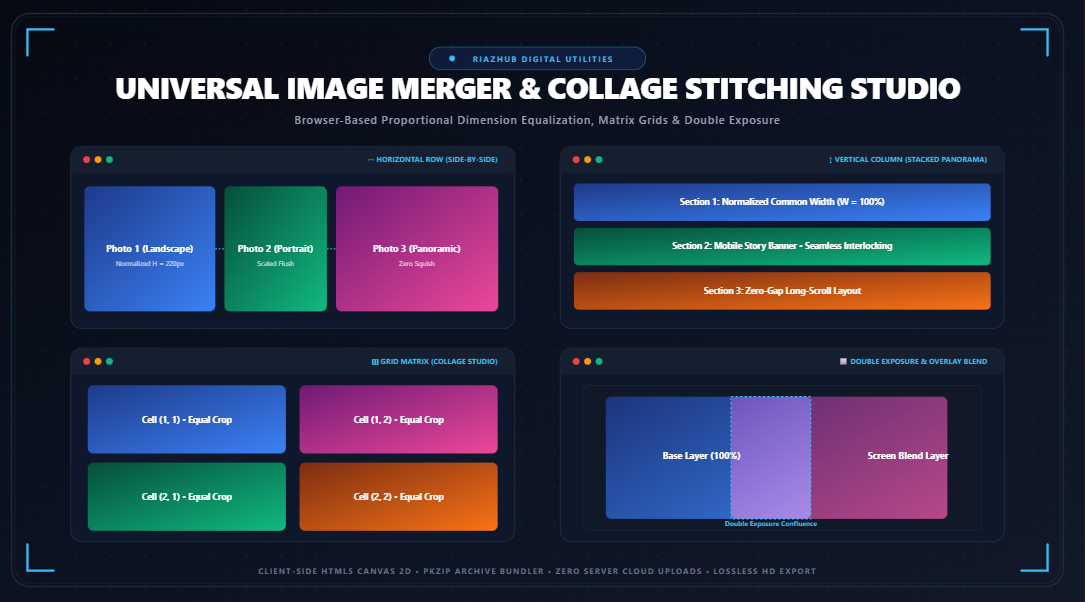
Universal Image Merger & Collage Stitching Studio: How to Combine Photos Horizontally, Vertically, and in Dynamic Grids with Auto-Alignment
Whether you are preparing a compelling before-and-after case study for a product landing page, organizing a four-photo collage grid for an Instagram carousel, stacking panoramic landscape photos into an editorial vertical story, or assembling complex e-commerce product catalogs, combining multiple photographs into a single harmonious graphic has historically been a frustrating challenge. Desktop graphic design suites like Adobe Photoshop are complex, subscription-heavy, and overpowered for rapid stitching tasks, while conventional web-based photo joiners suffer from severe privacy compromises, invasive watermarks, destructive pixel stretching, or heavy server compression.
The Universal Image Merger & Collage Stitching Studio by RiazHub solves this problem fundamentally. Engineered as an ultra-fast, zero-server, hardware-accelerated canvas utility, the tool lets creators stitch unlimited JPG, PNG, WEBP, AVIF, SVG, BMP, and GIF images across horizontal rows, vertical stacks, multi-column grid matrices, and double-exposure overlay blends—completely inside your browser without uploading a single byte to external servers.
Why Traditional Image Combining Breaks: The Challenge of Mismatched Dimensions
When you attempt to place two or more images side-by-side without mathematical normalization, the browser or desktop software must make an arbitrary decision about how to reconcile different native dimensions. Consider combining a high-resolution portrait photograph ($3000 \times 4000\text{ px}$) alongside a standard landscape capture ($1920 \times 1080\text{ px}$):
- Naive Horizontal Concatenation: Placing them next to each other creates a massive black or empty void under the smaller landscape photo, or worse, squishes the portrait photograph vertically, resulting in ridiculous facial and optical distortion.
- Arbitrary Force-Stretching: Forcing both photos into identical bounding boxes without computing their true aspect ratios completely breaks their visual geometry.
- Cloud Server Compression: Free online uploaders often downscale both images to low-resolution $72\text{ DPI}$ previews to save their backend server storage, destroying valuable photographic sharpness and metadata.
The Universal Image Merger Studio eliminates these pitfalls through intelligent geometric normalization math executed via HTML5 Canvas 2D matrix transformations.
The Mathematics of Proportional Aspect Normalization
To preserve photographic fidelity without cropping or squishing, the merger utility utilizes proportional scaling formulas dynamically derived from the queue’s largest baseline element.
1. Horizontal Row Alignment (Flush Height Normalization)
When merging images sequentially from left to right, all individual images must share a uniform canvas height. The studio identifies the maximum native height ($H_{target}$) among all queued images:
H_target = max(H_1, H_2, …, H_n)
// 2. Compute proportional scaling factor for image i
S_i = H_target / H_i
// 3. Calculate the scaled width preserving original aspect ratio
W_scaled = round(W_i * S_i)
// 4. Compute overall merged canvas width
W_canvas = sum(W_scaled) + (n – 1) * Gap + (2 * Padding)
Because $S_i$ scales both horizontal and vertical axes equally, every photo in the horizontal row maintains 100% of its native optical proportions.
2. Vertical Column Alignment (Flush Width Normalization)
Conversely, when stacking photos vertically (popular for web infographics, comic strips, and long-scroll smartphone stories), all queued items must align to a uniform width:
W_target = max(W_1, W_2, …, W_n)
// 2. Compute proportional scaling factor for image i
S_i = W_target / W_i
// 3. Calculate scaled height
H_scaled = round(H_i * S_i)
// 4. Compute overall merged canvas height
H_canvas = sum(H_scaled) + (n – 1) * Gap + (2 * Padding)
Three Specialized Sizing & Fit Modes: Which Should You Choose?
Depending on whether you are designing for a clean print document, an interactive web layout, or a strict square social grid, you can toggle between three distinct sizing engines on the Image Merger Studio:
| Fit Mode | How It Works | Best Used For | Pixel Preservation |
|---|---|---|---|
| Scale to Match | Dynamically scales each photo proportionally until its edge matches the common baseline row height or column width. | Before & After photo comparisons, panoramic landscapes, side-by-side website hero graphics. | 100% Lossless (Zero pixels cropped). |
| Crop to Fill Cells | Computes optical center coordinates $(W_{src} – W_{crop}) / 2$ to uniformly fill equal-sized square or $4:3$ grid matrix tiles. | Instagram photo collages, team directory headshots, Pinterest boards. | Destructive cropping at outer margins to preserve tight uniform grids. |
| Pad / Letterbox | Centers the original photo within the target bounding box and pads the negative gutters with your chosen canvas color or alpha. | E-commerce product specifications, Amazon listing graphics, artwork with strict boundaries. | 100% Lossless (Zero cropped pixels + vector canvas padding). |
Mastering the 4 Merge Topologies
1. Horizontal Row (Side-by-Side)
Arranges queued images sequentially left-to-right. Using the “Scale to Match” engine, portrait and landscape orientations sit seamlessly adjacent to one another with flush top and bottom borders. Perfect for client testimonials, medical before/after documentation, and software interface comparisons.
2. Vertical Column (Stacked)
Arranges queued images top-to-bottom. The normalized width guarantees seamless scrolling on mobile screens. By setting the inter-image gap to $0\text{px}$, you can create flawless seamless vertical panoramic banners and long-form web comics.
3. Grid Matrix (Collage Maker)
Organizes photos into a balanced $N \times M$ matrix grid with configurable columns ranging from $2$ to $6$ columns. Coupled with the “Corner Border Radius” slider, it produces magazine-grade mood boards, portfolio galleries, and photo-booth style prints in seconds.
4. Overlay Blend (Double Exposure Studio)
Superimposes queued layers on top of one another on a unified canvas stage. By selecting between 8 composite blend operations—including Screen, Multiply, Overlay, Color Dodge, and Difference—and tuning the layer opacity slider, you can craft artistic double-exposure portraits, watermark overlays, and cinematic visual blends right in your browser.
💡 Pro Tip: You can test all four layouts instantly with demo graphics using the “Load Sample Images” button on the Image Merger Studio.
Dynamic Border, Spacing & Background Customization
Great graphic design is defined by whitespace and framing. The RiazHub studio provides fine-grained control over every spatial dimension:
- Inter-Image Gap Slider ($0\text{px}$ to $80\text{px}$): Controls the precise gutter between photos. Setting this to $0\text{px}$ yields a zero-gap seamless tile, while $12\text{px}$ to $20\text{px}$ creates modern airy spacing.
- Outer Canvas Padding ($0\text{px}$ to $80\text{px}$): Adds a clean frame around the entire composite.
- Smooth Corner Border Radius ($0\text{px}$ to $40\text{px}$): Smoothly clips image corners using quadratic Bezier canvas paths, transforming harsh rectangular cutouts into elegant modern cards.
- Canvas Fill Options: Choose between true transparent alpha (essential for PNG web icons and e-commerce assets) or select solid background colors including Pure White ($#\text{FFFFFF}$), Deep Midnight ($#\text{0F172A}$), Soft Slate ($#\text{F1F5F9}$), or any custom color via the built-in color picker.
Interactive Pan/Zoom Viewport & Social Collage Mockups
Merging multiple ultra-high-resolution $4\text{K}$ or $8\text{K}$ photographs generates massive composite canvases that often exceed physical monitor resolutions. The Universal Image Merger features an interactive canvas viewport equipped with:
- Pan & Zoom Controls: Zoom in up to $500\%$ to inspect microscopic stitch boundaries, or zoom out to view the entire composite at a glance. You can also click and drag with your mouse or swipe on touchscreens to pan freely across the stage.
- Collage Mockup Preview Tab: View how your stitched creation will look in the wild before publishing. Switch seamlessly between realistic simulated Instagram Post, Facebook Feed, and X (Twitter) cards.
- Asset Manifest Table: A technical breakdown listing original filenames, raw dimensions ($W \times H$), scaled render sizes, calculated aspect ratios, and individual file weights.
Zero-Server Privacy Guarantee & In-Memory ZIP Packager
In an era where web utilities frequently scrape user uploads for AI training datasets or store sensitive personal documents on remote cloud storage buckets, client-side safety is paramount. The Universal Image Merger & Collage Stitching Studio executes 100% of calculations inside your browser using HTML5 Canvas (`2DContext`), typed arrays (`Uint8Array`), and native modern Web APIs:
- Zero photos are transmitted over the internet or written to remote servers.
- Medical scans, legal contracts, family snapshots, and proprietary product photos remain completely confidential on your device.
- In-Memory PKZIP Exporter: When downloading multiple assets, the tool compiles both the composite merged graphic and all individual source files into a valid `.zip` archive compiled directly in browser RAM, ensuring instant downloads without latency or data caps.
- 1-Click Clipboard Copy: Copy your final stitched image directly to your operating system clipboard with a single click, allowing instant pasting into Slack, Figma, Word, Photoshop, or social chats without cluttering your local downloads folder.
Step-by-Step Workflow: How to Stitch Your First Photo Composite
- Navigate to the Universal Image Merger & Collage Stitching Studio on RiazHub.com.
- Drag and drop your images into the upload dropzone, click “Select Images”, or press Ctrl+V (Cmd+V on macOS) to paste directly from your clipboard.
- In the Image Sequence Tray, drag thumbnail handles or click the arrow buttons to arrange the exact sequence. Click the $\circlearrowright$ button to rotate any individual photo by $90^\circ$.
- Select your desired Layout Topology (Horizontal Row, Vertical Stack, Grid Matrix, or Overlay Blend).
- Adjust your Gap, Padding, and Corner Radius sliders to taste.
- Choose your canvas background (Transparent PNG or Solid Color).
- Switch to the Collage Mockup tab to verify social feed appearance.
- Click “Download Merged Image” or “Copy to Clipboard” to grab your completed masterpiece!
Frequently Asked Questions (FAQ)
Can I combine photos of completely different resolutions and dimensions?
Yes! The core strength of the Image Merger Studio is its geometric normalization engine. In Horizontal mode, it automatically scales smaller and larger photos to share the exact same height without distortion. In Vertical mode, it normalizes widths flush.
Will merging my images reduce their sharpness or quality?
No. All canvas matrix operations calculate high-precision floating-point transformations. When exporting as PNG, the output is completely lossless. When choosing WebP or JPEG, you can dial the quality slider up to $100\%$ for pristine visual fidelity.
Is there a limit to how many images I can merge?
Because all processing is hardware-accelerated by your local device’s GPU and browser memory, you can easily queue dozens of photos simultaneously (tested smoothly up to 50+ high-resolution photographs).
Does this tool work on mobile devices and tablets?
Yes. The studio is 100% fluid and responsive. You can upload photos directly from your iPhone, iPad, or Android gallery, pan and zoom across the preview stage with touch gestures, and download the finished composite straight to your camera roll.
Ready to create stunning photo stitches and collages?
Experience seamless aspect-ratio normalization, real-time pan/zoom, and lossless export.
Open Universal Image Merger Studio →
Universal Image Merger & Stitching Studio
Combine multiple photos horizontally, vertically, or into uniform grids with custom spacing, auto-alignment, and instant high-res export.
When merging images horizontally, differing native heights create awkward letterboxing unless mathematically scaled. The studio calculates a target baseline height Htarget = max(H1, H2, ..., Hn). For each individual image i, the scaling multiplier is Si = Htarget / Hi, and the normalized rendered width is Wscaled = round(Wi × Si). This preserves 100% of optical proportions without squishing or stretching pixels.
Scale to Match expands or contracts each photo so they align flush along the shared baseline. Crop to Fill computes optical center coordinates (Wsrc - Wcrop) / 2 to uniformly fill identical square or 4:3 grid cells—ideal for Instagram carousels. Pad / Letterbox preserves every single pixel of mixed portrait and landscape originals by centering them inside normalized bounds and filling negative gutters with your chosen solid canvas color or transparent alpha.
The canvas rendering engine uses hardware-accelerated 2D context buffers. For ultra-wide panoramas exceeding standard viewport dimensions (up to 8,000+ pixels wide), interactive CSS matrix transforms allow smooth pan-and-zoom inspection without allocating redundant high-resolution raster copies in DOM memory until final rasterization.
Every step of image decoding, matrix transformation, color blending, rounded corner path clipping, and binary ZIP archiving occurs entirely inside your visitor's browser memory. Zero files, photo metadata, or generated graphics are ever uploaded to RiazHub.com servers or external cloud endpoints.