
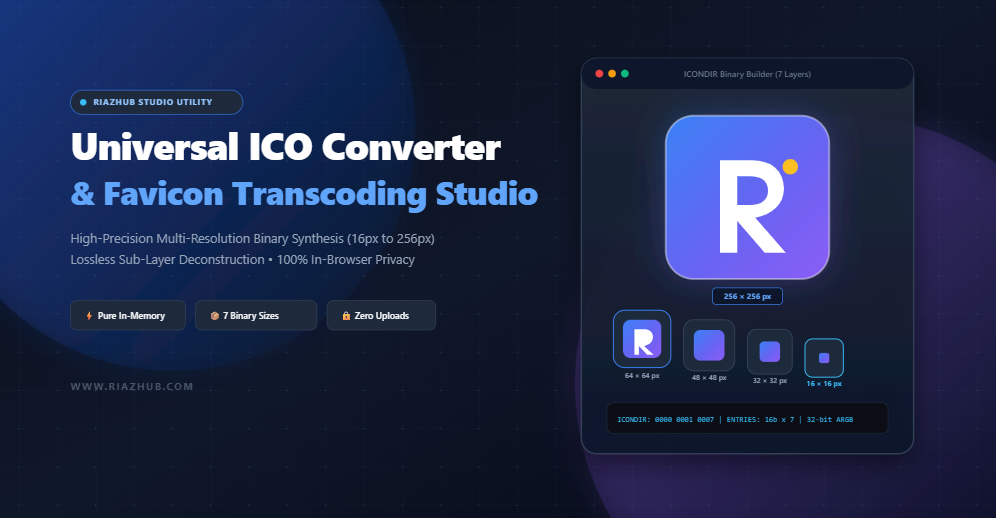
The Ultimate Guide to Multi-Resolution Windows Icons and Favicons: Binary Architecture, Layer Deconstruction, and In-Browser Synthesis
In modern digital product design, few graphical assets perform as much heavy lifting across as many divergent contexts as the humble icon. Whether serving as a crisp 16×16 pixel micro-anchor in a crowded browser tab, an elevated 48×48 pixel application shortcut on a user’s Windows desktop, or a rich 256×256 pixel jumbo tile in the Windows 11 File Explorer, an icon must balance pristine visual clarity with flawless technical compatibility.
Yet, despite being ubiquitous across operating systems and web browsers for over three decades, the internal binary specification of the Microsoft Windows Icon (.ICO) container remains widely misunderstood. Many developers and webmasters still generate single-resolution, blurry raster files that break when scaled or produce jagged edges on high-DPI retina monitors.
To eliminate these friction points, RiazHub developed the Universal ICO Converter & Favicon Studio a next-generation, client-side utility that compiles, previews, and deconstructs multi-resolution .ICO binaries directly inside your browser. In this comprehensive technical guide, we will unpack how the .ICO format functions at the byte level, examine why multi-layer synthesis is critical, and demonstrate how you can effortlessly streamline your asset pipeline.
1. What Makes the .ICO Container Unique?
Unlike conventional single-image formats such as JPEG, WebP, or standard standalone PNGs, a Windows Icon file (.ICO) is not a single raster canvas. Instead, it is an envelope container capable of encapsulating multiple distinct, pre-rendered raster images at varying pixel dimensions and color depths.
When an operating system (like Windows 10 or 11) or a web browser (such as Google Chrome, Mozilla Firefox, or Microsoft Edge) requests an icon, it does not dynamically blur or blindly resize a single image on the fly. Doing so would destroy crisp pixel grid alignments, blur 1-pixel borders, and render text illegible. Instead, the OS or browser parser inspects the internal directory table of the .ICO binary, scans for the exact pixel dimension that fits the target display surface, and renders that specific sub-layer pixel-for-pixel.
If your icon container lacks these dedicated sub-resolutions, the operating system is forced to extrapolate and interpolate pixels, resulting in the dreaded “muddy icon” phenomenon. Using the online ICO Converter tool on RiazHub, developers can package all standard resolution layers into a single cohesive binary file with one click.
2. Inside the Binary Stream: ICONDIR and ICONDIRENTRY Structures
To understand how an icon works under the hood, let us inspect its low-level binary anatomy. An .ICO file adheres to a standardized binary layout comprising three core segments:
- The ICONDIR Header: A fixed 6-byte sequence at the very beginning of the file.
- The ICONDIRENTRY Directory Table: A contiguous sequence of 16-byte descriptors—one for each embedded layer.
- The Image Data Payloads: The raw image bitstreams (either compressed PNG payloads or uncompressed DIB bitmap blocks) positioned at designated offsets throughout the file.
A. The 6-Byte ICONDIR Header
Every valid Windows icon starts with the ICONDIR header structure:
————————————————————————-
0x00 2 Bytes WORD Reserved. Must always be 0 (0x0000).
0x02 2 Bytes WORD Image Type. 1 for Icon (.ICO), 2 for Cursor (.CUR).
0x04 2 Bytes WORD Image Count. Total number of embedded sub-layers.
For instance, if your icon bundles 5 resolutions (16px, 32px, 48px, 64px, and 256px), bytes 4 and 5 will store the unsigned 16-bit integer 0x0005 in little-endian format.
B. The 16-Byte ICONDIRENTRY Table
Immediately following the 6-byte header is the directory table. For every image packaged in the container, exactly 16 bytes are written:
————————————————————————-
0x00 1 Byte BYTE Image Width in pixels (0 represents 256px).
0x01 1 Byte BYTE Image Height in pixels (0 represents 256px).
0x02 1 Byte BYTE Number of colors in palette (0 if >= 8bpp).
0x03 1 Byte BYTE Reserved. Must always be 0.
0x04 2 Bytes WORD Color Planes (typically 1).
0x06 2 Bytes WORD Bits per pixel (e.g., 32 for ARGB truecolor with alpha).
0x08 4 Bytes DWORD Size of the image payload in bytes.
0x0C 4 Bytes DWORD Absolute byte offset from file start to image data.
With RiazHub’s Universal ICO Converter, you don’t need a hex editor or C++ compiler to construct these tables. The tool’s integrated Binary Structure Inspector dynamically visualizes these offsets, image sizes, and entry headers in real time, granting you complete visibility into the compiled file structure.
3. The Essential Multi-Resolution Layer Matrix
What specific sizes should you include in your master favicon.ico or Windows software application icon? Depending on the target environment, different components will query distinct dimensions:
| Resolution | Primary Target Environment | Key Purpose |
|---|---|---|
| 16 × 16 px | Web Browser Tabs & Bookmark Bars | Micro-scale identification. Crucial for instant tab recognition among dozens of open tabs. |
| 24 × 24 px | Pinned Windows Taskbars & 125% Display Scaling | Ensures sharp fidelity on non-standard Windows desktop DPI configurations and legacy toolbars. |
| 32 × 32 px | Standard Desktop Icons & High-DPI Browser Tabs | Default Windows shortcut size in standard views; primary tab icon on Retina / 4K monitors. |
| 48 × 48 px | Windows Explorer Large Icon View | Primary desktop display scale on many high-resolution laptop monitors and file manager grids. |
| 64 × 64 px | Application Headers & Modern Software Launchers | Used in application title bars, control panels, and macOS bridge utilities. |
| 128 × 128 px | High-DPI Desktop Views & Dock Stations | Enables smooth zooming animations and transitions across Windows 10/11 task switchers. |
| 256 × 256 px | Windows 11 Jumbo Tiles & Installers | Master high-res layer. Compressed natively as PNG inside the ICO container to conserve space. |
When you use the Favicon Studio on RiazHub, you can toggle any resolution on or off, or select convenient pre-configured bundles such as the Universal Favicon Suite (16, 32, 48px) or the Full Windows Application Suite (16 to 256px) with a single click.
4. The Downsampling Dilemma: Overcoming Pixel Decimation
One of the greatest challenges in icon creation is downscaling a high-resolution source (such as a 1024×1024 SVG or master PNG) down to a tiny 16×16 canvas. If an algorithm attempts to shrink an image by a factor of 64× in a single pass using naive nearest-neighbor or low-order bilinear filtering, a disastrous phenomenon known as pixel decimation occurs:
- Dropped Fine Details: Sub-pixel strokes, letter stems, and delicate vector flourishes disappear entirely.
- Color Mud & Aliasing: Adjacent high-contrast pixels blur into indistinct grey halos or create jagged, staircase edges.
- Loss of Brand Recognition: Micro-favicons become unrecognizable blobs rather than crisp brand marks.
To resolve this, RiazHub’s Universal ICO Transcoding Studio implements progressive, multi-step bicubic downsampling with imageSmoothingQuality = 'high'. For dramatic scale reductions, the engine executes intermediate half-stepping buffers, capturing optical weight and ensuring that the final 16×16 and 32×32 layers retain crisp contrast, legible typography, and razor-sharp brand contours.
If your logo features an intricate icon surrounded by brand lettering, consider using the Icon Inset / Padding slider and Squircle Shape Mask inside the RiazHub ICO Studio. Adding 5% to 10% breathing room prevents the glyph from colliding with circular browser tab clips and gives your icon a balanced, professional silhouette.
5. Reverse Deconstruction: Extracting Hidden Sub-Layers from .ICO Files
Have you ever inherited a legacy Windows icon file or downloaded an existing favicon.ico and needed to extract the original high-resolution artwork as standalone PNG files?
Until recently, decomposing an existing .ICO required installing bulky desktop image editors or obscure command-line utilities like ImageMagick. The Universal ICO Converter on RiazHub solves this with its Reverse Deconstruction Engine:
- Switch to the 📦 .ICO ➔ PNGs (Extract Layers) tab.
- Drop any existing
.icofile into the dropzone. - The binary engine parses the
ICONDIRoffset table, isolates every individual sub-image byte buffer, automatically detects whether each entry is a PNG or legacy DIB bitmap, and displays each layer with its exact resolution and file size. - Download any individual resolution as a lossless PNG, or click Download All Extracted (ZIP) to save the entire suite packed into a clean archive.
6. How to Use the Universal ICO Converter Studio: Step-by-Step
Creating a world-class icon container takes less than thirty seconds using RiazHub’s streamlined workflow:
Upload Your Master Artwork
Drag and drop your high-resolution asset into the online dropzone. Supports PNG, SVG, JPG, WEBP, AVIF, and BMP files. You can also click “Load Demo Logo” to test the studio instantly.
Select Target Resolution Matrix
Select the checkboxes for your required pixel sizes (16, 24, 32, 48, 64, 128, or 256 px) or apply one of the 1-click preset profile buttons at the top of the studio.
Customize Framing, Margins & Alpha Matte
Choose a shape mask (Square, Circle, Squircle, or Rounded), dial in custom padding, and retain full 32-bit transparent alpha channels or inject a solid backdrop matte (White, Dark Slate, or Custom Hex).
Preview in Realistic Mockups
Switch between the Multi-Resolution Layer Grid, the Windows Desktop & Browser Simulator (seeing your icon live in a Chrome tab, desktop shortcut, and taskbar pin), and the Binary Inspector.
1-Click Download or ZIP Packaging
Click “Download .ICO File” to receive your compiled binary container, or click “Download PNG Suite (ZIP)” to grab all individual resolution files bundled together in an instant in-memory archive.
7. Why Privacy-First, In-Browser Processing Matters
Most free online icon conversion websites transmit your proprietary logos, unreleased corporate identities, and software assets to remote web servers for backend conversion via ImageMagick or Python scripts. This creates multiple severe vulnerabilities:
- Data Confidentiality Risks: Unreleased trademarks and brand redesigns can be scraped or logged on third-party hosting infrastructure.
- Server Latency & Rate Limits: Uploading large master assets over slow networks wastes bandwidth and often hits restrictive file size limits.
- Network Downtime: If the external conversion API goes offline, your development deployment pipeline stalls.
The Universal ICO Converter Studio on RiazHub operates under a strict Zero-Server Architecture. By leveraging modern JavaScript ES6+ ArrayBuffer, DataView, Blob, HTML5 Canvas 2D, and a native client-side PKZIP compressor, 100% of the byte compilation occurs locally inside your browser’s RAM. Your assets never leave your computer, guaranteeing total privacy, absolute data ownership, and instant zero-latency processing.
Frequently Asked Questions (FAQ)
Can I use modern SVG files as the input format?
Yes! Vector SVGs are ideal master sources because they scale infinitely. When loaded into the RiazHub ICO Studio, the vector geometry is rasterized at high fidelity across each chosen resolution before binary packaging.
Why does my compiled .ICO file show up as only 30-50 KB even with 7 resolutions?
Modern Windows 10/11 and modern web browsers support PNG compression inside the .ICO container. Rather than writing raw, uncompressed 32-bit bitmap matrices for large sizes (which would inflate a 256×256 icon to over 260 KB), our binary builder writes optimized PNG bitstreams, keeping your file lightweight and fast to load.
How do I install the generated favicon on my website?
Save your converted file as favicon.ico and place it in the root directory of your web server. Then add the following tag to your website’s HTML <head> section:
<link rel="icon" href="/favicon.ico" type="image/x-icon">
Universal ICO Converter Studio
Transcode images into multi-resolution Windows .ICO files, extract sub-layers from existing icons, and customize layer dimensions with 100% in-browser binary synthesis.
| # | Dimensions | Color Depth | Payload Type | Byte Size | File Offset |
|---|---|---|---|---|---|
| No binary .ICO compiled yet. Click "Convert & Assemble .ICO" to inspect memory tables. | |||||
.ico file or switch to "Extract Layers" mode to deconstruct its internal sub-images.
Windows Icon Binary Architecture & Specifications
Deep dive into how modern multi-resolution .ICO files are synthesized directly in client memory.
The binary layout begins with a 6-byte ICONDIR header:
- Reserved (2 bytes): Always
0x0000. - Resource Type (2 bytes):
0x0001designates an Icon container (whereas0x0002represents cursor files). - Image Count (2 bytes): An unsigned 16-bit integer specifying how many resolution entries follow.
Today, modern Windows 10, Windows 11, Chrome, Edge, Safari, and Firefox support PNG streams for all sizes inside .ICO containers. This guarantees full 32-bit ARGB transparency (8-bit alpha channel with 256 degrees of translucency), zero color posterization, and an average 70% reduction in final file size.
ArrayBuffer, DataView, Blob, and native in-memory PKZIP archive compilation). No images are ever uploaded to an external server, ensuring zero data leakage and instant offline performance.