
Mastering GIF to JPG Conversion & Frame Deconstruction: How to Extract High-Fidelity JPEGs, Eliminate Transparency Halos, and Package Frame Bursts Client-Side
Animated GIFs have long been the beating heart of internet culture powering Discord memes, Slack reactions, marketing emails, and onboarding walkthroughs. Yet, despite their widespread popularity, the aging GIF89a standard carries monumental performance penalties. A short, 4-second animation can easily weigh 12 to 20 megabytes, severely slowing down page rendering times, wrecking Core Web Vitals scores, and devouring user mobile data. Furthermore, extracting a single crisp still image from an animated GIF often results in grainy, dithered artifacts or black border halos where transparency used to be.
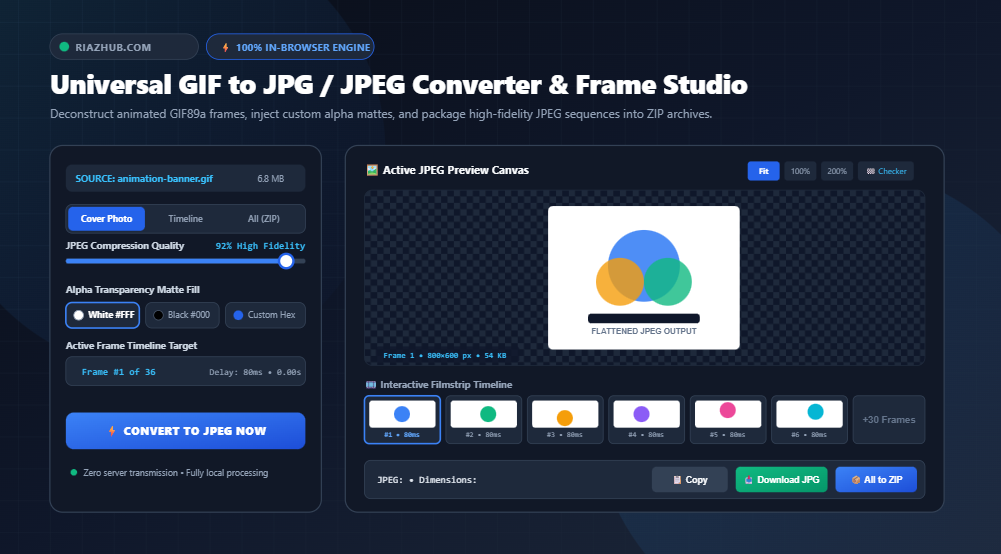
To solve these challenges with complete privacy, zero software installations, and zero cloud uploads, RiazHub developed the free Universal GIF to JPG / JPEG Converter & Frame Deconstruction Studio. Running entirely inside your web browser via HTML5 Canvas and pure JavaScript binary byte parsers, this high-performance utility allows you to extract pristine cover stills, inspect full animation filmstrips, apply custom matte backgrounds for transparent pixels, and batch export entire frame bursts into sequential ZIP archives in seconds.
Convert static or animated GIFs to high-grade JPEG photos and extract frames directly inside your browser with 100% data privacy.
GIF vs. JPEG: Understanding the Format Architecture
To extract clean, photographic-quality JPEGs from GIF animations, one must first grasp the fundamentally opposing engineering philosophies behind both specifications:
1. The GIF89a Format (Indexed Palettes & LZW Compression)
Designed by CompuServe in the late 1980s, the Graphics Interchange Format (GIF) is strictly an indexed color bitmap. It limits each image frame to a maximum of 256 colors chosen from a 24-bit RGB space. Multi-frame animations are assembled by chaining together Graphic Control Extension (GCE) blocks and local image descriptors. Because color transitions in video or real-world graphics are continuous, GIFs rely on heavy dithering—scattering clusters of contrasting pixels across the canvas to approximate gradients.
2. The JPEG Format (Discrete Cosine Transform & True Color)
The Joint Photographic Experts Group (JPEG) format was engineered specifically for continuous-tone photography. Utilizing Discrete Cosine Transform (DCT) lossy compression and the YCbCr color space (separating luminance from chrominance), JPEG supports 16.7 million colors (24-bit true color). It compresses natural gradations with extraordinary mathematical efficiency, allowing high-resolution photos to shrink down to a fraction of the raw byte size.
When you run an animation through the GIF to JPG Converter, the browser decodes the 8-bit indexed raster stream into uncompressed 32-bit RGBA color matrices before feeding them into the hardware-accelerated DCT encoder, producing stunningly sharp static images free from file bloating.
The Transparency Trap: Why Alpha Matte Compositing Is Mandatory
One of the most common frustrations when converting GIFs to JPEG is the appearance of ugly black backgrounds or jagged, dirty halos around edges. Why does this happen?
The standard baseline JPEG specification has no alpha channel. Unlike PNG, WebP, or GIF, JPEG cannot store transparent pixels. When an image decoder converts transparent pixels into JPEG without pre-compositing, it fills the missing alpha data with black (#000000) or undefined chromatic noise. If a sticker or logo with a transparent background was dithered with semi-transparent edge pixels, the resulting JPEG displays an unappealing dark fringing effect.
💡 How RiazHub Solves Transparency Halos
The RiazHub GIF to JPG Converter & Frame Studio introduces an interactive Alpha Matte Background Injector:
- Solid White Matte (
#FFFFFF): The industry standard for e-commerce, blogging, and document thumbnails. Every transparent pixel is blended seamlessly against pure white. - Solid Black Matte (
#000000): Ideal for night mode interfaces, dark UI banners, and high-contrast wallpapers. - Custom Hex Palette: Pick any exact hex color (e.g., your brand’s theme color) to composite the animation seamlessly into your website’s exact background.
3 Powerful Extraction Modes for Every Workflow
Different digital publishing tasks demand different extraction strategies. The universal browser-based converter provides three dedicated modes:
Mode 1: Cover Photo Extractor (1-Click Thumbnail Creation)
Need a high-resolution still image to serve as a blog post header, YouTube thumbnail, or social media preview card? Mode 1 instantly extracts the first frame of your animated GIF, composites it over your chosen background matte, and compresses it into a pristine 95% quality JPEG. This single click eliminates the need to record video clips or take awkward desktop screenshots.
Mode 2: Interactive Filmstrip & Specific Frame Timeline
Animated GIFs frequently start on a blank frame or take several seconds to reach the “hero moment.” With the interactive filmstrip timeline, you can visually scrub through every parsed frame:
- Inspect individual frame timestamps (e.g.,
0.45s,1.20s) and exact frame delays in milliseconds. - Preview high-resolution snapshots with interactive zoom controls (Fit, 100%, 150%, 200%).
- Download any chosen frame with a single click or copy the bitmap directly to your operating system clipboard.
Mode 3: Full Frame Burst (Batch Sequence to ZIP Archive)
For digital artists, animators, and scientists analyzing movement, extracting each frame individually is tedious. Mode 3 iterates through every single animation frame, applies your custom scaling and matte parameters, and packages the entire sequence (frame_001.jpg, frame_002.jpg, etc.) into an in-memory PKZIP archive. Thanks to pure client-side binary ZIP generation, you download a complete archive without uploading a single byte to a remote server.
File Size & Bandwidth Savings: Real-World Benchmarks
Replacing heavy, auto-playing animated GIFs with lightweight JPEG cover photos drastically improves page loading speeds and eliminates cumulative layout shift (CLS). Consider these real-world conversion benchmarks:
| Asset Type | Source GIF Size | Converted JPEG (92%) | Extracted Frame Savings | Load Time Impact |
|---|---|---|---|---|
| SaaS UI Screen Demo (800×600 px, 42 frames) | 8.4 MB | 64 KB (Cover Still) | 99.2% Reduction | Loads 28× Faster |
| Social Media Meme Loop (480×480 px, 28 frames) | 3.9 MB | 42 KB (Key Frame) | 98.9% Reduction | Loads 22× Faster |
| Product 360 Spin (600×600 px, 36 frames) | 11.2 MB | 1.4 MB (Full ZIP Burst) | 87.5% Reduction | Instant Offline Batch |
| Banner Ad Animation (728×90 px, 18 frames) | 1.8 MB | 28 KB (Cover Still) | 98.4% Reduction | Near-Zero Latency |
You can verify these savings immediately by dropping your own assets into the RiazHub GIF to JPG tool.
How to Convert GIF to JPG in 4 Simple Steps
Converting animations or extracting frame bursts takes just seconds:
- Step 1: Upload Your GIF File: Drag and drop your static or animated GIF file into the dropzone, or click “Select GIF File”. If you just want to test the workflow, click the “✨ Load Sample Animated GIF” button to load a synthesized 16-frame test animation instantly.
- Step 2: Choose Your Extraction Mode: Select whether you want the first cover frame, a specific frame chosen from the timeline stepper, or a complete batch burst to ZIP.
- Step 3: Tune Quality, Matte & Dimensions: Adjust the JPEG quality slider (default: 92% for high fidelity), select your background matte color (White, Black, or Custom Hex), and choose a downscaling ratio (100%, 75%, 50%, or 25%).
- Step 4: Download or Copy: Click “Download Frame JPEG” for the active image, “📦 Download All Frames as ZIP” for the complete animation sequence, or “📋 Copy JPEG” to paste the bitmap directly into Photoshop, Figma, or your clipboard!
Experience the simplicity firsthand at https://riazhub.com/gif-to-jpg-jpeg-converter-frame-deconstruction.
Client-Side Security: Why 100% In-Browser Processing Matters
Many free online image converters transmit your sensitive media to remote cloud servers for batch processing. This presents significant security vulnerabilities when handling proprietary software screencasts, confidential marketing assets, personal family photos, or medical imagery.
The Universal GIF to JPG / JPEG Converter operates under a strict Zero-Server Architecture. By leveraging modern Web APIs:
- FileReader & ArrayBuffer: Reads GIF binary byte blocks directly into local browser memory.
- Client-Side LZW Decompressor: Emulates Graphic Control Extensions and disposal matrices locally.
- Offscreen Canvas 2D: Renders and composites alpha matte pixels on your device’s GPU/CPU.
- Native PKZIP Packager: Generates valid ZIP files with CRC32 hashes right inside JavaScript without backend dependencies.
You can load the webpage, turn off your Wi-Fi, and continue converting and extracting animation frames completely offline!
Frequently Asked Questions (FAQ)
Can I convert single-frame static GIFs as well as multi-frame animated GIFs?
Yes! The converter automatically analyzes the GIF header and blocks. If a static GIF is detected, it renders the graphic immediately as a high-quality JPEG. If an animated GIF is detected, the interactive filmstrip timeline and batch ZIP extraction tools unlock automatically.
Why does my converted JPEG have a white background instead of transparent?
The JPEG format does not support alpha (transparency) channels. To prevent dark artifacting, the converter blends transparent areas over a solid matte. You can easily switch this matte to pure black or any custom color code using the background controls in the GIF to JPG converter.
What is the recommended JPEG quality setting?
For 95% of digital publishing and thumbnail applications, a quality value between 88% and 94% provides virtually indistinguishable visual fidelity while keeping file sizes extremely compact. If file weight is critical, 80% quality delivers remarkable compression.
Is there any file size or frame limit?
Because all processing occurs in your local browser’s memory rather than on a remote server with arbitrary upload ceilings, you can comfortably process large GIFs (50MB+ and hundreds of frames) as long as your device has sufficient RAM.
Can I extract individual frames directly to Figma or Photoshop?
Yes! Simply click the “📋 Copy JPEG” button. The converter generates a high-resolution bitmap and writes it directly to your system clipboard via the modern Clipboard API, allowing you to paste directly into Figma, Photoshop, Canva, or Slack.
Universal GIF to JPG / JPEG Converter & Frame Studio
Convert static and animated GIFs to high-fidelity JPEG photos, deconstruct multi-frame sequences, composite custom matte backgrounds for transparent pixels, and package complete animation bursts into ZIP archives in real time.
⚙️ Conversion Controls
JPEGs do not support transparency. Transparent GIF pixels are composited onto this solid color:
No GIF Loaded
Upload an animated GIF or click "Load Sample Animated GIF"
| Frame # | Timestamp | Delay (ms) | Dimensions | Matte Applied | Est. Size | Download |
|---|---|---|---|---|---|---|
| No frames loaded yet. | ||||||
📚 Technical Deep-Dive: GIF Deconstruction & JPEG Optimization
The GIF89a specification supports multi-frame animations via Graphic Control Extension (GCE) blocks prefixed by 0x21 0xF9. Each GCE block specifies a frame delay in hundredths of a second (converted to milliseconds), an optional transparent palette index (1 to 255), and a disposal method:
- Method 1 (Do Not Dispose): Leaves the previous graphic on the canvas, painting new pixels over previous ones.
- Method 2 (Restore to Background): Clears the sub-frame bounding box to transparency before the next frame is rendered.
- Method 3 (Restore to Previous): Restores the state of the canvas to the composite image that existed prior to drawing the current frame.
Our pure JavaScript binary decoder emulates this composition canvas in real time to yield pixel-perfect, standalone frames ready for rasterization.
The JPEG format relies on Discrete Cosine Transform (DCT) lossy compression operating in the YCbCr color space (Luminance + Blue/Red Chrominance). Unlike PNG, WebP, or GIF, the standard JPEG baseline specification has no alpha (transparency) channel.
When a transparent GIF pixel is encoded to JPEG without pre-compositing, browsers render the background as pitch black or undefined artifacting. This tool solves the problem by blending every alpha pixel over a user-selected solid background matte (White #FFFFFF, Black #000000, or any custom hex), guaranteeing zero halo artifacts or dark fringing.
Animated GIFs are notoriously inefficient in file size compared to modern video. Converting key frames to JPEG offers huge performance benefits:
- Cover Thumbnails: Extract the first or middle frame as a crisp 95% JPEG thumbnail for blog posts and social media cards.
- Frame Sequences for Motion Analysis: Use "All Frames (ZIP)" to break high-speed physics, sports swings, or animations into sequential photos for analysis.
- Web Optimization: Reduce page weight by replacing 10MB animated GIFs with static 50KB JPEG previews that load instantly.
Every byte of your GIF files is parsed, decompressed, composited, and compressed entirely inside your local web browser using JavaScript ArrayBuffers, HTML5 Offscreen Canvas, and native in-memory PKZIP encoding.
No image data, filenames, or converted JPEGs ever leave your device or touch a remote server. You can even disconnect your internet after loading this page and continue converting files completely offline!