
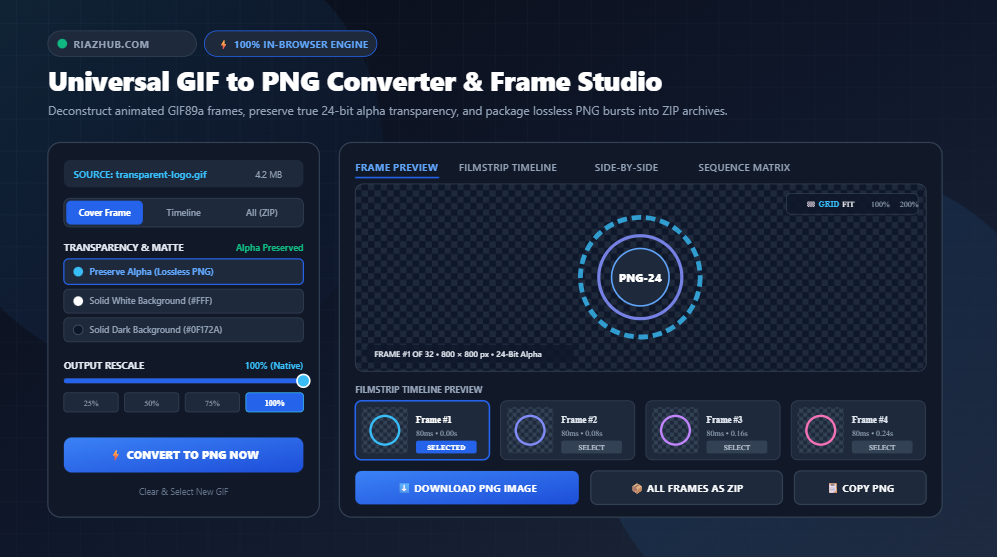
Mastering GIF to PNG Conversion & Frame Deconstruction: How to Extract Lossless 24-Bit Alpha PNGs, Eliminate Transparency Halos, and Package Frame Bursts Client-Side
The animated GIF format has been a cornerstone of digital expression for more than three decades. From product micro-interactions and Slack emojis to marketing newsletters and UI animations, GIFs communicate motion with universal browser compatibility. However, the vintage GIF89a specification was never designed for modern high-DPI displays or true alpha transparency. GIFs are burdened by severe 256-color palette limitations, 1-bit binary transparency masks, dirty pixel fringing, and massive file payloads that wreck Core Web Vitals and slow page loading speeds.
When developers and designers need to extract still assets, isolate transparent logos, or convert animated stickers for modern web applications, converting GIF to PNG is the gold standard. But traditional tools often fail by either flattening transparency onto unwanted black/white boxes, dithering semi-transparent edges into pixelated halos, or requiring privacy-violating uploads to cloud servers.
To address these challenges with surgical precision and 100% data privacy, RiazHub developed the free Universal GIF to PNG Converter & Frame Deconstruction Studio. Operating entirely within your browser via pure vanilla JavaScript byte parsers, HTML5 2D Canvas rendering, and in-memory PKZIP archive compilation, this studio deconstructs animated GIFs into pristine 24-bit lossless PNGs with full 32-bit RGBA alpha channel preservation.
Convert static and animated GIFs to true lossless PNGs with full transparency preservation, custom matte fills, and 1-click ZIP export.
Format Architecture: GIF89a vs. PNG-24 True Color + Alpha
Understanding why converting GIF to PNG provides superior visual clarity requires a close examination of how both formats handle raster data, color tables, and transparency:
| Architectural Feature | GIF89a Specification | PNG-24 / PNG-32 Format |
|---|---|---|
| Color Depth | 8-bit Indexed Palette (Max 256 colors) | 24-bit True Color (16.7 Million colors) |
| Alpha Transparency | 1-Bit Binary (Opaque or 100% Transparent) | 8-Bit Continuous Alpha (256 Graduated Levels) |
| Compression Algorithm | LZW (Lempel-Ziv-Welch) Stream | Deflate (LZ77 + Huffman Coding) Lossless |
| Edge Anti-Aliasing | Prone to jagged edges & matte halo fringes | Smooth sub-pixel anti-aliasing blending |
| Generation Loss | Accumulates dither noise upon re-encoding | Zero generation loss (Byte-for-byte fidelity) |
| Web & UI Integration | High CPU usage, jerky rendering, bulky bytes | Hardware-accelerated, crisp on Retina displays |
In GIF89a, transparency is declared via a single color index in the Graphic Control Extension (GCE) block. Any pixel mapped to that palette index is rendered as fully transparent (alpha = 0), while every other pixel is 100% opaque (alpha = 255). There is no intermediate state. When graphics software exports transparent graphics to GIF, it must “dither” semi-transparent drop shadows and curved borders against an assumed background color—a process known as matte bleeding.
When you run that GIF through our GIF to PNG Converter, the browser’s graphics pipeline reconstructs full uncompressed 32-bit RGBA pixel buffers (8 bits each for Red, Green, Blue, and Alpha), isolating transparent pixels cleanly and preserving them losslessly without lossy degradation.
Eliminating Transparency Halos: Lossless Alpha vs. Custom Matte Compositing
A frequent dilemma web developers encounter when extracting imagery from GIFs is what to do with transparent regions. Depending on your downstream publishing destination, you may need either pure alpha transparency or a flattened composite background:
🎨 Flexible Alpha & Matte Controls on RiazHub
The RiazHub GIF to PNG Studio equips you with versatile background transparency modes:
- Preserve Alpha Transparency (Lossless PNG): Retains true 32-bit RGBA transparency with a CSS checkerboard preview grid. Ideal for web UI icons, transparent brand logos, app assets, and stickers destined for Figma or dark/light mode interfaces.
- Solid White Matte (
#FFFFFF): Composites transparent pixels onto a pure white canvas. Perfect for clean eCommerce product showcases, document PDFs, and white-themed digital newsletters. - Solid Dark Matte (
#0F172A): Composites transparent areas onto a deep slate-navy tone. Designed for modern dark-mode website banners, GitHub documentation, and developer dashboards. - Custom Hex Palette Picker: Allows you to inject any arbitrary hex color code (e.g., your exact brand background) to match your landing page layout perfectly.
By offering both lossless alpha retention and custom matte compositing, you never have to tolerate ugly black bounding boxes or dirty fringe borders ever again.
Under the Hood: How Binary GIF Frame Disposal Methods Work
Unlike modern MP4 or WebM video containers that use predictive keyframes (I-frames, P-frames, and B-frames), animated GIFs rely on cumulative frame stacking and Disposal Methods. Many amateur image tools fail when extracting GIF frames because they ignore disposal instructions, causing extracted stills to contain strange ghosting overlays or missing background segments.
Each frame in an animated GIF contains an Image Descriptor block and a Graphic Control Extension that defines one of four disposal methods:
- Disposal 0 & 1 (Do Not Dispose / Cumulative Overlay):
The graphic renderer leaves the current frame’s pixels on the canvas. The subsequent frame is drawn directly over the existing composite, updating only the rectangular delta of moving pixels. This technique was engineered in 1989 to minimize file size on dial-up connections. - Disposal 2 (Restore to Background):
Before the next frame is rendered, the sub-rectangle occupied by the current frame is cleared back to the canvas background color (or full transparency if an alpha index is set). - Disposal 3 (Restore to Previous):
The renderer preserves a snapshot of the canvas prior to drawing the current frame. Once the frame’s delay expires, the canvas reverts to the cached previous snapshot.
The Universal GIF to PNG Studio implements a complete in-memory frame compositor that faithfully executes Disposal Methods 0, 1, 2, and 3. When you extract Frame #24 from a complex 60-frame animation, you receive the exact, fully composited, visual state that a browser displays during active playback.
3 Purpose-Built Extraction Modes for Modern Workflows
Whether you need a quick static cover graphic or a complete frame burst for 2D game development, the online GIF to PNG studio accommodates your exact requirements:
Mode 1: First Frame Cover Image (Instant 1-Click Conversion)
Need a high-resolution still image to serve as a blog hero graphic, OpenGraph social media card, or YouTube thumbnail? Mode 1 instantly isolates the opening frame, applies your transparency or matte preferences, and renders a pristine lossless PNG in a single click.
Mode 2: Interactive Filmstrip & Timeline Stepper
Animated GIFs often hide their most interesting moments in the middle or end of the sequence. Our interactive filmstrip timeline renders every individual frame into a horizontal scrollable gallery displaying exact timestamps (e.g., 1.40s), delay intervals (e.g., 90ms), and disposal metadata. Use the micro-stepper buttons to jump to the exact micro-second you need and download that specific frame individually.
Mode 3: Batch Sequence Burst to PKZIP Archive
For digital animators, sprite sheet creators, and video editors, Mode 3 processes every single frame sequentially, numbers them in order (e.g., animation-converted_frame_001.png, frame_002.png), calculates CRC-32 checksums, and compiles a clean, uncompressed ZIP archive entirely in local browser RAM.
Step-by-Step Tutorial: How to Convert GIF to Lossless PNG
Transforming your animations into crystal-clear PNG files takes only a few moments:
- Access the Converter: Open the Universal GIF to PNG Converter in Google Chrome, Mozilla Firefox, Safari, or Microsoft Edge.
- Load Your GIF: Drag and drop your
.giffile into the dropzone, click “Select GIF File”, or click “Load Sample Animated GIF” to experiment with our built-in 16-frame transparent orbit animation. - Select Extraction Mode: Choose between First Frame (Cover), Specific Frame (Timeline), or All Frames (ZIP).
- Configure Transparency: Choose “Preserve Alpha Transparency” to maintain true transparent pixels, or pick White, Dark, or Custom Hex Matte to composite against a solid background.
- Adjust Scale (Optional): Keep 100% for full native resolution, or use the quick chips (25%, 50%, 75%) to rescale dimensions on the fly.
- Export or Copy: Click “⚡ Convert to PNG Now” to download your PNG image, “📦 Download All Frames as ZIP” for batch archives, or “📋 Copy PNG” to paste directly into Figma or Photoshop!
Client-Side Security: Why Zero-Server Processing Matters
Traditional online file converters force users to upload their proprietary media files to remote web servers. This creates unacceptable data privacy and intellectual property risks when handling pre-release product demos, confidential marketing assets, personal family photos, or medical imagery.
The Universal GIF to PNG Studio on RiazHub operates under an uncompromising 100% Client-Side In-Memory Architecture:
- Zero Server Uploads: Your images are parsed using the HTML5
FileReaderAPI and typedUint8Arraybuffers in local device memory. Not a single byte ever travels across an external network. - Offline Functionality: Because all binary parsing, LZW decompression, and PKZIP generation logic are bundled directly into pure client-side JavaScript, you can disconnect your internet and the converter will continue running smoothly.
- Enterprise Compliance: Meets strict corporate confidentiality, GDPR, and HIPAA privacy considerations by eliminating third-party data transit.
Frequently Asked Questions (FAQ)
Does converting GIF to PNG improve image quality?
Converting a GIF to PNG will not miraculously add visual detail that was never in the original GIF, but it prevents any further generation loss. Because PNG uses lossless DEFLATE compression, color boundaries and transparent pixels are preserved with 100% mathematical fidelity, avoiding the blurriness or compression artifacts introduced by JPEG.
How does the converter preserve alpha transparency?
Our binary parser reads the GIF89a Graphic Control Extension, detects the designated transparent color index, and constructs an RGBA canvas buffer where transparent pixels have their alpha value set to 0. When exported via canvas.toBlob('image/png'), a genuine 32-bit RGBA PNG with full alpha channel transparency is produced.
Can I copy converted PNGs directly into design software?
Yes! Click the “📋 Copy PNG” button. The converter leverages the modern Async Clipboard API (navigator.clipboard.write([new ClipboardItem(...)])) to copy the lossless PNG bitmap directly to your operating system clipboard. You can immediately press Ctrl+V (or Cmd+V) to paste it into Figma, Canva, Adobe Photoshop, or Slack.
Is there any file size or frame limit?
Because all computation takes place inside your browser rather than against restrictive server upload quotas, you can deconstruct massive animations containing hundreds of frames. Your device’s available RAM is the only ceiling.
Can I batch export all frames into a single ZIP file?
Yes. By choosing “All Frames (Batch Sequence to ZIP)” or clicking the “Full Frame Burst” preset profile, our embedded native PKZIP packager compiles all frames into sequentially named PNG files inside a single downloadable .zip archive.
Universal GIF to PNG Converter
Convert static and animated GIFs to lossless 24-bit PNGs with full alpha transparency preservation, individual frame extraction, custom matte background injection, and 1-click ZIP export.
| # | Delay | Timestamp | Dimensions | Disposal | Transparency | Action |
|---|---|---|---|---|---|---|
| No frames loaded yet. | ||||||
- Disposal 0 / 1 (Do Not Dispose): Pixels from the current frame remain on the canvas, allowing subsequent frames to overlay only changed regions (delta encoding).
- Disposal 2 (Restore to Background): The subframe rectangle is cleared back to transparent or background color before the next frame is rendered.
- Disposal 3 (Restore to Previous): The canvas is restored to the state it had before the current subframe was composited.