
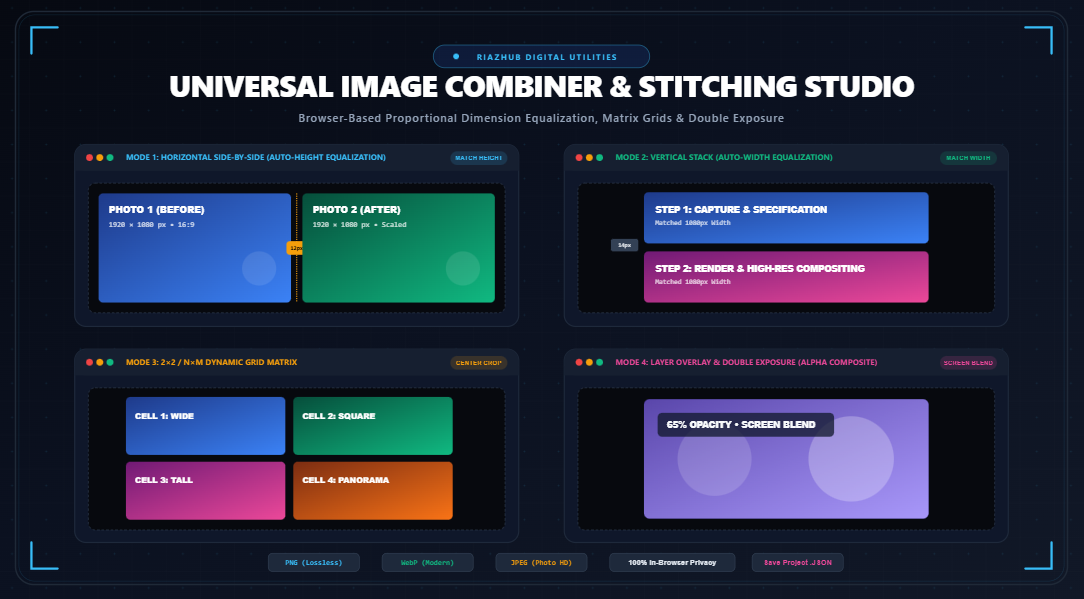
Universal Image Combiner & Stitching Studio: How to Merge Photos Horizontally, Vertically, and in Dynamic Grids with Aspect Ratio Precision
However, anyone who has ever tried combining photos using quick online tools or screenshotting collage templates has experienced common frustrations: Why did the tool stretch my photo into an unnatural oval? Why is the final exported file blurry and low-resolution? Why did the service require me to upload private screenshots to an unknown cloud server?
To eliminate these pain points once and for all, RiazHub developed the Universal Image Combiner & Stitching Studio. In this definitive guide, we will unpack the mathematics behind proportional dimension equalization, explore multi-directional matrix layouts, compare layer blend compositing algorithms, and demonstrate how you can create studio-quality combined images directly inside your browser with 100% data privacy.
1. The Common Pitfalls of Naive Image Stitching
When two or more photographs are placed together, they rarely share identical natural pixel dimensions. Consider combining a high-resolution smartphone portrait photo (3024 × 4032 px) with a widescreen desktop screenshot (1920 × 1080 px):
- Anamorphic Stretching: Naive tools force both images into identical bounding boxes without calculating the aspect ratio difference. The result is squashed faces, elongated logos, and unreadable text.
- Viewport Clipping & Quality Loss: Many web tools render images into HTML DOM elements (like CSS Flexbox) and then capture the screen using DOM-to-canvas rendering libraries like
html2canvas. This restricts the output image to the user’s monitor resolution, introducing severe anti-aliasing artifacts and CSS border blurs. - Severe Cloud Privacy Risks: Traditional photo editing services require you to upload your images to third-party cloud servers where they are decoded, stitched via headless ImageMagick instances, and stored temporarily in cloud buckets. For sensitive legal evidence, confidential prototypes, or personal medical scans, cloud transmission is unacceptable.
By contrast, when you use the RiazHub Image Combiner Tool, every calculation, pixel resampling step, and color blend happens inside your local device’s browser memory via the native HTML5 Canvas 2D engine.
2. Proportional Dimension Equalization Mathematics
The core secret to seamless visual harmony when stitching photos is proportional scaling. Instead of altering an image’s natural aspect ratio, we recalculate one dimension based on a common target baseline.
A. Horizontal Side-by-Side: Auto-Height Equalization
When photos are stitched horizontally left-to-right (common for Before & After comparisons), their vertical boundaries must align cleanly. There are two primary height-matching strategies:
- Match Shortest Photo (Downscaling Strategy): The target height ($H_{target}$) is set to the minimum natural height among all loaded images:
H_target = min(H_1, H_2, …, H_n)
Scale_i = H_target / H_i
W_rendered = round(W_i × Scale_i)Advantage: Prevents upscaling artifacts and ensures maximum sharpness across the entire horizontal row.
- Match Tallest Photo (Upscaling Strategy): The target height is set to the maximum natural height, scaling smaller photos upward proportionally so no detail from the larger camera capture is sacrificed.
B. Vertical Stack: Auto-Width Equalization
For mobile infographics, tutorial cheat sheets, and vertical landing page previews, top-to-bottom vertical stacking is ideal. Here, the target width ($W_{target}$) is standardized:
Scale_i = W_target / W_i
H_rendered = round(H_i × Scale_i)
Total_Canvas_Height = ∑ H_rendered + (Gap × (n – 1)) + (2 × Margin)
With RiazHub’s image combiner and stitching studio, you can toggle between Shortest, Tallest, and Native scale modes with a single click, instantly seeing the composite dimensions update in real time on the diagnostics KPI bar.
3. Dynamic Matrix Grids ($2\times2$, $3\times2$, and NxM)
When you have 3 to 10 photos, a single linear strip can become unwieldy to view on standard monitors. Arranging photos into a balanced matrix grid solves this problem gracefully.
Cover Crop Fill vs. Contain Aspect Fit:
In Smart Center-Crop Fill mode, each photo is mathematically scaled to completely cover its square or rectangular grid cell slot, with excess edges clipped proportionally from the center. This creates a striking, gallery-grade symmetry reminiscent of Instagram multi-photo feeds.
In Contain Fit mode, the entire photo is preserved inside the cell boundary, with uniform background color filling the remaining letterbox padding.
You can adjust the column count from 2 to 6 columns effortlessly in the online image stitching utility, adapting the grid for square social thumbnails or widescreen presentation slides.
4. Creative Layer Overlay & Double Exposure Blending
Beyond traditional spatial stitching, image combination also encompasses optical layer blending. The HTML5 Canvas globalCompositeOperation API enables mathematical color blending between overlapping image pixels:
| Blend Mode | Mathematical Logic | Best Applied For |
|---|---|---|
| Normal (source-over) | Standard alpha-weighted linear interpolation | Watermarking, transparent overlays, and logo stamps |
| Multiply | $C = (A \times B) / 255$ | Merging architectural sketches with paper textures; darkening highlights |
| Screen | $C = 255 – ((255 – A) \times (255 – B)) / 255$ | Classic photographic double exposure; neon light effects; silhouette art |
| Overlay | Combines Multiply on darks & Screen on lights | Intensifying dynamic contrast and adding rich atmospheric moods |
| Color Dodge | Divides background luminance by inverted foreground | High-impact glowing lens flares and luminous artistic graphics |
Experiment with opacity sliders and real-time blend previews using the online layer overlay engine.
5. Sub-Pixel HTML5 Canvas Compositing vs. CSS Grid Capturing
Why does RiazHub’s studio construct full-resolution canvas buffers instead of simply laying out CSS images?
- Native Camera Resolution: If you load two 24-megapixel camera photos (
6000 × 4000 px), a CSS-based tool will shrink them down to fit your laptop screen (e.g.,1200 pxwidth) and take a snapshot of the DOM. The RiazHub studio calculates the canvas matrix at native resolution (e.g.,12000 × 4000 px), producing a massive, publication-ready composite without dropping a single pixel. - Bicubic Resampling: By enforcing
ctx.imageSmoothingQuality = 'high', the browser’s GPU utilizes multi-tap bicubic filtering to eliminate jagged moiré patterns and stair-stepping lines. - True Corner Radius Clipping: Using native
ctx.roundRect()path clipping, image corners are smoothly rounded directly into the bitmap buffer without leaving jagged white pixels.
6. Choosing the Optimal Output Format: PNG vs. WebP vs. JPEG
Once your canvas composite is stitched, selecting the right file container determines file size and visual fidelity:
- PNG (Lossless & Alpha): Preserves 100% pixel fidelity, crisp text edges in UI screenshots, and full background transparency. It is the gold standard for software documentation, comparative scientific figures, and transparent graphics overlays.
- WebP (Modern Compact): Employs advanced predictive encoding to achieve up to 35% smaller file sizes than equivalent JPEG files while offering alpha channel support. Best for modern websites and fast-loading mobile content.
- JPEG (Photo Quality): Ideal for high-detail photographic collages and camera shots where slight compression is imperceptible to the human eye. (Note: JPEG does not support transparency; transparent gaps will render with your chosen canvas background color).
Inside the RiazHub image combiner studio, you can dial in your desired quality compression ratio (from 40% to 100%) and customize filename suffixes for seamless asset management.
7. How to Combine Photos Step-by-Step on RiazHub
Creating a professional photo composite takes just a few seconds:
- Add Your Source Images: Navigate to the Universal Image Combiner. Drag and drop your photos into the dropzone, click “Browse Files”, or press Ctrl+V to paste screenshots directly from your clipboard.
- Select Your Stitching Mode: Choose between Horizontal (Side-by-Side), Vertical (Stack), Grid Matrix, or Overlay Blend.
- Fine-Tune Dimensions & Framing: Adjust the inter-image gap slider (e.g.,
12px), outer border margins (e.g.,16px), and corner rounding radius. Choose between clean white, dark slate, cream, custom solid, or dynamic 2-tone linear gradients. - Inspect in the Interactive Viewport: Use the interactive pan and zoom controls (+, -, Fit Screen, 100%) to check pixel alignment. If combining two photos, toggle to the Before & After Split Slider to compare details interactively.
- Export Your Masterpiece: Select your desired format (PNG, WebP, or JPEG) and click Download HD Image. You can also copy the image directly to your clipboard or export a
.jsonproject file to resume your work later.
8. The RiazHub Privacy Guarantee
In an era of rampant cloud data scraping and online tracking, digital privacy is paramount. Unlike cloud-dependent SaaS image editors that upload your pictures to remote processing servers, the Universal Image Combiner & Stitching Studio executes all matrix operations, geometric rescalings, and blob encodings exclusively inside your browser’s local sandbox.
Your photos never leave your device. You can safely combine sensitive financial spreadsheets, confidential design mockups, and private family photos with complete peace of mind.
Universal Image Combiner & Stitching Studio
Merge multiple photos horizontally, vertically, or in custom matrix grids with intelligent dimension equalization, customizable framing, and lossless high-resolution export.
When stitching photos horizontally or vertically, naive resizing leads to awkward stretching or distortion. This tool implements mathematical aspect ratio locking:
New Height = Original Height × (Target Width / Original Width)
In Horizontal Mode, all images are dynamically scaled to match a common baseline height (either the shortest photo or tallest photo) while scaling the width proportionally. In Vertical Mode, all images match the target width while scaling height proportionally.
Unlike basic CSS layouts that simply arrange elements on a web page without producing a real downloadable bitmap, this studio renders each pixel directly into an offscreen 2D HTML5 Canvas context using high-quality bicubic/bilinear smoothing filters (`ctx.imageSmoothingQuality = 'high'`).
This guarantees that your downloaded file is a true unified bitmap image at full camera resolution without blur, CSS artifact borders, or layout shift.
Your privacy is absolute. All file reading, dimensional parsing, matrix transformations, and image downloads occur strictly inside your device's browser memory (via JavaScript FileReader and Canvas API). No pictures, screenshots, patient data, or confidential graphics are ever uploaded or transmitted to any server.