
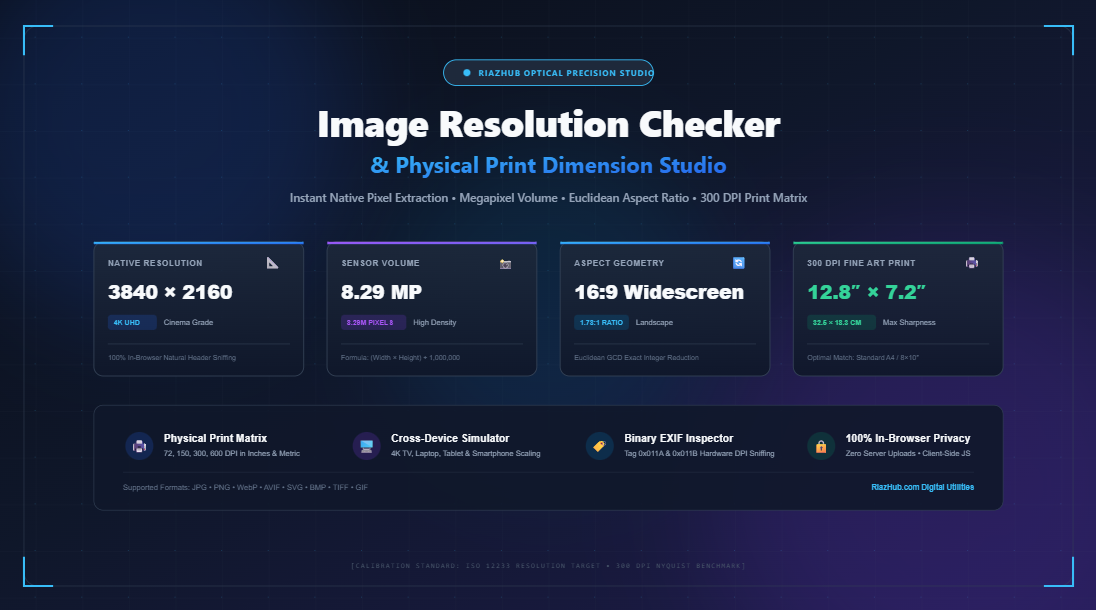
The Complete Guide to Image Resolution, DPI Physics, and Physical Print Sizing
Have you ever exported a photograph that looked razor-sharp on your high-resolution desktop screen, only to send it to a commercial photo lab and receive a blurry, pixelated physical print? Or perhaps you uploaded a banner to your website, only to find that it appeared fuzzy and soft on modern smartphones and Retina displays?
This universal frustration stems from a fundamental misunderstanding of digital optics: digital pixels do not have an innate physical size in inches or centimeters. A digital image is simply a two-dimensional grid of numerical color values ($Width \times Height$). It only takes on a physical dimension when an output medium whether that is an offset printing press, an inkjet photo printer, or an OLED smartphone screen—assigns a spatial reproduction density.
To eliminate the guesswork and help designers, photographers, printmakers, and developers instantly diagnose their media files, RiazHub developed the free Universal Image Resolution Checker & Physical Print Dimension Studio. In this comprehensive guide, we will unpack the mathematics of resolution, demystify DPI versus PPI, explain how 300 DPI became the international gold standard, and show you how to accurately calculate maximum fine-art print dimensions and screen readiness.
Need to inspect an image immediately? Upload your file into our browser-based utility to instantly extract uncompressed pixel dimensions, total sensor megapixels, Euclidean aspect ratios, and full physical print sizes across 72, 150, 300, and 600 DPI.
1. The Physics of Resolution: Pixels vs. DPI vs. PPI Demystified
Before delving into print calculations, it is vital to clarify the terminology that is frequently conflated in digital design and photography:
- Pixel Dimensions (Pixels): The raw, discrete numerical data points that compose the digital bitmap (e.g.,
3840 × 2160 pixels). This represents the absolute information payload of your file. - PPI (Pixels Per Inch): The input density of a digital sensor or digital display monitor. It describes how many digital pixel elements exist across one linear inch of display surface.
- DPI (Dots Per Inch): The physical output density of a printing device. It describes how many physical micro-droplets of cyan, magenta, yellow, and black (CMYK) ink a printer deposits across one linear inch of paper.
The governing physics connecting digital pixel arrays to tangible physical dimensions is governed by one timeless optical formula:
To calculate metric measurements in centimeters, simply multiply the resulting inches by 2.54:
For instance, take a standard Full HD image measuring 1920 × 1080 pixels:
- At 72 DPI (Web Screen Scale): The output size is $1920 / 72 = 26.7\text{ inches}$ ($67.7\text{ cm}$).
- At 300 DPI (Photographic Standard): The output size drops to $1920 / 300 = 6.4\text{ inches}$ ($16.3\text{ cm}$).
Notice how the file’s information content never changed—the pixel count remained identical—yet the physical footprint shifted by more than 400%. You can test any resolution and custom target density effortlessly using the RiazHub Print Dimension Studio.
2. Why 300 DPI is the International Gold Standard for Physical Printing
Why did 300 DPI become the universal benchmark across graphic design, editorial publishing, and fine-art galleries? The answer lies in the physiological limits of human eye vision.
An individual with standard 20/20 visual acuity has an angular resolution limit of approximately one arcminute (1/60th of a single degree). When holding a photograph, magazine, or book at a standard, comfortable handheld viewing distance of 10 to 12 inches (25 to 30 centimeters), the human eye cannot resolve individual dots that are spaced closer than 1/300th of an inch.
Printing at 300 DPI perfectly saturates this threshold. At this density, adjacent ink droplets seamlessly blend into a continuous, photographic tone with zero perceptible dot grain, stepping, or pixelation.
| DPI Tier | Common Application | Viewing Distance | Perceptual Fidelity |
|---|---|---|---|
| 72 DPI | Legacy Web & Computer Monitors | 24″ – 36″ (Arm’s Length) | Pixelated if printed handheld; fine on screen. |
| 150 DPI | Commercial Newsprint & Draft Proofs | 18″ – 24″ | Acceptable for newsprint; slight dot grain visible. |
| 300 DPI | Photographic Prints, Books, Magazines | 10″ – 14″ (Handheld) | ★ Optimal Fine-Art Fidelity; zero visible grain. |
| 600 DPI | Archival Art Repro, Medical Imaging | < 8″ (Magnified Close-up) | Ultra-fine micro-detail for museum collections. |
3. Megapixel Sensor Volume: How Many Megapixels Do You Truly Need?
Camera manufacturers frequently advertise megapixel (MP) figures as the sole indicator of camera quality. While lens optics and sensor dynamic range are equally critical, megapixel volume dictates the ultimate maximum physical size your image can be printed without interpolation or blurring.
Total megapixels represent the aggregate surface area of photo-sites captured by the camera sensor:
Here is how sensor volume correlates with optimal 300 DPI photographic print sizes:
- 2.07 MP (Full HD 1080p – 1920×1080): Maximum 300 DPI print is
6.4″ × 3.6″(Ideal for 4×6″ postcards). - 8.29 MP (4K UHD – 3840×2160): Maximum 300 DPI print is
12.8″ × 7.2″(Perfect for standard A4 / 8×10″ gallery frames). - 24.0 MP (DSLR / Mirrorless Standard – 6000×4000): Maximum 300 DPI print is
20.0″ × 13.3″(Covers A3 / 11×14″ and 12×18″ exhibition prints). - 45.0 MP (High-Resolution Studio Body – 8200×5467): Maximum 300 DPI print is
27.3″ × 18.2″(Covers 18×24″ and 20×30″ large posters).
You can verify any custom sensor dimension and instantly view its optimal paper match using our online image resolution calculator.
4. Canonical Aspect Ratios & The Euclidean GCD Simplification
Aspect ratio describes the proportional relationship between an image’s width and height, irrespective of its raw pixel volume. For example, a 3840 × 2160 image and a 1920 × 1080 image share the exact same 16:9 widescreen aspect ratio.
To determine the canonical aspect ratio of arbitrary image dimensions, mathematicians and computer scientists use the ancient Euclidean Greatest Common Divisor (GCD) Algorithm. By dividing both width and height by their greatest common divisor, complex numbers collapse into recognizable standard proportions:
- 1:1 Square: Profile avatars, Instagram posts, album artwork (
1080 × 1080 px). - 4:3 Standard: Classic photography, Micro Four Thirds sensors, iPads (
2048 × 1536 px). - 3:2 Classic 35mm: Standard full-frame photography, 4×6″ prints (
6000 × 4000 px). - 16:9 Widescreen: 4K/1080p video, YouTube, modern computer monitors (
3840 × 2160 px). - 9:16 Vertical: TikTok, Instagram Reels, YouTube Shorts (
1080 × 1920 px). - 1.91:1 Social OG: Open Graph link preview banners for Facebook, LinkedIn, Twitter/X (
1200 × 630 px). - 21:9 Ultrawide: Anamorphic cinematic films and ultrawide curved monitors (
3440 × 1440 px).
5. High-DPI & Retina Displays: Why Modern Web Images Look Blurry on Mobile
In the early days of the web, desktop monitors featured a standardized 1:1 hardware pixel mapping (a Device Pixel Ratio (DPR) of 1x). A 400 × 300 pixel image occupied exactly 400 by 300 physical hardware liquid crystal dots.
However, modern smartphones and laptops utilize high-density displays (such as Apple Retina, Super AMOLED, and 4K laptops) with DPR values of 2x or 3x:
- On a 2x Retina Display: A CSS container measuring
400 × 300 CSS pixelsis backed by800 × 600 physical hardware subpixels. - On a 3x OLED Smartphone: That same container is backed by
1200 × 900 physical hardware subpixels.
If you serve an image rendered at only 1x resolution, the mobile operating system is forced to digitally upscale and interpolate the pixels, making logos and photographs look soft and fuzzy. To maintain crispness, always prepare assets at 2x or 3x pixel density. The Device Scale & Screen Simulator tab inside our tool allows you to simulate how your image scales across 4K TVs, laptops, tablets, and smartphones in real time.
6. Embedded EXIF DPI Metadata: What Camera Headers Actually Store
When you take a photo with a professional DSLR or export from Adobe Photoshop, the software often writes resolution metadata inside the image file’s binary header stream:
- Tag 0x011A (XResolution): The horizontal resolution tag.
- Tag 0x011B (YResolution): The vertical resolution tag.
- Tag 0x0128 (ResolutionUnit): The measurement unit (2 = Inches, 3 = Centimeters).
A frequent misconception is that setting this metadata tag to “300 DPI” automatically makes an image higher quality. In reality, the EXIF DPI tag is merely a suggestion tag. If an image is only 500 pixels wide, setting the header tag to 300 DPI simply tells the printer to print it at an unusable 1.6 inches wide!
Using the EXIF metadata sniffer in our checker tool, you can inspect the exact hardware tags embedded inside JPEG and TIFF binary headers to verify what export profile was assigned.
7. How to Check Image Resolution and Maximum Print Size in 3 Seconds
Auditing your assets prior to sending them to a print lab or pushing them to production takes just seconds with RiazHub’s studio:
- Open the Tool: Navigate to the Image Resolution Checker & Physical Print Dimension Studio on RiazHub.com.
- Load Your Asset(s): Drag and drop any image (or batch of up to 250+ files) into the dropzone. You can also paste directly from your clipboard by pressing
Ctrl+V, or click Load 4K Sample to test immediately. - Analyze the KPI Diagnostics: Instantly read the native uncompressed width and height, total megapixels, Euclidean aspect ratio, and 300 DPI fine-art print dimensions.
- Switch to the Physical Print Matrix: Review the comparative table showing exact dimensions in inches, centimeters, or millimeters at 72, 150, 300, and 600 DPI, along with the visual ISO paper match (A6, A5, A4, A3, or Poster).
- Test Screen Compatibility: Switch to the Screen Simulator tab to preview how the image fits 4K desktop displays, laptops, tablets, and mobile phones with instant perceptual sharpness ratings.
- Export the Manifest: Copy the resolution string with a single click, or download a structured CSV or JSON audit report for your design team or production archive.
8. Quick Reference: 300 DPI Print Dimension Cheat Sheet
Keep this standard print conversion chart handy for your daily design and photo editing workflows:
| Standard Format | Physical Dimensions (Inches) | Dimensions (cm) | Required Pixels @ 300 DPI | Minimum MP |
|---|---|---|---|---|
| 4 × 6″ Photo | 4.0″ × 6.0″ | 10.2 × 15.2 cm | 1200 × 1800 px |
2.16 MP |
| 5 × 7″ Portrait | 5.0″ × 7.0″ | 12.7 × 17.8 cm | 1500 × 2100 px |
3.15 MP |
| 8 × 10″ Art Print | 8.0″ × 10.0″ | 20.3 × 25.4 cm | 2400 × 3000 px |
7.20 MP |
| A4 Document | 8.27″ × 11.69″ | 21.0 × 29.7 cm | 2480 × 3508 px |
8.70 MP |
| 11 × 14″ Frame | 11.0″ × 14.0″ | 27.9 × 35.6 cm | 3300 × 4200 px |
13.86 MP |
| A3 Exhibition | 11.69″ × 16.54″ | 29.7 × 42.0 cm | 3508 × 4960 px |
17.40 MP |
| 16 × 20″ Gallery | 16.0″ × 20.0″ | 40.6 × 50.8 cm | 4800 × 6000 px |
28.80 MP |
| 24 × 36″ Poster | 24.0″ × 36.0″ | 61.0 × 91.4 cm | 7200 × 10800 px |
77.76 MP |
9. Frequently Asked Questions (FAQ)
Does increasing an image’s DPI in Photoshop improve its quality?
No. Changing the DPI without changing the pixel dimensions does not add new image information; it simply changes how large the image will print on paper. Upscaling pixel dimensions via software interpolation can increase file size, but it cannot invent fine optical detail that was not captured by the camera sensor.
Can a billboard really be printed at 15 to 30 DPI?
Yes! Physical print DPI requirements decrease proportionally as viewing distance increases. A commercial billboard viewed from 50 to 100 feet away only requires 15 to 30 DPI because human eye angular resolution cannot distinguish fine dots at that distance. Only handheld prints viewed at 10 to 12 inches require 300 DPI.
Is my confidential artwork or photo uploaded to RiazHub’s servers?
Never. All processing in the RiazHub Resolution Checker is executed 100% client-side inside your browser using HTML5 Canvas, FileReader, and DataView APIs. Your files never leave your device.
Conclusion: Never Print or Publish Blindly Again
Whether preparing photographs for a gallery exhibition, designing banners for social media campaigns, or auditing graphic assets for web performance, understanding the physical relationship between pixels and print density is paramount.
Bookmark the Image Resolution Checker & Physical Print Dimension Studio on RiazHub.com today and make precision optical validation a permanent part of your digital toolkit.
Universal Image Resolution Checker & Print Studio
Inspect native pixel dimensions, calculate exact megapixels and Euclidean aspect ratios, estimate maximum 300 DPI fine-art print sizes, and test cross-device screen compatibility entirely in your browser with zero server uploads.
| Resolution Standard | Output Physical Size (in) | Metric Size (cm) | Sharpness Quality Tier |
|---|
| File Name | Resolution (W×H) | Megapixels | Aspect Ratio | Classification | 300 DPI Print | Action |
|---|