
Complete Guide to Image to Base64 & Data URI Encoding: Inlining Graphics, Web Performance, and Bi-Directional Conversion
Explore the engineering mechanics of converting binary images into inline Base64 Data URIs, decode raw strings back into high-resolution assets, and master the exact performance trade-offs for modern web applications.
Ready to convert images or decode Base64?
Access the free browser utility with batch processing, live preview, and zero server uploads.
Introduction: Why Inlining Graphics Matters in Modern Web Development
Every external asset loaded by a web browser whether a stylesheet, a JavaScript bundle, a web font, or an image file requires an HTTP request. Even under modern HTTP/2 and HTTP/3 protocols featuring packet multiplexing, round-trip times (RTT), DNS resolution latency, and TLS handshake overhead can delay the critical rendering path.
For micro-graphics, UI icons, logo glyphs, email campaign assets, and critical above-the-fold background textures, transmitting separate asset requests across the wire often introduces unnecessary latency. By converting binary pixel data into text-based Base64 strings and structuring them as Data URIs, developers can directly embed images inside HTML documents, CSS stylesheets, or JSON payloads.
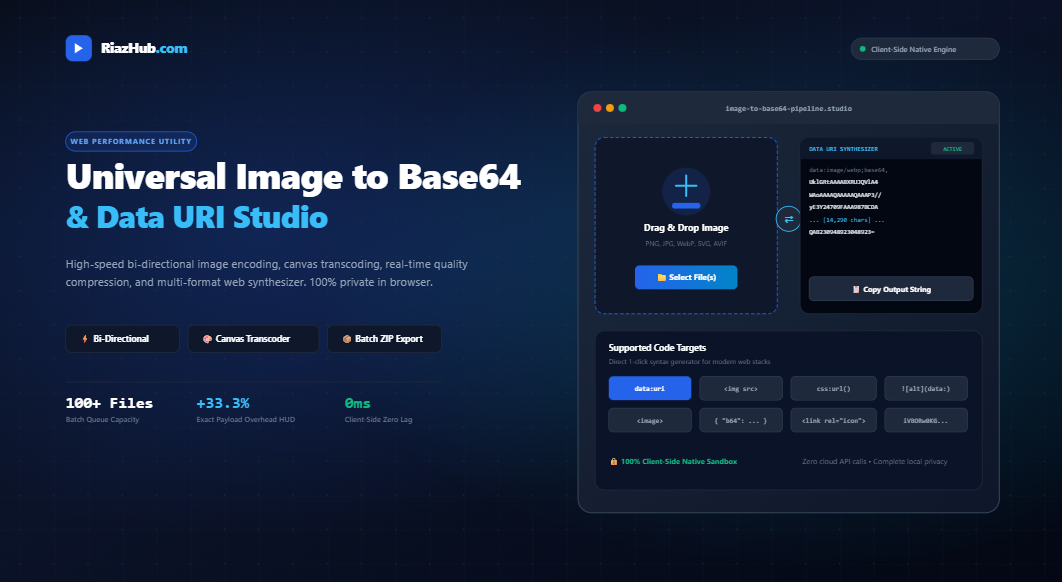
To perform this transformation instantly without transmitting your proprietary logos, private scans, or sensitive images to third-party cloud servers, use the client-side RiazHub Image to Base64 & Data URI Studio.
What Is Base64 Encoding? The Mathematics Behind the +33.3% Overhead
Base64 is a binary-to-text encoding algorithm designed to represent arbitrary sequence of 8-bit bytes using a constrained subset of 64 printable ASCII characters (A–Z, a–z, 0–9, +, and /, with = acting as boundary quantum padding).
The 24-Bit Quantum Mechanism
Computers store image files as binary streams of 8-bit octets. Base64 groups sequential binary data into 24-bit blocks (equivalent to 3 bytes, since $3 \times 8 = 24$). It then divides each 24-bit block into four 6-bit chunks ($4 \times 6 = 24$). Because $2^6 = 64$, every 6-bit chunk maps directly to one of the 64 characters in the standardized Base64 alphabet index.
Because 3 binary bytes always produce 4 ASCII characters, the raw string representation is mathematically guaranteed to be larger than the original binary data:
Whenever the binary byte length is not an exact multiple of 3, the encoder appends one or two padding characters (=) to preserve 4-character alignment. While this ~33.3% expansion increases the payload size in the DOM, the elimination of a separate TCP/TLS round trip makes Base64 a massive net win for lightweight assets.
The Anatomy of a Modern Data URI
A Base64 string on its own is merely a sequence of ASCII characters. To instruct a browser rendering engine (such as Blink, WebKit, or Gecko) how to parse and paint those characters as a visible graphic, the string must be wrapped in a standardized Data URI scheme (defined under RFC 2397).
The standard syntax follows this strict anatomy:
data:[<mediatype>][;base64],<data>A breakdown of each component:
data:— The scheme prefix specifying that the target resource is provided inline.<mediatype>(MIME Type): — Tells the browser’s graphics pipeline how to interpret the byte stream (e.g.,image/png,image/webp,image/svg+xml, orimage/jpeg).;base64— The encoding identifier indicating the payload is Base64 encoded rather than percent-encoded ASCII text.,<data>— The raw Base64 character string representing the image bitstream.
When you process an image through the Image to Base64 Converter on RiazHub, the tool automatically sniffs the MIME type and formats the Data URI with correct RFC-compliant headers.
Practical Code Embedding Targets
Once you have synthesized a valid Data URI, it can be embedded into virtually any layer of your frontend stack. Here are the most common implementations:
1. HTML <img> Inline Tag
Ideal for self-contained HTML templates, standalone promotional landing pages, and automated HTML email generators:
<img src="data:image/webp;base64,UklGRtAAAABXRUJQVlA4WAoAAAAQAAAAAQAAAP3//yE3Y24..." alt="Inline Brand Icon" width="64" height="64" />2. CSS Background Image (Zero HTTP Sprite Replacement)
Eliminate external sprite sheet requests by declaring micro-textures directly inside your stylesheet:
.hero-pattern {
    background-image: url("data:image/png;base64,iVBORw0KGgoAAAANSUhEUgAAACAAAAAgCAYAAABzenr0...");
    background-repeat: repeat;
}
3. Markdown Documentation & GitHub READMEs
Embed screenshots or workflow diagrams directly inside Markdown files without having to commit external image assets to your repository:
4. SVG <image> Embeddings
Nest raster textures inside scalable vector graphics components:
<svg viewBox="0 0 200 200" xmlns="http://www.w3.org/2000/svg">
    <image href="data:image/webp;base64,UklGRvAAA..." width="200" height="200" />
</svg>
5. JSON Payloads for REST & GraphQL APIs
Transmit image uploads or digital avatar thumbnails directly within API request bodies:
{
  "userId": "usr_99812",
  "avatar": {
    "filename": "profile.webp",
    "mimeType": "image/webp",
    "base64": "UklGRtAAAABXRUJQVlA4WAoAAAAQAAAAAQAAAP3//..."
  }
}
You can instantly switch between these syntax variants using the interactive format selector at RiazHub Image to Base64 Studio.
Encode or Decode in Real Time
Convert up to 100+ images simultaneously or decode raw strings back to PNG/WebP files.
When to Use Base64 Inlining vs. External Image Files
While Base64 inlining offers distinct architectural advantages, it should not be applied indiscriminately. The +33.3% byte expansion means large hero images can hurt page load speeds if misused.
| Evaluation Criteria | Inline Base64 Data URI | External Image File (CDN / Server) |
|---|---|---|
| HTTP Requests | 0 requests (Zero TCP/TLS latency) | 1 separate network request per asset |
| File Size Overhead | +33.3% payload expansion | Exact raw binary size (0% overhead) |
| Browser Caching | Tied to parent document (cannot cache independently) | Independently cacheable via HTTP Cache-Control headers |
| DOM & Parsing Impact | Increases HTML/CSS parse time if string is large | Decoupled from DOM; paints asynchronously |
| Optimal Asset Size | Under 10 KB – 15 KB (UI icons, glyphs, badges) | Over 20 KB (Hero banners, product photos) |
| Ideal Use Cases | HTML emails, single-file offline tools, CSS sprites | Content-heavy blogs, e-commerce storefronts, portfolios |
Step-by-Step Tutorial: Converting Images to Base64 with RiazHub
Encoding your graphics into clean Data URIs takes only a few seconds using the browser-based pipeline at RiazHub.com:
Drag and drop single or multiple image files (PNG, JPEG, WebP, SVG, GIF, AVIF, BMP, or ICO) into the dropzone. You can also paste directly from your clipboard using Ctrl + V.
Select your desired output format from the pill tabs: Data URI, Raw Base64, HTML <img>, CSS background-image url(), Markdown, SVG, JSON, or Favicon link tag.
Preserve your raw binary bitstream losslessly, or convert to WebP or JPEG on-the-fly using the integrated canvas compression slider (10% to 100%) to minimize string length.
Click “Copy Code to Clipboard” with one click, download individual snippets as .txt files, or package your entire batch queue into a single .zip archive.
Bi-Directional Decoding & Corrupted String Auto-Repair
The pipeline at https://riazhub.com/image-to-base64-data-uri is fully bi-directional. If you have an existing Base64 string copied from an API log, CSS file, or email source, the Base64 to Image Decoder reconstructs it into a downloadable binary image.
Common issues encountered when handling Base64 strings include accidental line breaks, carriage returns (\r\n), stray HTML tags, and truncated boundary padding. The RiazHub studio includes an automatic repair engine that:
- Strips surrounding whitespace, newline characters, and HTML tags.
- Sniffs embedded MIME type headers if present (or falls back intelligently to PNG).
- Calculates
length % 4and automatically appends missing=padding characters. - Renders the decoded image onto an interactive canvas viewport with zoom and pan controls.
Client-Side Security & Privacy Guarantee
Most traditional online converter utilities upload your graphic files to external cloud servers, run server-side scripts (such as ImageMagick or GD), and return the converted string over HTTP. This creates privacy risks when processing proprietary vector logos, personal ID scans, medical imagery, or confidential document snapshots.
The RiazHub Image to Base64 Studio operates entirely on the client side using native browser APIs:
FileReader.readAsDataURL()reads binary files directly into browser memory.HTML5 CanvasRenderingContext2Dexecutes real-time format conversion and quality scaling.window.atob()andwindow.btoa()handle standard Base64 encoding and decoding.- Native
Uint8Arrayand in-memory PKZIP packers generate downloads without network latency.
Zero bytes leave your computer. Processing happens with 0ms server latency and total privacy.
Frequently Asked Questions (FAQ)
Does Base64 encoding compress image files?
No. Base64 is an encoding format, not a compression algorithm. In fact, Base64 mathematically increases the payload size by approximately 33.3% because 3 binary bytes are mapped into 4 ASCII characters. To reduce payload size, you should convert the image to a modern format (such as WebP) before encoding, which can be done directly inside the RiazHub Image to Base64 Studio.
Can search engines index Base64 embedded images?
Google and other modern search crawlers can parse and render inline Base64 graphics embedded inside standard HTML <img> tags. However, standalone image search engines (like Google Images) generally prefer external image files with descriptive filenames and canonical URLs for indexing.
Why does my Base64 string throw an “InvalidCharacterError”?
This error typically occurs when the string contains illegal characters (such as unescaped whitespace, tabs, or newlines) or when the string’s length is not an exact multiple of 4 due to missing = padding characters. The auto-repair feature in RiazHub’s Decoder automatically fixes these padding and whitespace anomalies.
What is the maximum file size recommended for Base64 inlining?
As a rule of thumb, keep inline Base64 assets under 10 KB to 15 KB. Inlining larger graphics bloats the HTML document, increases browser DOM parsing time, and prevents browser caching of those individual graphics.
Launch RiazHub Image to Base64 Studio
Encode, decode, transcode, and batch export your graphics in complete privacy today.
Universal Image to Base64 & Data URI Studio
Encode high-res images into lightweight inline Base64 strings, decode raw bitstreams back to downloadable assets, and synthesize ready-to-paste web code with real-time compression.
Base64 Mathematics, Performance & Inline Asset Architecture
A-Z, a-z, 0-9, +, /). Because 3 binary bytes are transformed into 4 ASCII characters, the resulting string payload increases by precisely:
=) are appended to complete the 4-character quantum boundary, payload expansion can slightly exceed 33.3% for tiny files.
Avoid Base64 for: Large hero banners, product photography, or images over 50 KB–100 KB. High payload Base64 increases HTML/CSS parse time, bloats the DOM, and cannot be independently cached by client browser caches or CDNs without re-downloading the entire parent document.
data:[<mediatype>][;base64],<data> (e.g., data:image/webp;base64,...). Without an explicit MIME header, browser layout engines (Blink, WebKit, Gecko) cannot infer the bitstream decoder and may fail to display the graphic inside standard HTML <img> tags or CSS properties.
FileReader, HTML5 CanvasRenderingContext2D, and native binary typed arrays (Uint8Array). Zero user photos, private document scans, logos, or generated base64 strings are transmitted over the network or saved to external servers.