Mastering Visual Bug Reporting: Why Modern Technical Teams Need a Zero-Friction Screenshot Markup Studio
In agile software development, a poorly communicated bug report costs hours of engineering time. Developers are routinely confronted with vague Slack messages like “the checkout page isn’t calculating tax properly” or “the dashboard widget looks broken.” Without exact visual cues, steps to reproduce, or highlighted system states, tickets bounce back and forth between QA and development teams, inflating cycle times and stalling releases.
While modern operating systems offer basic snipping utilities, they lack the specialized technical markup vocabulary required for professional engineering documentation. Worse, desktop design tools like Figma or Photoshop are far too heavy for a quick 10-second markup.
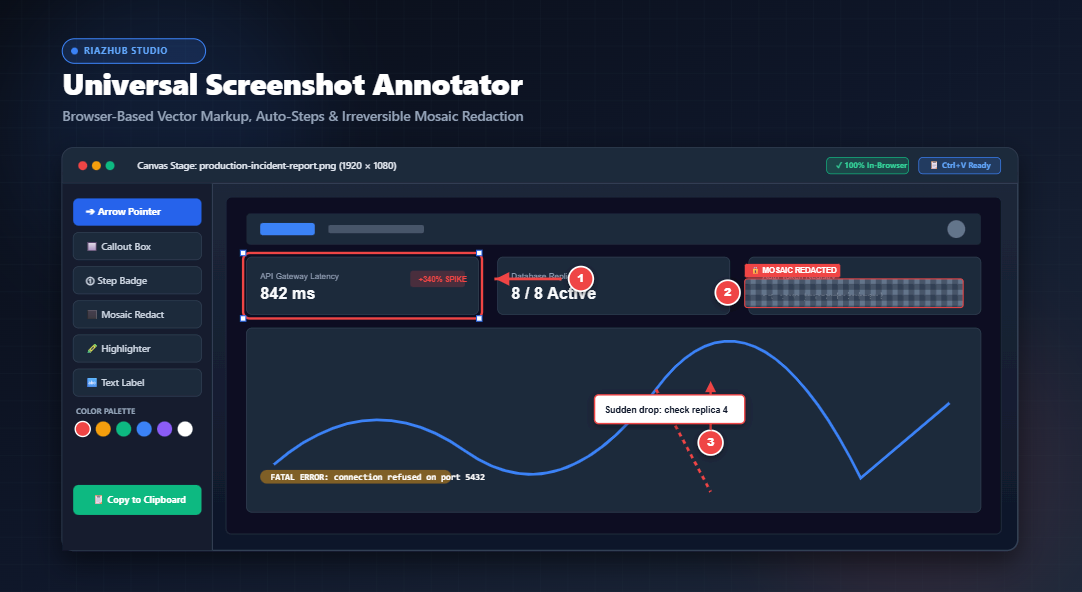
To solve this workflow bottleneck, technical teams rely on the Screenshot Annotator & Technical Markup Studio on RiazHub. This browser-based utility allows anyone to paste a screenshot straight from their clipboard (Ctrl+V), overlay vector callouts, redact sensitive credentials with irreversible mosaic pixelation, auto-number reproduction steps, and copy the final composition back to their system clipboard in seconds.
🚀 Ready to supercharge your QA tickets? Open the Screenshot Annotator & Technical Markup Studio directly in your browser. No sign-up, no extension installs, and zero server uploads required.
The Anatomy of an Actionable Visual Bug Ticket
What separates an amateur bug ticket from an actionable one? High-velocity engineering teams standardize on three visual pillars:
- Directional Precision: Highlighting the exact element with sharp, proportional vector arrows and callout rectangles rather than messy, handwritten mouse squiggles.
- Chronological Steps (1, 2, 3…): Ordering the user journey using auto-incrementing numbered badges so backend developers can trace the workflow from trigger to defect.
- Credential & PII Redaction: Obfuscating private access tokens, session cookies, database connection strings, and customer personal details prior to sharing across ticket trackers.
The RiazHub Screenshot Annotator combines all three pillars into a high-speed, non-destructive canvas workflow.
Irreversible Mosaic Pixelation vs. Surface Blackout Boxes
One of the most dangerous oversights in technical documentation is leaking confidential data. Support engineers and QA testers routinely take screenshots of staging consoles, Kubernetes dashboards, and customer databases that display API secrets, auth tokens, or email addresses.
⚠️ Security Caution: Many simple graphic editors and PDF markup tools place a black vector rectangle on top of sensitive text without modifying the underlying pixels. Anyone inspecting the image layers or manipulating brightness and contrast curves can recover the underlying secrets.
The Universal Screenshot Annotator & Technical Markup Studio solves this with client-side mathematical downsampling. By extracting underlying image data through HTML5 Canvas getImageData, the engine divides the redaction zone into discrete $14\text{px} \times 14\text{px}$ grid blocks, calculates the average RGB color within each block, and permanently overwrites memory with putImageData.
Once a mosaic redaction is applied, the original pixel values are physically destroyed. Optical Character Recognition (OCR) engines and image forensics cannot reverse-engineer what was redacted.
Auto-Numbered Step Badges & Synchronized Legend Generator
When diagnosing a race condition or an edge-case checkout bug, a static image alone is rarely enough. Engineers need to know: Which button was clicked first? What dropdown was opened second? Where did the validation error trigger?
With the Screenshot Annotator & Technical Markup Studio, placing sequential badges is as simple as selecting the ① Step tool and clicking the canvas. Each click places a crisp, high-contrast numbered badge with drop shadow and auto-increments ($1 \to 2 \to 3$). If you delete an intermediate marker, the engine automatically re-indexes the entire layer stack.
Even better, switching to the Step Sequence Legend tab automatically compiles all placed markers into a synchronized documentation table. You can add brief descriptions and click 📋 Copy Markdown Table to generate a ready-to-paste markdown table for your Jira ticket or GitHub Issue:
| Step # | Target Coords | Action Description | Expected Outcome |
|---|---|---|---|
| 1 | (X: 240, Y: 180) | Click “Generate API Token” modal trigger | Secret key field generates string |
| 2 | (X: 710, Y: 310) | Verify secret token obfuscation | Token is masked and unrecoverable |
| 3 | (X: 840, Y: 560) | Submit changes to staging cluster | 200 OK Response received |
Streamline Your Technical Communication Today
No downloads, no installations, and 100% free. Paste your screenshot now, add crisp vector callouts, and copy direct to your clipboard.
Comparing Native OS Snipping vs. Dedicated Markup Studio
Why should software teams adopt a dedicated browser markup workspace over standard OS utilities? The difference lies in workflow velocity:
| Workflow Capability | Built-in OS Snipping Tool | RiazHub Screenshot Annotator |
|---|---|---|
| Non-Destructive Vectors | ❌ Destructive bitmap ink (hard to edit) | ✅ Fully selectable, movable, scalable layers |
| Sequential Auto-Numbering | ❌ Manual handwriting or separate text | ✅ 1-Click auto-incrementing numbered badges |
| Permanent Mosaic Redaction | ❌ Opaque pen ink only (easy to misalign) | ✅ Irreversible mathematical pixel averaging |
| Step Legend Markdown Export | ❌ None | ✅ 1-Click Jira/GitHub markdown table generator |
| Multi-Asset ZIP Bundler | ❌ Single file saving only | ✅ In-memory ZIP with original, marked, & JSON metadata |
| System Clipboard Direct Copy | ⚠️ Varies by OS version | ✅ Native 32-bit PNG clipboard write API |
Advanced Studio Features for Technical Workflows
Scrutinize fine sub-pixel typography, edge alignment, and anti-aliasing with a real-time circular magnifying lens.
Instantly toggle an interactive swipe divider comparing raw pristine screenshots against annotated compositions.
Bundles the annotated PNG, pristine baseline image, markdown bug report, and vector layers JSON without external libraries.
Switch instantly between Bug Report Master, Security Redaction, Technical Walkthrough, and Clean Highlighting presets.
How to Integrate the Annotator into Your Daily QA Routine
Adopting this workflow takes zero onboarding:
- Capture: Press PrtScn or Cmd+Shift+4 to copy any portion of your screen.
- Open & Paste: Visit the Screenshot Annotator & Technical Markup Studio and press Ctrl+V. Your screenshot loads immediately onto the interactive stage.
- Annotate & Redact: Draw crisp arrows, place numbered step badges, and drag mosaic boxes over passwords or customer tokens.
- Copy & Share: Click 📋 Copy Image to Clipboard and press Ctrl+V directly into Slack, Jira, GitHub, or Linear.
Summary & Direct Access
Clear visual communication is the hallmark of efficient engineering teams. By replacing vague descriptions and messy freehand scribbles with structured vector annotations, auto-numbered steps, and secure pixel redaction, your team eliminates confusion and closes tickets faster.
Experience the workflow firsthand at the RiazHub Screenshot Annotator & Technical Markup Studio and transform how you report bugs today.
📸 Universal Screenshot Annotator & Technical Markup Studio
Paste screenshots from clipboard, draw vector arrows and callout boxes, redact credentials with irreversible mosaic pixelation, add auto-numbered steps, and export in real time.
Step Sequence Legend (Auto-Compiled)
Numbered step badges placed on your screenshot are compiled below. You can customize the step descriptions before exporting or copying into Jira, GitHub, or QA bug tickets.
| Step | Target Coords | Action / Issue Description | Expected Behavior |
|---|---|---|---|
| No step badges added yet. Select the ① Step tool and click on the canvas to place sequential markers. | |||
When reporting bugs in Jira, GitHub Issues, or Linear, clear visual annotations eliminate back-and-forth communication. Use high-contrast directional arrows to highlight exact glitch targets, combined with auto-incrementing step badges (①, ②, ③) to illustrate user reproduction steps chronologically. Our built-in Step Sequence Legend compiles these badges into formatted markdown tables ready for instant pasting.
Unlike simple black boxes drawn over text in some editing apps (which can occasionally be removed or separated by PDF and SVG layer inspectors), our Mosaic Pixelation Filter uses HTML5 Canvas getImageData and putImageData to permanently downsample underlying pixel blocks in browser memory. The original RGB values are averaged and irreversibly overwritten, rendering passwords, API keys, and Personally Identifiable Information (PII) completely unrecoverable by optical character recognition (OCR).
The Copy to Clipboard feature uses the modern HTML5 navigator.clipboard.write([new ClipboardItem(...)]) API to write a lossless 32-bit PNG blob directly into your operating system clipboard. You can paste immediately into Slack conversations, Jira ticket descriptions, email drafts, or documentation platforms without saving temporary files to your hard drive.
Zero screenshot data, financial dashboards, server logs, or credential images are ever uploaded to an external server. All vector rasterization, image processing, and ZIP file compilation occur purely inside your browser's local sandbox using vanilla JavaScript and HTML5 Canvas.