
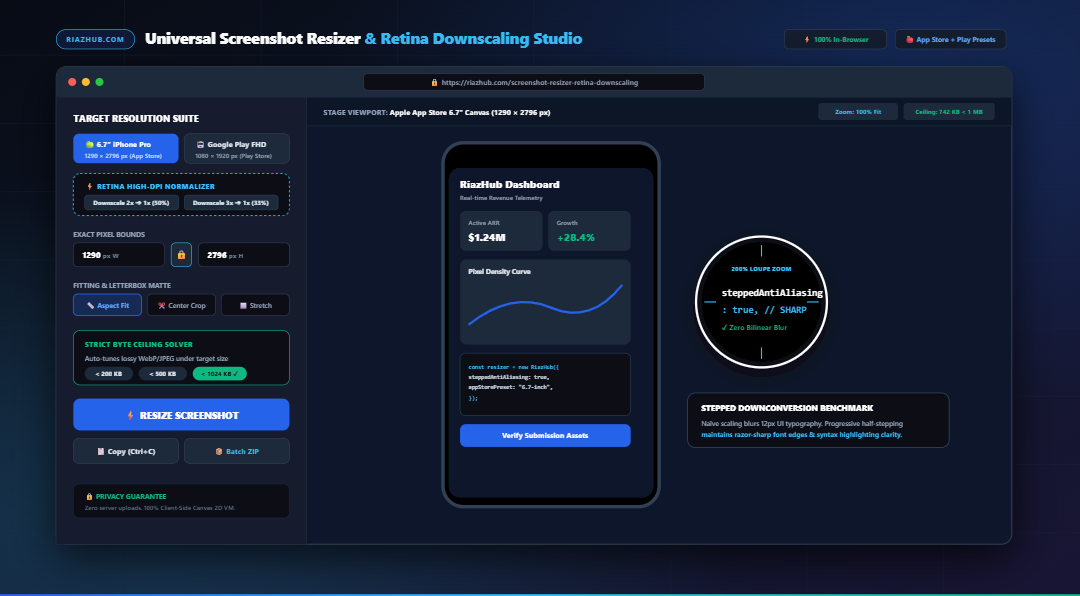
Universal Screenshot Resizer & Retina Downscaling Studio: The Ultimate Guide to Pixel-Perfect App Store & Web Graphics
Whether preparing mobile mockups for Apple App Store Connect, finalizing release screenshots for the Google Play Console, or embedding crisp interface graphics inside developer documentation, software teams face a relentless dilemma: modern Retina displays capture screenshots at two to three times hardware density, while app distribution portals demand mathematically exact pixel boundaries and stringent file weight limits.
A single pixel deviation or a fuzzy, bilinearly blurred downscale will trigger an immediate portal rejection or damage prospective user conversion. To solve these friction points without costly desktop image suites or insecure third-party upload tools, RiazHub developed the Universal Screenshot Resizer & Retina Downscaling Studio a client-side workstation engineered for instant clipboard ingestion, sub-pixel stepped anti-aliasing, automated byte budget clamping, and multi-file PKZIP archiving.
The Dilemma of Modern High-DPI Screenshots: Why Naïve Resizing Fails
Modern mobile devices and desktop operating systems render interfaces at physical hardware scales far exceeding CSS logical pixel grids:
- Apple Super Retina XDR ($3\times$): An iPhone 15 Pro Max renders at $1179 \times 2556$ logical points, producing physical captures at native pixel density. Meanwhile, Apple App Store Connect mandates exact 6.7″ display screenshots of $1290 \times 2796\text{ px}$.
- MacBook Liquid Retina ($2\times$): A desktop browser window capture on a 16″ MacBook Pro yields physical images up to $3456 \times 2234\text{ px}$, ballooning file sizes to 8–15 MB.
- Google Play Phone Displays ($2.6\times$ to $3.5\times$): High-end Android devices output captures with irregular aspect ratios (such as 20:9 or 20.5:9), while Google Play Console expects standardized Full HD ($1080 \times 1920$) or 7″/10″ tablet resolutions.
When developers attempt to resize these captures using basic image converters or single-pass browser canvas drawing, the browser applies single-step bilinear interpolation across huge downscaling jumps (e.g., dropping 50% to 70% in a single calculation). This naive approach averages adjacent pixel colors haphazardly, introducing:
- Fuzzy UI Typography: 12px and 14px dashboard labels, button texts, and tooltips lose contrast, appearing muddy and amateurish.
- Degraded 1px Borders: Subtle border lines and card dividers blur across multiple sub-pixels, causing modern minimal UI designs to look washed out.
- Code Syntax Smearing: Monospace syntax in developer tools or terminal snapshots becomes unreadable.
The Universal Screenshot Resizer & Retina Downscaling Studio implements progressive half-stepping: iteratively reducing resolution by half ($W_{k+1} = \max(W_{\text{target}}, \lfloor W_k \times 0.5 \rfloor)$) until the target dimensions are met. This progressive anti-aliasing preserves vector-grade font sharpness and line contrast.
Certified Platform Dimensions: App Store Connect & Google Play Specifications
App store portals maintain automated ingestion validation bots that reject any image differing from certified dimension requirements by even a single pixel. The Universal Screenshot Resizer provides pre-calibrated, 1-click presets covering every platform tier:
| Platform Preset | Target Resolution (W × H) | Aspect Ratio | Recommended Fitting Mode |
|---|---|---|---|
| Apple 6.9″ iPhone (16 Pro Max) | 1320 × 2868 px | 19.5:9 | Aspect Fit (Letterbox Matte) |
| Apple 6.7″ iPhone (15/14 Pro Max) | 1290 × 2796 px | 19.5:9 | Aspect Fit (Letterbox Matte) |
| Apple 6.5″ iPhone (11 Pro Max / XS) | 1242 × 2688 px | 19.5:9 | Aspect Fit or Center Crop |
| Apple 13″ iPad Pro (M4 Display) | 2064 × 2752 px | 4:3 (Portrait) | Aspect Fit (Slate / Black Matte) |
| Google Play Phone Full HD | 1080 × 1920 px | 16:9 Standard | Center Crop or Aspect Fit |
| Google Play Phone Tall | 1080 × 2400 px | 20:9 Modern | Aspect Fit with Clean Margin |
| Google Play 10″ Android Tablet | 1600 × 2560 px | 16:10 | Aspect Fit (Letterbox Matte) |
| Twitter / X Landscape Post | 1200 × 675 px | 16:9 | Center Crop (Fill) |
| LinkedIn Social Feed Card | 1200 × 627 px | 1.91:1 | Center Crop or Fit |
| GitHub Repository Hero Banner | 1280 × 720 px | 16:9 HD | Aspect Fit (Dark Navy Matte) |
Fitting Topologies Explained: Letterbox vs. Center Crop vs. Stretch
When mapping a screenshot from one display ratio to another, automated distortion will ruin the user experience. The Universal Screenshot Resizer Studio provides three distinct mathematical fitting modes:
1. Aspect Fit (Letterbox Matte Padding)
Aspect Fit calculates a uniform scale factor $\text{Scale} = \min(W_{\text{target}} / W_{\text{orig}}, H_{\text{target}} / H_{\text{orig}})$. The screenshot is scaled proportionally and centered on the target canvas. The remaining margins are padded with a custom matte color:
- Pitch Black (#000000): Blends naturally with modern OLED device bezels and iOS Dynamic Island notches.
- Dark Slate (#1E293B): Excellent for developer documentation, GitHub readmes, and tech blog embeds.
- Pure White (#FFFFFF): Ideal for clean web catalogs and PDF reports.
- Alpha Transparent: Preserves transparency for graphic design overlays in Figma or Photoshop.
2. Center Crop (Fill Bounds)
Center Crop uses the maximum scale factor $\text{Scale} = \max(W_{\text{target}} / W_{\text{orig}}, H_{\text{target}} / H_{\text{orig}})$, completely filling the canvas without letterbox margins. The outermost excess pixels are cropped symmetrically from the sides or top/bottom. This mode is favored for social media promotional cards where full-bleed graphics are desired.
3. Stretch to Exact Bounds
Forces the image to fill the exact target $W \times H$, regardless of native aspect ratio. Best utilized when the source capture has near-identical proportions and non-uniform scaling artifacts will remain imperceptible.
Strict Byte Ceiling Budget Solver: Never Fail a Portal Upload Again
Online distribution channels frequently impose hard file size ceilings. Google Play and Apple App Store Connect enforce strict maximum asset weights, while documentation platforms and email clients demand lightweight images for rapid mobile delivery.
Manually guessing compression sliders is slow and unreliable. The Universal Screenshot Resizer integrates an automated 6-pass binary search quality convergence algorithm. When you select an asset budget (e.g., $< 500\text{ KB}$ or $< 1024\text{ KB}$), the engine iteratively tests quality midpoints in browser memory:
async function clampScreenshotBlob(canvas, targetKb, mimeType = ‘image/webp’) {
const maxBytes = targetKb * 1024;
let low = 0.10, high = 1.0, bestBlob = null, bestQ = 0.95;for (let pass = 0; pass < 6; pass++) { const mid = (low + high) / 2; const testBlob = await new Promise(res => canvas.toBlob(res, mimeType, mid));
if (testBlob.size <= maxBytes) {
bestBlob = testBlob;
bestQ = mid;
low = mid; // Try higher quality while respecting ceiling
} else {
high = mid; // Compress further
}
}
return bestBlob;
}
Within less than 150 milliseconds, the engine identifies the highest possible visual fidelity that guarantees your screenshot never triggers a portal rejection.
Interactive Studio Inspection: Split-Screen Slider & 400% Zoom Loupe
Before distributing screenshots to millions of users, visual verification is essential. The workspace on RiazHub.com features advanced preview tools:
- Interactive Split-Screen Slider: A 60 FPS draggable divider compares the original capture on the left with the resized output on the right, making any potential text softness immediately visible.
- 200% / 400% Zoom Loupe: A floating circular magnifying inspection lens with an integrated crosshair reveals sub-pixel anti-aliasing directly at cursor position.
- App Store Device Mockup: Contextualizes your screenshot within a photorealistic modern smartphone frame equipped with a Dynamic Island and device bezel.
- Batch Matrix Table: When processing multiple screenshots simultaneously, a sortable matrix lists source sizes, target resolutions, final byte counts, and individual download triggers.
Step-by-Step Workflow: How to Resize and Downscale in Seconds
- Ingest Screenshot Media: Open the Universal Screenshot Resizer and press Ctrl+V (or Cmd+V) to paste an image straight from your clipboard. Alternatively, drag and drop up to 50+ files into the upload zone or click “Load Sample App UI” to experiment with synthetic SaaS analytics graphics.
- Select Platform Preset or Custom Resolution: Choose from Apple App Store, Google Play, Social Media, or Custom tabs. Click a chip (such as “6.7″ iPhone 1290×2796”) to lock in exact dimensions.
- Normalize High-DPI Captures (Optional): If you took a macOS or Windows screenshot on a high-density screen, click “⚡ Downscale 2x ➔ 1x (50%)” to instantly match standard web viewport dimensions while activating stepped sub-pixel filtering.
- Configure Framing & Byte Budget: Select Aspect Fit with a slate or black matte, or choose Center Crop. If targeting upload caps, check “Enforce Strict File Size Limit” and select < 1024 KB.
- Inspect and Export: Switch to the Split-Screen Slider or 200%/400% Loupe to verify sharpness. Click “📋 Copy Image to Clipboard” for instantaneous pasting into Slack, Jira, or GitHub, or click “📦 Download All as ZIP” to compile an in-memory PKZIP archive complete with an audit manifest.
Frequently Asked Questions (FAQ)
Apple utilizes strict automated binary ingestion pipelines. Screenshots are mapped directly to physical display containers across the App Store on iOS, iPadOS, and macOS. If an uploaded image deviates from certified hardware dimensions (such as 1290×2796 for 6.7″ Super Retina XDR), the ingestion engine rejects the asset immediately to avoid rendering artifacts or black borders on customer devices.
Single-pass bilinear interpolation skips intermediate pixel calculations when downscaling images by large amounts (e.g. 50% or 66%). This creates fuzzy, blurred text. Stepped progressive halving ($W_{k+1} = \lfloor W_k \times 0.5 \rfloor$) processes intermediate steps iteratively, preserving razor-sharp 1px lines, font glyphs, and UI icons.
No. The Universal Screenshot Resizer on RiazHub.com executes 100% inside your browser’s local sandbox using the HTML5 Canvas 2D API, FileReader, and native Blob streams. Confidential client dashboards, proprietary SaaS prototypes, and personal photos never travel across the network.
Yes. Clicking the primary “Copy Image (Ctrl+C)” button invokes the browser’s native Async Clipboard API (navigator.clipboard.write) to serialize the resized graphic directly onto your system clipboard, allowing instant pasting into your team tools.
The tool incorporates a lightweight, zero-dependency pure JavaScript PKZIP binary generator. It compiles standard ZIP local file headers, central directory indexes, and CRC-32 checksums directly in browser RAM, packaging up to 50+ screenshots and an audit manifest into a single downloadable .zip archive instantaneously.
Universal Screenshot Resizer & Retina Downscaling Studio
Resize screenshots to exact Apple App Store & Google Play requirements, downscale 2x/3x Retina captures to razor-sharp 1x graphics with progressive multi-pass anti-aliasing, enforce byte ceilings, and copy directly to system clipboard.
| Screenshot | Original Size | Target Resolution | Output File Size | Action |
|---|---|---|---|---|
| No screenshots in batch queue. | ||||
🍏 Apple App Store & Google Play Strict Pixel Rules
App Store Connect and Google Play Console require screenshots to strictly match their certified hardware pixel dimensions down to the exact pixel (such as 1290×2796 for 6.7″ Super Retina XDR or 1080×1920 for Android FHD). A 1-pixel deviation triggers an instant submission rejection.
⚡ Stepped Multi-Pass Downscaling Mathematics
Downscaling high-DPI Retina screenshots (2x or 3x) in a single naive bilinear pass causes muddy, blurry UI text. This studio implements progressive half-stepping: iteratively halving resolution by 50% until reaching the target, preserving razor-sharp typography, code snippets, and crisp 1px borders.
📏 Aspect Fit Letterboxing vs Center Crop Fill
Mobile screens possess diverse aspect ratios (19.5:9, 20:9, 16:9). Aspect Fit letterboxing applies a solid pitch black (#000) or slate matte to pad margins without cropping critical UI elements, navigation bars, or floating action buttons.
🔒 100% Client-Side In-Browser Privacy Guarantee
All canvas resampling, byte ceiling binary convergence, and PKZIP generation occur exclusively inside your web browser's local sandbox memory. Zero confidential client dashboards, proprietary SaaS mockups, or sensitive files are ever uploaded across the network.