
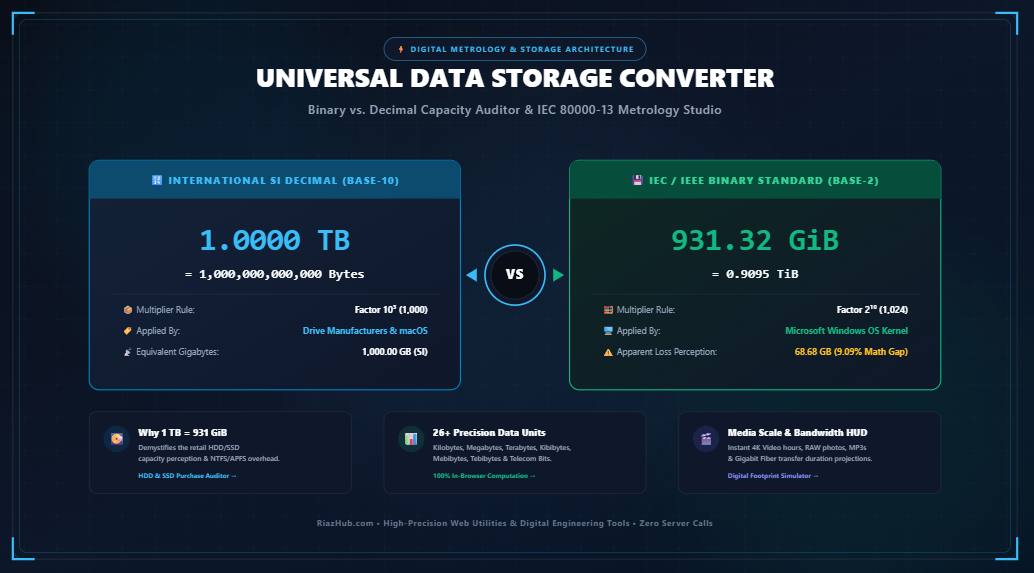
The Truth Behind Hard Drive Space: Decimal vs. Binary Storage Metrology, File System Overhead & Complete Capacity Audit Guide
“Local Disk (D:) — 931 GB free of 931 GB”
Where did the remaining 69 Gigabytes disappear to? Did the manufacturer cheat you? Is your drive defective, or has malware quietly consumed your flash memory payload?
The truth is both fascinating and steeped in decades of historical computing disputes between electrical engineering standards and software architecture. To audit your hardware with laboratory precision and translate capacities across all operating systems, you can test your hardware directly using the Universal Data Storage Converter & Drive Capacity Auditor on RiazHub.
1. The Core Metrology Conflict: Base-10 (SI Decimal) vs. Base-2 (IEC Binary)
The apparent “loss” of hard drive storage is not caused by hardware failure, missing silicon, or corporate deceit. It is the direct consequence of two completely different numerical counting systems colliding on your screen:
- The SI Decimal Standard (Base-10): Used by storage manufacturers, optical disk standards, telecommunications providers, and modern operating systems like macOS and Linux. In Base-10 arithmetic, prefixes follow powers of 10 ($10^3 = 1,000$).
- The IEC / IEEE Binary Standard (Base-2): Used by computer memory architecture (RAM), processor registers, and the Microsoft Windows operating system kernel. In binary arithmetic, electronic transistors operate exclusively on boolean states (0 and 1), meaning memory addresses naturally scale in powers of 2 ($2^{10} = 1,024$).
⚡ Live Storage Calculation Matrix
Want to see the instant mathematical translation between Decimal and Binary prefixes for any capacity value? Run your numbers through the Universal Data Storage Converter to inspect 26+ units with up to 10 decimal precision places.
2. IEC 80000-13 & IEEE 1541: The Formalization of “Kibi”, “Mebi”, “Gibi”, and “Tebi”
Prior to 1998, the computing industry loosely used the word “Kilobyte” to mean either 1,000 bytes or 1,024 bytes, depending on context. Network engineers meant 1,000 bits per second, while motherboard firmware engineers meant 1,024 bytes of random-access memory.
To eliminate this ambiguity, the International Electrotechnical Commission (IEC), later codified by the IEEE 1541 and ISO/IEC 80000-13 standards, formally introduced unique prefixes for binary multipliers:
| Family | Standard Prefix | Symbol | Mathematical Multiplier | Exact Number of Bytes |
|---|---|---|---|---|
| SI Decimal | Kilobyte | KB | 10³ | 1,000 Bytes |
| IEC Binary | Kibibyte | KiB | 2¹⁰ | 1,024 Bytes |
| SI Decimal | Megabyte | MB | 10⁶ | 1,000,000 Bytes |
| IEC Binary | Mebibyte | MiB | 2²⁰ | 1,048,576 Bytes |
| SI Decimal | Gigabyte | GB | 10⁹ | 1,000,000,000 Bytes |
| IEC Binary | Gibibyte | GiB | 2³⁰ | 1,073,741,824 Bytes |
| SI Decimal | Terabyte | TB | 10¹² | 1,000,000,000,000 Bytes |
| IEC Binary | Tebibyte | TiB | 2⁴⁰ | 1,099,511,627,776 Bytes |
Under international metrology law, drive manufacturers are 100% correct when they print “1 TB” on the box. They are delivering precisely 1,000,000,000,000 Bytes.
3. Why Windows Labels “GiB” as “GB” (And Why macOS Changed)
The root cause of consumer frustration lies inside Microsoft Windows. The Windows operating system kernel calculates storage volumes using binary division ($1,024^3$), yet it displays the decimal suffix "GB" on screen rather than the technically accurate "GiB".
Advertised Decimal Bytes = 1,000,000,000,000 Bytes
Windows Calculation      = 1,000,000,000,000 / 1,073,741,824
Windows Result           = 931.32257... GiB
Windows Display Label    = "931 GB" (Incorrectly labeled!)
In contrast, Apple recognized this customer confusion and fundamentally re-engineered Mac OS X Snow Leopard (version 10.6 in 2009). When you plug a 1 TB external SSD into a modern Mac, macOS reports the capacity as 1.00 TB (1,000 GB) using true decimal Base-10 multipliers.
If you ever need to verify how your storage drive will be reported across Windows 11, Apple macOS, Linux distributions, or gaming consoles like the PlayStation 5, you can audit the results in seconds via the Drive Capacity Auditor module on RiazHub.
4. The Mathematical “Missing Space” Escalation Formula
A common misconception is that the “lost” capacity percentage is a static, fixed figure. In reality, because exponential powers of 2 grow faster than powers of 10, the gap widens significantly as storage drives grow larger:
Percentage Gap = [1 – (10^N / 2^(10×(N/3)))] × 100%
- At the Kilobyte (KB) scale: 1,000 / 1,024 = 2.34% deficit
- At the Megabyte (MB) scale: 10⁶ / 2²⁰ = 4.63% deficit
- At the Gigabyte (GB) scale: 10⁹ / 2³⁰ = 6.87% deficit
- At the Terabyte (TB) scale: 10¹² / 2⁴⁰ = 9.09% deficit
- At the Petabyte (PB) scale: 10¹⁵ / 2⁵⁰ = 11.26% deficit
| Retail Drive Label | Raw Bytes Delivered | Windows Reported (GiB/TiB) | Apparent Space “Missing” |
|---|---|---|---|
| 128 GB SSD | 128,000,000,000 | ~119.21 GiB | 8.79 GB |
| 256 GB NVMe | 256,000,000,000 | ~238.41 GiB | 17.58 GB |
| 500 GB SSD | 500,000,000,000 | ~465.66 GiB | 34.34 GB |
| 1 TB HDD/SSD | 1,000,000,000,000 | ~931.32 GiB | 68.68 GB |
| 2 TB NVMe | 2,000,000,000,000 | ~1,862.64 GiB (1.818 TiB) | 137.35 GB |
| 4 TB Enterprise | 4,000,000,000,000 | ~3.638 TiB | 274.72 GB |
| 8 TB NAS Drive | 8,000,000,000,000 | ~7.276 TiB | 549.44 GB |
| 16 TB Datacenter | 16,000,000,000,000 | ~14.552 TiB | 1,098.88 GB (1.09 TB!) |
When purchasing an enterprise 16 TB NAS drive, an astonishing 1.09 Terabytes appears to vanish instantly inside Windows solely due to binary metrology differences!
5. The Hidden Tax: File System Partition Tables & Allocation Overhead
Binary conversion explains the jump from 1,000 GB to 931 GiB. However, once you format the disk with a file system, your usable payload space drops by an additional 0.5% to 2%:
- NTFS (Windows): Reserves approximately 1.5% of raw partition space for the Master File Table (MFT), allocation bitmap, volume journal, and security descriptors.
- APFS (Apple): Reserves roughly 1.0% for container metadata, space managers, and object maps.
- EXT4 (Linux): Reserves between 1.5% and 5.0% for superblocks, inode tables, and emergency root reservation blocks.
- exFAT (Flash / Removable Drives): Consumes only ~0.5% overhead, making it the most space-efficient format for USB thumb drives and SD cards.
Accounting for both binary calculation and NTFS formatting overhead, a 1 TB retail drive provides exactly ~917.35 GiB of true usable payload storage.
6. Telecom Bits vs. Storage Bytes: Why Your 800 Mbps Internet Downloads at 100 MB/s
A closely related metrology puzzle involves Internet speeds. Consumers frequently subscribe to an “800 Mbps Gigabit fiber connection” and wonder why their Steam game download peaks at “only” 100 MB/s.
The explanation lies in the fundamental distinction between bits and bytes:
1 Byte (capital 'B') = 8 Bits (lowercase 'b')
800 Megabits per second (Mbps) / 8 = 100 Megabytes per second (MB/s)
Internet Service Providers (ISPs) advertise bandwidth in Megabits per second (Mbps) to measure serial electronic signal transmissions, whereas file systems report file transfers in Megabytes per second (MB/s).
To see how long any file or drive volume will take to download or upload across 1 Gbps Fiber, 5G Mobile, 100 Mbps Cable, or 4G LTE, leverage the built-in transfer duration calculator inside the Universal Data Storage Converter & Media Studio.
7. Translating Terabytes into Real-World Media Footprints
Numbers like “931 GiB” or “1,000,000,000,000 Bytes” can feel abstract. How much actual real-world digital media does that capacity represent?
- ~33,333 Uncompressed 24MP RAW Photos: Based on an average high-res sensor RAW file size of 30 MB.
- ~88.9 Hours of 4K UHD Video: At a standard 25 Mbps broadcast-grade HEVC / H.265 compression stream.
- ~104,166 High-Fidelity MP3 Songs: At 320 kbps bit rate (average 4-minute track ~9.6 MB).
- ~222 Full-HD 1080p Movies: Based on standard high-bitrate digital encodes averaging 4.5 GB per film.
- ~694,444 Vintage 3.5″ Floppy Disks: Based on the classic 1.44 MB diskette format.
- ~1,428 Standard CD-ROMs: Standard 700 MB optical discs.
- ~40 Single-Layer Blu-ray Discs: Standard 25 GB optical discs.
8. Step-by-Step Guide: How to Audit Your Storage Drives on RiazHub
You can verify any drive, calculate exact partition yields, and export high-resolution metrology specification sheets in four simple steps:
- Open the Converter Tool: Navigate to the Universal Data Storage Converter & Drive Capacity Auditor.
- Select Your Input Unit: Choose from 26+ units across SI Decimal (KB, MB, GB, TB, PB), IEC Binary (KiB, MiB, GiB, TiB, PiB), or Telecom Bits (Kb, Mb, Gb, Tb).
- Switch to “Drive Space Auditor” Mode: Enter the advertised retail capacity of your external hard drive, SSD, or SD card, select your operating system (Windows, macOS, Linux, or Console), and pick your file system format (NTFS, APFS, EXT4, exFAT).
- Generate Your Shareable 1200×630 Dossier Card: Switch to the “Shareable Dossier Card” tab to download a high-resolution, perfectly formatted digital metrology certificate displaying verified decimal-to-binary equivalence.
🛠️ Launch the In-Browser Metrology Studio
Experience 100% private, client-side data conversion with zero server latency, responsive dark mode support, and 1-click clipboard/CSV export.
Frequently Asked Questions (FAQ)
Is my hard drive manufacturer breaking the law by selling 1,000 GB as 1 TB?
No. Manufacturers adhere strictly to the International System of Units (SI) established by the International Electrotechnical Commission (IEC). One Terabyte is defined globally as $10^{12}$ bytes (1,000,000,000,000 bytes). Several class-action lawsuits filed in the early 2000s against hard drive makers were dismissed because the manufacturers complied with formal international metrology standards.
Can I force Windows to display storage in true decimal Gigabytes?
Not natively. The Windows Explorer shell is deeply integrated with the binary Win32 API. However, third-party utilities and PowerShell commands can report true decimal bytes. Linux users can pass the -H flag (e.g., df -H) to view true decimal gigabytes, while macOS does so by default.
Does SSD over-provisioning reduce usable drive capacity?
Yes. Modern solid-state drives dedicate a portion of physical NAND flash memory (typically 7% to 14%) to controller maintenance, garbage collection, and wear-leveling. This space is inaccessible to the operating system and further reduces the raw flash cells available for user payload.
Universal Data Storage Converter & Drive Capacity Auditor
Accurately convert across Decimal SI (Base-10) and IEC Binary (Base-2) capacity families, audit why your hard drive or SSD reports less usable space in Windows, and project real-world digital media capacities.
📚 Storage Metrology, Binary vs. Decimal Standards & File Systems
In 1998, the International Electrotechnical Commission (IEC) formally approved binary prefixes—kibi (Ki), mebi (Mi), gibi (Gi), and tebi (Ti)—under IEEE 1541 to eliminate decades of ambiguity between decimal electrical engineering (powers of 10) and computer science binary architectures (powers of 2).
Under this strict metrology standard, 1 Kilobyte (KB) is unambiguously 1,000 Bytes, while 1 Kibibyte (KiB) is strictly 1,024 Bytes. While international bodies, the Linux kernel, and macOS enforce this, Windows continues to label binary measurements with SI decimal abbreviations.
An 8 Terabyte hard drive possesses exactly 8,000,000,000,000 bytes. Dividing by the binary tebibyte factor (2⁴⁰ = 1,099,511,627,776 bytes) yields approximately 7.276 TiB. Because Windows labels this number as "TB" rather than "TiB", users mistakenly believe 724 GB has disappeared. In reality, zero bytes are lost; it is solely a unit conversion difference.
Formatting any storage volume creates internal structures such as Master File Tables (MFT in NTFS), inode allocation tables, transaction journals, and partition boundaries (GUID Partition Tables / MBR). This filesystem bookkeeping consumes approximately 0.5% to 2% of the raw capacity, slightly reducing the actual usable payload space.
Internet service providers (ISPs) advertise bandwidth in megabits per second (Mbps, with a lowercase 'b'), whereas files on your operating system are sized in Megabytes (MB, with an uppercase 'B'). Because there are 8 bits in every 1 Byte, dividing 800 Mbps by 8 yields a maximum theoretical download speed of 100 MB/s (before TCP/IP packet header overhead).
All calculations, conversions, drive audits, and image dossier generation execute completely on your device's browser using client-side JavaScript. No capacity numbers, partition specifications, or personal telemetry are ever transmitted to any remote server.