
How to Compare Two PDF Files Online: Visual Image & Text Diff Guide
Whether you are proofreading legal contracts, verifying revised architectural blueprints, reviewing financial invoices, or auditing published ebooks, spotting subtle alterations between two PDF versions can be challenging. Learn how to compare PDF documents with 100% privacy using the client-side Compare Two PDF Files utility on RiazHub.com.
Why Document Comparison is Critical for Digital Workflows
In legal, financial, architectural, and corporate operations, even a single altered word, a shifted decimal point, or an updated signature line can have major consequences. Traditional manual proofreading line-by-line is slow, error-prone, and mentally exhausting.
While premium PDF readers offer basic comparison features behind paid subscriptions, many free online PDF converters force you to upload sensitive documents to remote third-party cloud servers. To eliminate security risks, RiazHub developed a browser-native tool that lets you compare two PDF files online with total confidentiality.
100% Client-Side Privacy: No Server Uploads
The primary concern when handling confidential contracts, tax returns, or private drafts is data privacy. Most web tools transmit uploaded files across the internet to background processing servers. RiazHub’s Compare Two PDF Files utility takes a zero-trust architectural approach:
- Browser-Native Rendering: Web Canvases parse and rasterize PDF pages directly on your device using WebAssembly and PDF.js.
- Zero Server Uploads: Your documents never leave your local browser memory. No data is stored, cached, or logged.
- Offline-Ready Speed: Because no file transfers occur over network connections, comparison processing starts instantly regardless of file size.
4 Powerful PDF Comparison View Modes
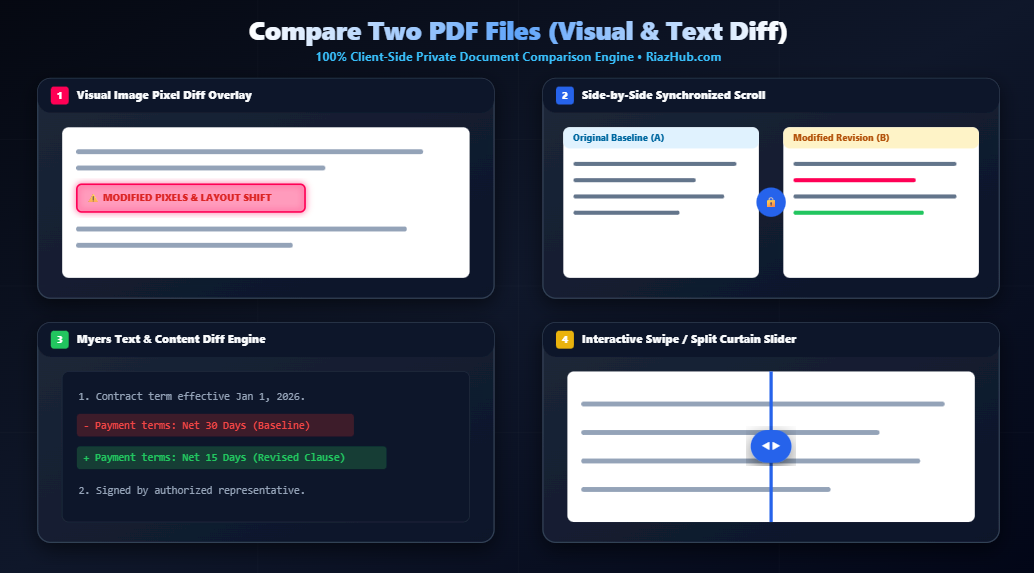
Different document revisions require tailored inspection methods. RiazHub’s Compare Two PDF Files tool provides four specialized view modes in one unified workspace:
1. Visual Image Pixel Diff Overlay
The visual diff engine compares matching pages pixel-by-pixel across RGB color channels. Any layout shift, deleted logo, font alteration, or signature change is highlighted in high-contrast magenta/red. You can customize the pixel sensitivity slider and select custom highlight colors.
2. Side-by-Side Synchronized Scroll Lock
Position the baseline PDF (File A) and revision PDF (File B) in dual viewports side-by-side. Scrolling, zooming, or panning in one container automatically locks and syncs position in the secondary container, making manual visual comparisons effortless.
3. Myers Text & Content Diff Engine
Extracts raw textual strings from vector PDF layers and runs Myers diffing algorithms to identify textual edits. Text insertions are highlighted with green badges (+ Added), while text deletions are marked in red (– Removed).
4. Interactive Swipe / Split Curtain Slider
Overlay Revision B directly over Baseline A with an interactive draggable vertical curtain slider. Dragging the slider left or right reveals subtle design shifts and typography movements in real time.
Step-by-Step: How to Compare PDF Files
- Navigate to the RiazHub PDF Compare Tool.
- Drag & drop your original baseline PDF into File A dropzone, and the updated revision PDF into File B dropzone.
- Click Run Full Comparison to process the pages.
- Toggle between Visual Overlay, Side-by-Side, Text Diff, and Swipe Slider views to examine changes.
- Export high-resolution diff images (PNG) or click Download Printable Diff Report to generate a clean A4 PDF summary report.
Compare Two PDF Files
Perform visual pixel-by-pixel image diffing, text content comparison, and synchronized side-by-side review directly in your browser.
Drag & drop baseline PDF here or Browse File
Supports contract proofs, invoices, legal docs (PDF)Drag & drop revision PDF here or Browse File
Supports updated layouts, revised texts (PDF)Frequently Asked Questions & Guide
How does client-side PDF comparison work securely? ❯
Our tool runs 100% inside your browser using HTML5 Web Canvases, PDF.js rendering, and client-side Myers diffing algorithms. Your confidential documents, legal contracts, architectural drafts, or financial invoices are never uploaded to any server or third-party web cloud.
What is the difference between Visual Image Diff and Text Diff? ❯
Visual Image Diff rasterizes matching pages and checks pixel RGB values to highlight shifted elements, font changes, altered logos, or deleted shapes in high-contrast red/magenta. Text Diff extracts textual content directly to highlight inserted words in green and removed lines in red regardless of visual layout changes.
What are the best use cases for this PDF comparison tool? ❯
Ideal for reviewing revised legal contracts, verifying architectural blue-prints, checking invoice revision numbers, proofreading published book pages, and validating PDF export differences across design software releases.
Key Industry Use Cases
- Legal & Contracts: Instantly catch sneaky clause updates, altered dates, or missing signatures between draft iterations.
- Finance & Invoicing: Verify revised line items, billing amounts, and bank details on vendor invoices.
- Architecture & CAD Drafts: Spot subtle structural blueprint shifts, line thickness updates, or measurement alterations.
- Publishing & Proofreading: Validate final layout print proofs against approved manuscript revisions.
Frequently Asked Questions
- Is this PDF compare tool completely free?
- Yes! The Compare Two PDF Files utility on RiazHub.com is 100% free with no hidden fees, page limits, or registration required.
- Are my uploaded PDF files safe?
- Your files are never uploaded anywhere. 100% of the comparison calculations occur locally inside your own browser window.
- Can I export a summary of the differences?
- Yes, you can export difference images as high-resolution PNGs or generate a printable PDF summary report formatted for A4 printing.