
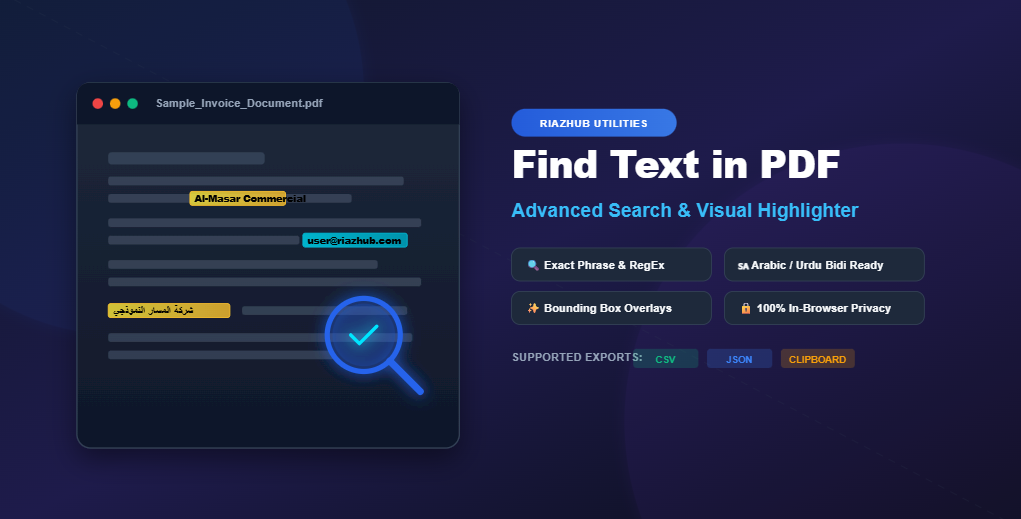
How to Search & Find Text in PDF Files Online (Advanced RegEx & Visual Highlighter)
Finding a specific word, contract clause, invoice number, or customer email inside a massive PDF document can feel like searching for a needle in a haystack. While standard web browsers and basic PDF viewers offer simple search bars (Ctrl + F), they often fail when you need to match complex patterns like Regular Expressions (RegEx), search Arabic or Urdu text with diacritics, or highlight multiple visual occurrences on screen simultaneously.
In this comprehensive guide, we will explore how modern client-side PDF parsing works and show you how to utilize the free Find Text in PDF Tool to search, filter, highlight, and export matches instantly in your browser without compromising your privacy.
Why Traditional PDF Text Search Falls Short
Most default PDF readers process documents using simplistic character matching. When working with complex digital documents, financial reports, or multi-lingual PDFs, traditional search methods encounter several major roadblocks:
- No Regular Expression (RegEx) Support: Standard viewers cannot search for abstract data patterns like credit card numbers, email addresses, SSNs, or IBAN bank codes.
- Arabic & Multi-Lingual Encoding Issues: Arabic and Urdu documents frequently extract text in presentation forms, right-to-left visual character reversals, or with optional Tashkeel diacritics (Harakat) that break standard text matches.
- Privacy Risks with Third-Party Converters: Uploading sensitive legal contracts or tax forms to online PDF converters exposes confidential document data to server-side logging and security vulnerabilities.
- Lack of Exportable Search Reports: Traditional search bars highlight one result at a time without allowing users to export structured CSV or JSON summaries of all matching lines.
Privacy Assurance: When using the Find Text in PDF online utility, all PDF tokenization, string matching, and visual canvas rendering are executed 100% locally in your web browser. No document files or search terms are ever transmitted to any cloud server.
Step-by-Step Guide: Searching Text in PDFs with Visual Highlighting
Follow these quick steps to locate text, numbers, or RegEx patterns in any PDF document:
Step 1: Open Document in the Web Utility
Navigate to the Find Text in PDF web utility and drop your file into the drag-and-drop zone. The built-in client-side diagnostic engine will immediately analyze the file and confirm its digital text layer status (e.g., “Digital Text Layer Ready • 45 Pages Indexed”).
Step 2: Choose Your Search Match Mode
Depending on your search objective, select one of the 4 available match modes:
- Exact Match (Phrase): Finds exact consecutive character sequences (e.g.,
"Non-Disclosure Agreement"). - Match Any Word: Finds any instance of individual query words anywhere in the document.
- Match All Words: Verifies that all specified words exist on the same page, regardless of sequence.
- Regular Expression (RegEx): Executes powerful pattern matching for automated data extraction.
Step 3: Apply Advanced Modifiers & Filters
Refine your search parameters using modifier pills and scope selectors:
- Case Sensitive (Aa): Enforces strict upper/lower case matching.
- Whole Words Only (\b): Prevents partial word matches (e.g., searching
"cat"won’t match"category"). - Diacritics / Accent Insensitive (e=é / Tashkeel): Automatically strips Latin accents (`e=é`) and Arabic harakat (`َ ُ ِ ً ٌ ٍ ْ ّ`) so search queries match regardless of vocalization marks.
- Page Scope Selector: Limit searches to All Pages, First Page Only, or a Custom Page Range (e.g.,
1-5, 8, 12-15).
Mastering RegEx PDF Searches (Email, Phone, IBAN & Dates)
Regular expressions allow you to discover structured data within large documents without knowing the exact values in advance. You can launch preset RegEx queries directly inside the Find Text in PDF tool using the quick preset chips:
| Data Type | RegEx Pattern | Use Case |
|---|---|---|
| Email Addresses | \b[A-Za-z0-9._%+-]+@[A-Za-z0-9.-]+\.[A-Z|a-z]{2,}\b |
Extract customer contacts from invoices |
| Phone Numbers | \b(?:\+?\d{1,3}[-.\s]?)?\(?\d{3}\)?[-.\s]?\d{3}[-.\s]?\d{4}\b |
Locate contact information in directory PDFs |
| Dates (YYYY-MM-DD) | \b\d{4}[-/\.]\d{1,2}[-/\.]\d{1,2}\b |
Filter invoice dates and contract execution timelines |
| IBAN / Bank Accounts | \b[A-Z]{2}\d{2}[A-Z0-9]{11,30}\b |
Verify banking details in financial statements |
How Arabic & Urdu PDF Searching Works
Arabic and Urdu PDF text extraction is notorious for returning zero search hits due to Unicode presentation forms, zero-width space characters, and right-to-left (RTL) character storage reversals. The Find Text in PDF browser app incorporates a dedicated multi-lingual normalization layer that:
- Applies
NFKCUnicode normalization to convert presentation forms (`\uFE70`–`\uFEFF`) back to standard Arabic characters (`\u0600`–`\u06FF`). - Strips zero-width joiners and Bidi control marks (`\u200B`–`\u200F`, `\uFEFF`).
- Normalizes letter variations so searching plain Alef (
ا) matchesأ,إ,آ, andٱ. - Evaluates both forward and character-reversed text buffers to effortlessly locate Arabic text stored in visual order.
Exporting & Sharing Search Results
Once your search query finishes executing, you can interact with the results via the 1100px dual-column workspace. Click any result snippet card to instantly scroll the interactive PDF canvas to that exact page and highlight the bounding box in your chosen fluorescent color (Yellow, Green, Cyan, Orange, or Magenta).
When you are ready to save your findings, use the built-in export toolbar:
- Export CSV: Downloads a structured table formatted with Match Index, Page Number, Matched Keyword, and Context Snippets.
- Export JSON Report: Generates a full document search report for developers and data analysts.
- Copy All Matches: One-click clipboard copy of all matching context lines.
Ready to Search Your PDF Document?
Try the free, privacy-first PDF text finder and visual highlighter directly in your web browser.
Find Text in PDF
Advanced Browser-Based Text Search, Multi-Lingual Matcher & Visual Highlighter
Drag & Drop PDF File Here
or click anywhere to select a document from your device
💡 How Browser-Based PDF Visual Searching Works ▼
🔍 Useful Regular Expressions (RegEx) Cheat-Sheet ▼
| Target Data | RegEx Pattern | Example Match |
|---|---|---|
| Email Addresses | \b[A-Za-z0-9._%+-]+@[A-Za-z0-9.-]+\.[A-Z|a-z]{2,}\b |
user@riazhub.com |
| Phone Numbers | \b(?:\+?\d{1,3}[-.\s]?)?\(?\d{3}\)?[-.\s]?\d{3}[-.\s]?\d{4}\b |
+1 (555) 019-2834 |
| Dates (YYYY-MM-DD) | \b\d{4}[-/\.]\d{1,2}[-/\.]\d{1,2}\b |
2026-08-19 |
| IBAN / Bank Account | \b[A-Z]{2}\d{2}[A-Z0-9]{11,30}\b |
GB29NWBK60161331926819 |
📄 Digital Native PDFs vs Scanned Image PDFs ▼
Scanned PDFs are flat image files captured via physical scanner or camera. Because they contain no embedded digital text layer, text cannot be selected or searched without prior Optical Character Recognition (OCR).