
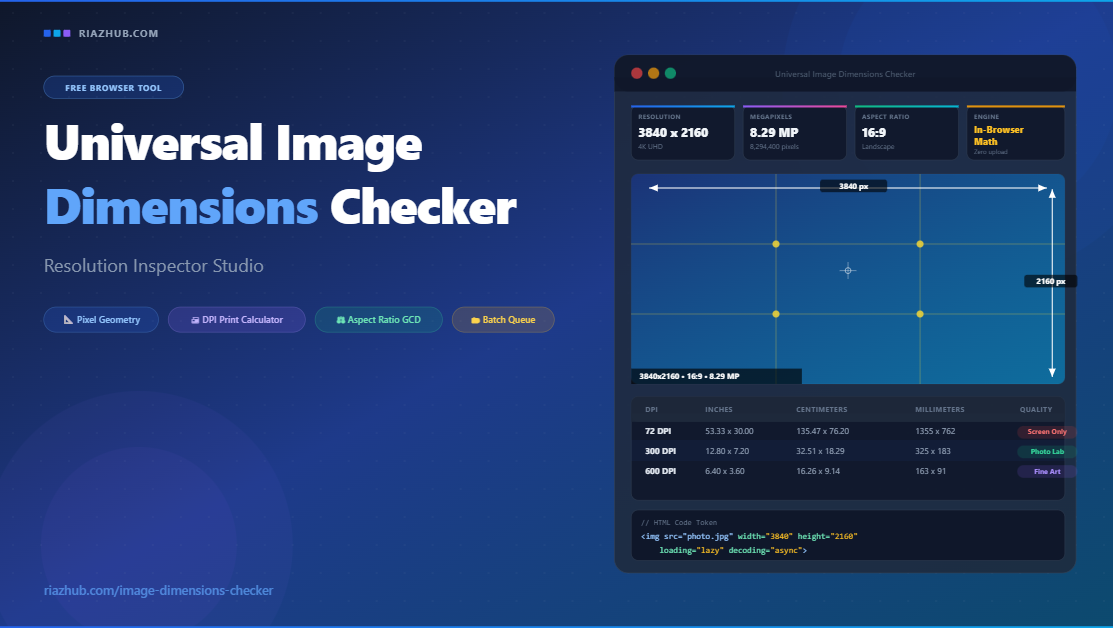
Universal Image Dimensions Checker & Resolution Inspector Studio
The complete guide to inspecting pixel dimensions, calculating DPI print sizes, verifying display compatibility, and auditing image geometry entirely inside your browser.
Every digital image carries an invisible data signature: its exact pixel dimensions, its aspect ratio, and its megapixel rating. These numbers determine everything from how sharply a photo prints on paper to whether it causes Google to penalize your website for layout shift. The Universal Image Dimensions Checker on RiazHub.com decodes all of that information instantly, for free, directly inside your browser.
What Is the Universal Image Dimensions Checker?
The Universal Image Dimensions Checker & Resolution Inspector Studio is a precision digital utility hosted for free on RiazHub.com. It extracts the exact pixel width and height from any image file you load, then performs a comprehensive suite of geometric and physical calculations entirely within your web browser using pure JavaScript and the HTML5 Canvas API.
Unlike online tools that upload your images to a remote server, this tool never transmits a single byte of your image data across the internet. The moment you drop a file onto the tool, your browser reads the raw pixel data locally, runs all the mathematics, and displays the results in milliseconds. Your photos, product banners, private documents, and proprietary design assets remain completely private.
Every image you load into the Image Dimensions Checker stays on your device. Open your browser network panel while using it and you will see zero image upload requests. Full GDPR and CCPA compliance guaranteed by architecture, not policy.
The tool accepts JPEG, PNG, WEBP, AVIF, SVG, BMP, GIF, and TIFF formats. You can load images by dragging and dropping files onto the upload zone, clicking to browse your file system, pasting directly from clipboard using Ctrl+V, or clicking one of the four built-in preset profiles to instantly simulate a standard resolution scenario.
Why Image Dimensions Matter More Than You Think
Most people assume image dimensions are a concern only for graphic designers or photographers. In reality, pixel dimensions sit at the intersection of web performance, print production, SEO scoring, social media distribution, and user experience. Let us examine each domain where knowing your image dimensions makes a measurable difference.
Web Performance and Core Web Vitals
Google measures website quality using a set of metrics called Core Web Vitals. One of the most heavily weighted signals is Cumulative Layout Shift (CLS). CLS measures how much the visible content of a page shifts around as it loads. Images without declared width and height attributes are a primary cause of high CLS scores because the browser cannot reserve the correct amount of vertical space before the image downloads.
<img src="photo.jpg" width="1200" height="800" loading="lazy" decoding="async">// Explicit dimensions allow browsers to reserve layout space before image downloads// Eliminates Cumulative Layout Shift and improves Google Core Web Vitals scoreThe Image Dimensions Checker solves this problem automatically. In the Code Tokens tab, it generates a ready to paste HTML img tag with the exact width and height attributes, plus loading="lazy" and decoding="async" for additional performance gains.
Print Production and DPI
When you send an image to a printer, the output sharpness is determined by a single formula: the number of pixels divided by the target print resolution in dots per inch (DPI). An image that looks perfectly sharp on screen at 1920 pixels wide may print blurry if it is only 72 DPI relative to your paper size.
Print Width (inches) = Pixel Width ÷ DPIPrint Height (inches) = Pixel Height ÷ DPI// Example: 3840px ÷ 300 DPI = 12.80 inches wide// Example: 2160px ÷ 300 DPI = 7.20 inches tallThe Universal Image Dimensions Checker calculates all four standard DPI tiers simultaneously. You can switch the measurement unit between inches, centimeters, and millimeters with one click, and the tool also tells you which standard paper sizes your image can fill at 300 DPI without pixelation.
| DPI Standard | Use Case | Quality Level | 3840 x 2160 px Result |
|---|---|---|---|
| 72 DPI | Web display, screen only | Screen Only | 53.33″ × 30.00″ |
| 150 DPI | Newspaper, draft print | Draft Quality | 25.60″ × 14.40″ |
| 300 DPI | Photo lab, professional print | Sharp Print | 12.80″ × 7.20″ |
| 600 DPI | Fine art, archival reproduction | Ultra Fine Art | 6.40″ × 3.60″ |
Social Media and Platform Optimization
Every social platform has specific optimal image dimensions. Instagram portrait posts perform best at 1080 by 1350 pixels. Twitter header images need 1500 by 500 pixels. LinkedIn article covers expect 1200 by 627 pixels. Uploading images at wrong dimensions forces the platform to crop or distort your content, reducing reach and visual quality.
Open the Display and Device Compatibility tab in the tool to instantly see how your image compares to 12 target platforms and resolutions.
A Complete Tour of Every Feature
Here is a detailed walkthrough of every capability available at riazhub.com/image-dimensions-checker:
Exact Pixel Extraction
Reads naturalWidth and naturalHeight directly from the decoded image. No estimation, no rounding. The number you see is the number embedded in the file.
Megapixel Rating
Calculates total pixel count (width times height) and divides by one million to produce the standard megapixel figure used by camera manufacturers.
GCD Aspect Ratio
Uses the Euclidean Greatest Common Divisor algorithm to reduce the ratio to its simplest integer form. A 1920 by 1080 image becomes 16:9, not 192:108.
DPI Print Matrix
Computes exact physical print dimensions in inches, centimeters, and millimeters at 72, 150, 300, and 600 DPI simultaneously in one table.
Display Tier Classification
Categorizes your image as 8K FUHD, 4K UHD, 2K QHD, 1080p Full HD, 720p HD, SVGA, Web Banner, or Icon depending on its pixel count.
Visual Dimension Canvas
Renders your image with dimension callout arrows, center crosshair, rule of thirds overlay, safe zone marker, and diagonal measurement line.
Batch Inspection Queue
Load multiple images at once to compare their dimensions, aspect ratios, megapixels, and orientations in a sortable audit table with individual copy actions.
Web Code Generator
Produces a ready to paste HTML img tag, a CSS aspect-ratio snippet, and a Tailwind CSS arbitrary class pre-populated with your exact image dimensions.
CSV and JSON Export
Downloads a structured audit report of your entire batch queue as CSV for spreadsheet analysis or JSON for API and developer workflows.
Ready to inspect your image right now?
No sign-up, no installation, no upload. Just open the tool and drop your file.
The Mathematics Behind the Tool
Euclidean GCD Aspect Ratio Reduction
Raw pixel dimensions like 1920 by 1080 share a common divisor of 120. Dividing both numbers by 120 yields 16 and 9, producing the familiar 16:9 ratio. The tool uses the Euclidean algorithm in a loop to find this GCD for any pair of integers, regardless of how large or irregular the image dimensions are.
function gcd(a, b) { while (b) { let t = b; b = a % b; a = t; } return a;}// gcd(1920, 1080) returns 120// 1920 / 120 = 16 1080 / 120 = 9 Result: 16:9Diagonal Pixel Length
The tool also calculates the Euclidean diagonal length in pixels using the Pythagorean theorem. This figure represents the longest straight line that fits inside the image frame.
Diagonal (px) = √(Width² + Height²)// Example: √(3840² + 2160²) = 4,405 px diagonalMegapixel Calculation
Megapixels = (Width × Height) ÷ 1,000,000// 3840 × 2160 = 8,294,400 total pixels// 8,294,400 ÷ 1,000,000 = 8.29 MPStep by Step: How to Use the Tool
-
1
Open the Tool
Visit riazhub.com/image-dimensions-checker in any modern browser on desktop, tablet, or mobile. No account or login is required.
-
2
Load Your Image
Drag and drop a file onto the upload zone, click Select Image(s), paste from clipboard with Ctrl+V, or click one of the four preset profiles to simulate a standard resolution.
-
3
Read the KPI Dashboard
The four cards instantly display Pixel Resolution, Megapixels and Total Pixel Volume, Aspect Ratio with orientation label, and the processing engine status.
-
4
Explore the Studio Tabs
Switch between Visual Canvas, Print Matrix, Display Compatibility, Batch Queue, and Code Tokens tabs to explore different aspects of your image dimensions.
-
5
Adjust DPI and Unit
Select your target print DPI (72, 150, 300, or 600) or enter a custom value. Toggle the measurement unit between inches, centimeters, and millimeters for instant recalculation.
-
6
Export Your Report
Copy individual values to clipboard, copy the generated HTML img tag, or download a full CSV or JSON audit report of your entire batch inspection queue.
Understanding the Visual Dimension Canvas
When you load an image into the Image Dimensions Checker, the Visual Canvas tab renders an interactive overlay on top of your image with several optional elements you can toggle:
- Dimension Callout Arrows — Double-headed arrows along the top and right edge, labeled with the exact pixel dimension at that axis.
- Rule of Thirds Grid — A 3 by 3 grid dividing the canvas into nine equal sections with golden intersection points marked. Enabled by default.
- Safe Zone Overlay — A dashed rectangle marking the central 80% of the canvas area, safe from cropping on most display platforms.
- Diagonal Measurement Line — Crossing diagonal lines from corner to corner with the Euclidean pixel length displayed.
- Center Crosshair — A crosshair marking the exact geometric center of the image.
Who Should Use This Tool and Why
Use the Image Dimensions Checker to extract exact width and height values for your HTML img tags. The generated code snippet is already formatted for CLS prevention and includes lazy loading and async decoding attributes.
Verify that your exported files meet the megapixel and DPI requirements for the print format you are targeting. The Print Matrix immediately tells you whether your image can fill an A4 sheet at 300 DPI without pixelation.
Use the Display Compatibility matrix to verify your image against Instagram, Twitter/X, Facebook, and LinkedIn specifications before uploading, avoiding the quality loss that comes from platform cropping and resampling.
Calculate exact physical print sizes at every DPI tier simultaneously without switching between calculators. The tool identifies which paper formats your file can print at professional quality.
Batch Inspection: Audit Dozens of Images at Once
One of the most powerful features of the Universal Image Dimensions Checker is the Batch Inspection Queue. You can select or drop multiple image files simultaneously, and the tool processes each one individually, building a comparative table:
| # | Filename | Width | Height | Megapixels | Aspect Ratio | Orientation |
|---|---|---|---|---|---|---|
| 1 | hero-banner.jpg | 3840 | 2160 | 8.29 MP | 16:9 | Landscape |
| 2 | product-photo.png | 1080 | 1350 | 1.46 MP | 4:5 | Portrait |
| 3 | avatar-icon.webp | 512 | 512 | 0.26 MP | 1:1 | Square |
You can download the entire batch as a single CSV or JSON file for use in external reporting or quality assurance workflows.
The Difference Between PPI, DPI, and Megapixels Explained
Megapixels (MP)
A megapixel is simply one million pixels. A camera that captures images at 4000 by 3000 pixels has a 12 megapixel sensor, because 4000 times 3000 equals 12,000,000 pixels. Megapixel count determines the maximum level of detail and the largest possible print size at a given DPI.
Display PPI (Pixels Per Inch)
PPI measures how densely pixels are packed on a physical screen. A 27-inch 4K monitor has approximately 163 PPI. An iPhone 15 Pro has approximately 460 PPI. PPI is a fixed hardware characteristic of the screen and has nothing to do with the image file itself.
Printer DPI (Dots Per Inch)
DPI measures how many individual ink dots a printer places per inch of paper. This is a property of the printing process, not the image. When you set an image to print at 300 DPI, you are telling the printer driver how to map image pixels to ink dots on paper.
The Physical Print Matrix in the Image Dimensions Checker computes all four DPI tiers at once, across all three measurement units, so you never need to calculate these conversions by hand again.
Quick Preset Profiles for Instant Simulation
You do not need to have an image file handy to explore the tool. The Image Dimensions Checker includes four built-in preset profiles:
- 4K UHD Display — 3840 by 2160 pixels, 16:9, 8.29 megapixels. The standard resolution for modern televisions and high-end monitors.
- Instagram Portrait — 1080 by 1350 pixels, 4:5, 1.46 megapixels. The optimal aspect ratio for Instagram feed posts to maximize vertical screen space.
- A4 Photo Print at 300 DPI — 2480 by 3508 pixels, the exact pixel count needed to fill an A4 sheet at professional quality with zero upscaling.
- Social Avatar — 512 by 512 pixels, 1:1, 0.26 megapixels. The standard size for profile icons across most platforms.
Frequently Asked Questions
Topics Covered in This Guide
DPI CalculatorPrint Size
Aspect RatioMegapixels
Cumulative Layout ShiftCore Web Vitals
4K UHDPhoto Printing
Canvas APIBatch Image Audit
Social Media SpecsJPEG PNG WEBP
Rule of ThirdsDisplay PPI
A4 PrintCSS aspect-ratio
HTML img tagTailwind CSS
GCD AlgorithmPrivacy First Tools
RiazHub
Everything described in this article is built into one free tool.
No accounts, no uploads, no limits. Start inspecting your images in seconds.
Universal Image Dimensions Checker & Resolution Inspector Studio
Inspect exact pixel dimensions, calculate print sizes across DPI standards, verify display compatibility, and batch audit image geometry in real time — 100% private, all processing happens inside your browser.
Geometric Math
also: paste Ctrl+V from clipboard
Physical print size is determined by dividing pixel dimensions by the target print DPI (Dots Per Inch):
Formula: Print Size (inches) = Pixel Dimension ÷ DPI
For example, a 3840 × 2160 px image at 300 DPI will print at exactly 12.80″ × 7.20″ (approx. 32.51 × 18.29 cm). At 72 DPI (screen resolution), the same image would span a massive 53.33″ × 30.00″ — which is why DPI matters enormously for print production. Always provide images at 300 DPI minimum for professional photo lab output and offset printing.
When browsers parse HTML, they need to reserve layout space for images before the image file downloads. Without explicit width and height attributes, the browser reserves zero space — causing the page layout to abruptly “shift” once the image loads. This is measured as Cumulative Layout Shift (CLS), a key Google Core Web Vitals metric.
By adding <img width="3840" height="2160">, browsers calculate the aspect ratio immediately and reserve the correct proportional space, achieving a CLS score of 0 even before the image loads. This is one of the highest-impact, lowest-effort SEO performance improvements available.
Megapixels (MP) — The total number of pixels: Width × Height ÷ 1,000,000. Higher megapixels = more detail and larger maximum print sizes.
Display PPI (Pixels Per Inch) — A measure of screen pixel density. An iPhone 15 Pro has ~460 PPI (Retina 3x). PPI is a hardware property of the screen, not the image file.
Printer DPI (Dots Per Inch) — The number of physical ink dots a printer places per linear inch. For sharp professional prints, provide source images at 300 DPI minimum.
This tool performs 100% of all image processing inside your web browser using the native HTML5 FileReader API, JavaScript Image() constructor, and HTML <canvas> API. Your image files are read from your local hard drive into temporary browser memory and are never uploaded to any server, cloud service, or third party.
All pixel dimension extraction, GCD aspect ratio reduction, DPI print calculations, canvas overlays, CSV/JSON report generation, and clipboard copy operations happen entirely within isolated browser JavaScript. You can verify this by watching your browser’s network panel — zero image upload requests will appear. Fully GDPR and CCPA-compliant.