
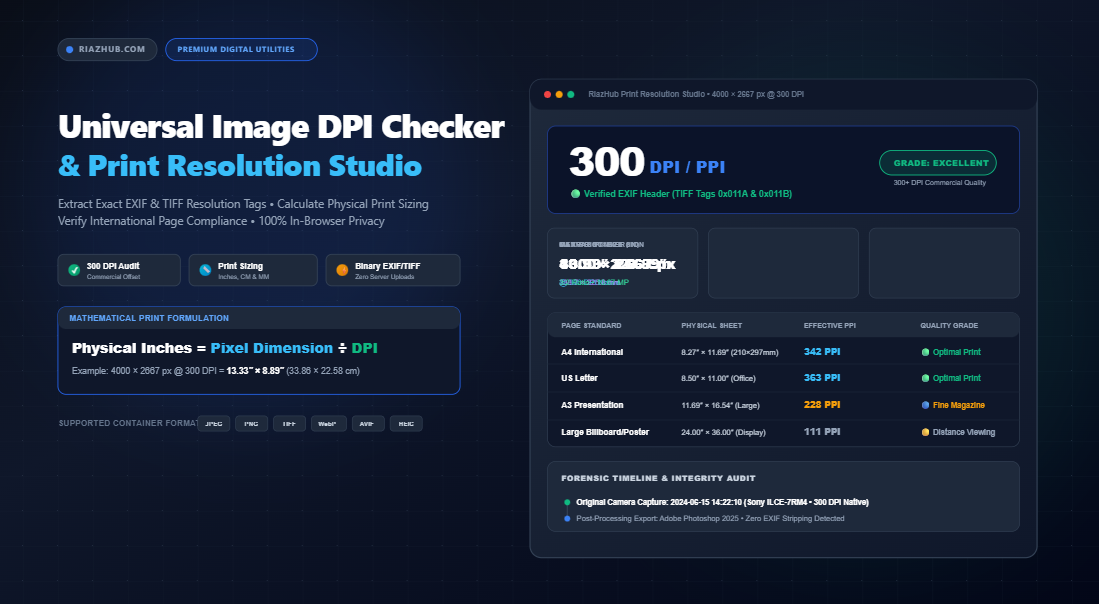
The Definitive Guide to Image DPI, Print Resolution & In-Browser Metadata Extraction
Whether you are sending a corporate brochure to an offset printing press, preparing high-resolution fine art prints, or preparing assets for an e-commerce catalog, one technical question inevitably surfaces: “Is this image high enough resolution to print without blurring or pixelation?”
For decades, digital artists, prepress operators, and photographers have wrestled with conflicting terms: DPI, PPI, pixel dimensions, and aspect ratios. Worse still, double-clicking a file on your operating system often reveals vague or misleading resolution numbers. If you need to inspect raw file density parameters instantly, the RiazHub Image DPI Checker & Print Resolution Studio provides instant, privacy-first binary parsing inside your web browser without uploading sensitive client files to remote servers.
In this comprehensive guide, we examine the inner workings of image resolution, break down the binary tags where DPI is stored inside EXIF and TIFF headers, walk through the physical print sizing formulas, and explain how to audit files for post-processing tampering.
Need to verify a file’s physical print size or EXIF resolution right now? Launch the online image DPI checker to extract native JPEG, PNG, TIFF, and WebP resolution tags in milliseconds.
1. The Critical Difference Between DPI and PPI
Although the terms DPI (Dots Per Inch) and PPI (Pixels Per Inch) are frequently used interchangeably by operating systems, design suites, and print shops, they represent two completely different stages of an image’s lifecycle:
- PPI (Pixels Per Inch) — Digital Canvas Density: PPI describes the spatial resolution of digital screens and imaging sensors. It indicates how many discrete digital pixels are packed into one linear inch of screen space or camera sensor area. Computer monitors typically display images between 72 PPI (legacy displays) and 220–460 PPI (modern 4K UHD screens and Retina displays).
- DPI (Dots Per Inch) — Physical Halftone Print Density: DPI describes the physical density of ink droplets laid onto paper or canvas by printing equipment (such as offset presses, inkjet plotters, or laser printers). Printers produce continuous tones by spraying microscopic dots of cyan, magenta, yellow, and black (CMYK) ink.
When an image file contains an embedded DPI value (such as 300 DPI), it acts as an architectural instruction to print software, dictating: “For every 300 digital pixels in this file, reproduce exactly one linear inch of printed substrate.”
2. Why 300 DPI is the Universal Gold Standard for Printing
Why is 300 DPI universally demanded by print shops and publishing houses? The answer lies in the physiological limits of human eyesight.
At a standard reading distance of 12 to 18 inches (typical for handheld items like magazines, flyers, business cards, and A4 documents), the average human eye with 20/20 vision can discern fine detail up to approximately 300 to 340 line pairs per inch. Anything printed below 150 DPI displays noticeable softness, stair-stepped jagged edges (“aliasing”), and blurry letterforms.
| Resolution Tier | Typical Medium | Visual Assessment at 14″ Viewing Distance |
|---|---|---|
| 300+ DPI | Commercial offset books, magazines, brochures, fine art | 🟢 Exceptional: Razor-sharp detail, crisp typography, smooth gradients. |
| 200 – 299 DPI | High-quality digital flyers, office reports, newsletters | 🔵 Good: Clear photographic reproduction; slight softness only under magnifying loupe. |
| 150 – 199 DPI | Newsprint, quick drafts, corrugated cardboard packaging | 🟡 Acceptable: Legible text, but visible dot structure and soft fine lines. |
| 72 – 149 DPI | Web graphics, email signatures, desktop monitors | 🔴 Pixelated: Blurry, jagged edges, unsuited for close-up physical print inspection. |
3. Where Resolution is Stored: Binary EXIF, JFIF, and PNG Chunks
When you upload an image to an online tool, how does it actually discover whether the photo is 72, 150, or 300 DPI? Rather than relying on inaccurate operating system estimations, modern tools like the browser-based DPI extractor read the binary byte array directly using JavaScript ArrayBuffer and DataView APIs across multiple format tiers:
Tier 1: JPEG EXIF APP1 & TIFF Image File Directories (IFD)
High-end digital cameras (Sony, Canon, Nikon, Fujifilm) and professional editing tools (Adobe Photoshop, Lightroom) embed resolution within an APP1 segment (marker 0xFFE1). This segment contains a complete TIFF header starting with byte alignment:
0x4949(“II”): Intel Little-Endian architecture.0x4D4D(“MM”): Motorola Big-Endian architecture.
Inside the IFD, three critical tags determine physical rendering:
- Tag
0x011A(XResolution): Stored as an unsigned 64-bit rational number (numerator and denominator, e.g.,300/1). - Tag
0x011B(YResolution): The vertical density, verifying whether the image has square pixels. - Tag
0x0128(ResolutionUnit): Specifies measurement units where2equals Inches and3equals Centimeters.
Tier 2: JPEG JFIF APP0 Marker
Many web-optimized JPEGs omit full EXIF data but retain a lightweight JFIF APP0 segment (marker 0xFFE0). Bytes 13–17 describe the density units (1 = DPI, 2 = dots/cm) along with two-byte integers for horizontal and vertical pixel density.
Tier 3: PNG pHYs Chunk
PNG images do not use EXIF by default; instead, they store physical dimensions within an optional pHYs chunk. The chunk records pixels per unit along the X and Y axes, typically expressed in pixels per meter. Converting to DPI requires multiplying by 0.0254:
By parsing all of these binary structures simultaneously, the RiazHub DPI analyzer extracts true hardware-level density without sending your photograph to an external server.
4. Calculating Maximum Physical Print Dimensions
A frequent misconception is that altering an image’s DPI will change its file size or crop its pixels. In reality, DPI is merely a calculation coefficient. The maximum physical size an image can be printed without pixelation is strictly governed by its raw pixel dimensions divided by the desired DPI:
Print Height (Inches) = Pixel Height ÷ Target DPI
Print Width (CM) = (Pixel Width ÷ Target DPI) × 2.54
Print Height (CM) = (Pixel Height ÷ Target DPI) × 2.54
For example, consider a 24-megapixel photograph captured at 6000 × 4000 pixels:
- At 300 DPI (Offset Printing): 6000 ÷ 300 = 20.00 inches wide by 13.33 inches high (50.8 × 33.8 cm).
- At 150 DPI (Newspaper / Large Poster): 6000 ÷ 150 = 40.00 inches wide by 26.67 inches high (101.6 × 67.7 cm).
- At 72 DPI (Standard Web Display): 6000 ÷ 72 = 83.33 inches wide by 55.56 inches high (211.6 × 141.1 cm).
5. Page Standards Compatibility Matrix
To determine whether your image file is ready for commercial print distribution, compare its pixel inventory against standard international paper formats at 300 DPI:
| Paper Standard | Dimensions (Inches) | Dimensions (Millimeters) | Required Pixels for 300 DPI | Minimum Sensor Megapixels |
|---|---|---|---|---|
| A4 Sheet | 8.27″ × 11.69″ | 210 × 297 mm | 2480 × 3508 px | 8.7 MP |
| A3 Poster | 11.69″ × 16.54″ | 297 × 420 mm | 3508 × 4960 px | 17.4 MP |
| US Letter | 8.50″ × 11.00″ | 215.9 × 279.4 mm | 2550 × 3300 px | 8.4 MP |
| US Tabloid (Ledger) | 11.00″ × 17.00″ | 279.4 × 431.8 mm | 3300 × 5100 px | 16.8 MP |
| Large Poster (24×36) | 24.00″ × 36.00″ | 609.6 × 914.4 mm | 7200 × 10800 px | 77.7 MP |
You can verify how your uploaded graphic scores against these exact standards inside the Page Standards tab of the RiazHub Print Resolution Studio.
6. Forensic Discrepancy Audits: Detecting Image Editing & Stripped EXIF
In legal proceedings, insurance investigations, journalism, and commercial design, verifying the integrity of image metadata is essential. When images pass through third-party manipulation software or social media platforms, their metadata leaves distinct chronological footprints.
- Social Media Stripping: Platforms like WhatsApp, Facebook, Instagram, and Twitter automatically strip all EXIF metadata (camera serial numbers, GPS tags, and resolution headers) to conserve bandwidth and protect user privacy. Stripped images almost always default to 72 DPI.
- Time Drift Discrepancies: If a photo’s
DateTimeOriginal(capture timestamp) indicates June 2024, but theDateTime(file modification timestamp) reflects February 2026 accompanied by aSoftwaretag indicating “Adobe Photoshop”, you have conclusive evidence of post-processing alteration. - Non-Square Pixel Mismatches: When horizontal density (
0x011A) does not equal vertical density (0x011B), the image may have been distorted during video frame capture or anamorphic resizing.
7. How to Check Image DPI and Print Sizing with RiazHub
Auditing single or batch images takes just a few seconds using the RiazHub Image DPI Checker utility:
- Open the Studio: Navigate to the Image DPI Checker & Print Resolution Studio in any modern desktop or mobile web browser.
- Import Your Image(s): Drag and drop your graphics into the dropzone, click “Select Image(s)” to browse from your device, or paste directly from your clipboard using Ctrl+V / Cmd+V. Multiple files can be imported simultaneously into the batch queue.
- Inspect the Primary DPI KPI: View the detected DPI badge alongside its confidence score and verified header source (EXIF, JFIF, PNG pHYs, or filename token).
- Review Physical Print Dimensions: Toggle your preferred measurement unit (Inches, Centimeters, or Millimeters) to observe maximum print capabilities across varying quality thresholds (300 DPI Commercial, 200 DPI Magazine, 150 DPI Draft).
- Examine Forensic & Raw Tags: Switch between the Page Standards, Raw EXIF Tags, and Forensic Audit tabs to inspect device models, editing software traces, and chronological timelines.
- Export Your Audit: Click “Copy Full Metadata Report (JSON)” or “Download CSV” to preserve an authenticated audit trail for client sign-offs or legal documentation.
8. Frequently Asked Questions (FAQ)
No. Simply altering the DPI metadata value (for instance, resaving a 72 DPI image as 300 DPI without resampling) does not generate new pixels. It merely instructs the printer to pack the existing pixels closer together, resulting in a physically smaller print at higher density.
72 DPI is the historical default for digital computer monitors dating back to early Apple Macintosh displays. Because web browsers render images based purely on pixel dimensions rather than physical print density tags, many web export tools strip physical resolution headers or save them as 72 DPI by default.
No. The RiazHub Image DPI Checker operates 100% client-side inside your browser sandbox. All binary byte scanning and mathematical calculations are executed locally via JavaScript. Your photos never leave your device.
Yes. You can select or drop multiple images into the batch queue. The tool will parse each image asynchronously and generate a unified comparison table with one-click CSV export.
Summary
Navigating digital image resolution does not need to be confusing. By understanding the mathematical relationship between raw pixel dimensions and physical print density (DPI), you can reliably predict print quality, prevent costly pre-press rejections, and verify the authenticity of photographic assets.
Bookmark the Universal Image DPI Checker & Print Resolution Studio on RiazHub.com for fast, secure, and accurate image resolution analysis on any project.
Universal Image DPI Checker & Print Resolution Studio
Extract exact photo DPI/PPI metadata, calculate physical print sizes without pixelation, verify print compliance across international page standards, and inspect forensic history in real time.
| Standard Sheet | Physical Dimensions | Target Requirement | Effective PPI with This Image | Print Quality Assessment |
|---|
| Tag Name | Hex ID | Category | Raw Binary Value | Interpreted Meaning |
|---|
| Preview | File Name | Dimensions | Detected DPI | Max Print Size | Grade | Source | Action |
|---|
Forensic Integrity & Tamper Audit
Metadata Chronology Timeline
EXIF Metadata Standards, Binary TIFF Markers & DPI Verification Guide
0x4D4D ("MM" for Motorola Big-Endian) or 0x4949 ("II" for Intel Little-Endian). Our binary parser decodes the Image File Directory (IFD), extracting the rational numerator and denominator stored at tags 0x011A (XResolution), 0x011B (YResolution), and 0x0128 (ResolutionUnit: 2 = Inches, 3 = Centimeters) with bit-level precision.
FileReader, DataView, and ArrayBuffer APIs. No user images, confidential photography, or personal metadata are ever transmitted or stored on RiazHub.com's web servers.