Yet, an alarming number of websites still serve a single blurry, low-resolution favicon.ico file that appears pixelated on 4K monitors, squashed in Google search results, or completely invisible in browser night mode. In this comprehensive guide, we will unpack the exact specifications required across all major operating systems and show you how to generate a flawless, production-ready favicon suite in seconds using the Universal Favicon Converter & Web App Icon Studio.
Why the Traditional 16×16 Favicon Is Obsolete
When Microsoft introduced the <link rel="shortcut icon"> specification with Internet Explorer 5 in 1999, the web lived on CRT monitors rendering 800×600 or 1024×768 pixels. A simple 16×16 pixel raster image was more than sufficient.
Today’s device landscape is radically different:
- High-DPI & Retina Displays: Modern laptops and smartphones feature display densities from 2x (Apple Retina) up to 4x (high-end Android OLEDs). A standard 16px icon rendered on a Retina screen must be interpolated over 32 to 64 physical device pixels, causing severe bilinear blurring if high-resolution layers are absent.
- Google Search Engine Results Pages (SERPs): Google actively displays website favicons alongside organic mobile and desktop search snippets. Google requires a minimum of 48×48 px or higher (multiples of 48px, such as 96×96 or 144×144) to render a crisp emblem next to your site title. Sites with broken or blurry icons suffer lower organic click-through rates (CTR).
- Progressive Web Apps (PWAs) & Add-to-Homescreen: When mobile users save your website to their home screen or launch it via Chrome/Safari, the operating system requires full-fidelity icons up to 512×512 pixels to render the app icon and splash launch screen.
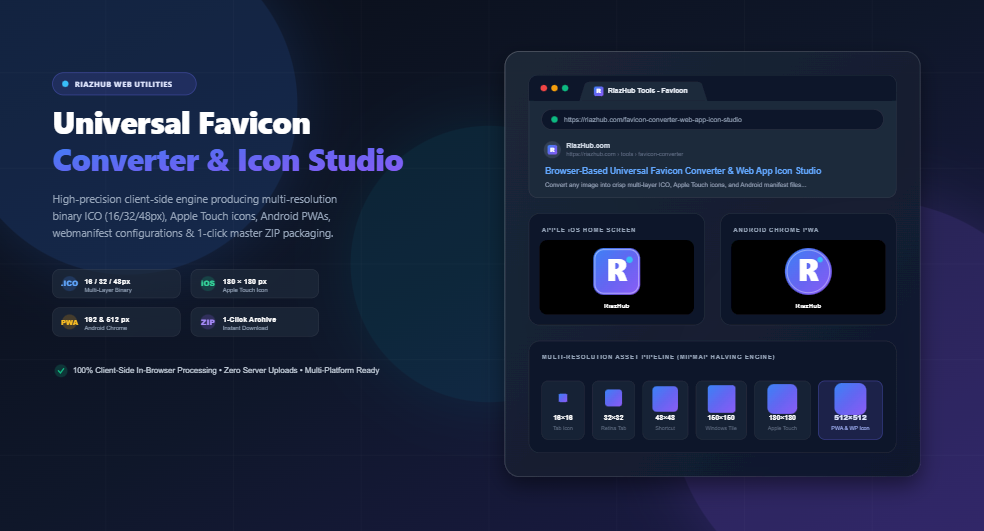
To guarantee complete compatibility, developers must provide a tailored matrix of file formats, dimensions, and manifest configurations. You can inspect and test how your icon adapts across all these platforms simultaneously inside the live simulator of the RiazHub Favicon Converter.
The Complete Cross-Platform Favicon Specification Matrix
Below is the definitive technical standard for modern websites, web applications, and WordPress blogs:
| Filename | Resolution | Format | Target Platform & Purpose |
|---|---|---|---|
| favicon.ico | 16×16, 32×32, 48×48 | Binary ICO (Multi-Layer) | Legacy browser fallback, desktop taskbar pins, Windows shortcuts. |
| favicon-16×16.png | 16 × 16 px | PNG (32-bit RGBA) | Standard desktop browser tabs (Chrome, Firefox, Edge). |
| favicon-32×32.png | 32 × 32 px | PNG (32-bit RGBA) | Retina / High-DPI browser tabs, bookmark bars, history lists. |
| apple-touch-icon.png | 180 × 180 px | PNG (Opaque/Solid BG) | Apple iOS Safari “Add to Home Screen”, iPadOS bookmarks, macOS Safari. |
| android-chrome-192×192.png | 192 × 192 px | PNG (PWA Manifest) | Android Chrome home screen app shortcut & install prompt. |
| android-chrome-512×512.png | 512 × 512 px | PNG (PWA Manifest) | PWA loading splash screen & high-res WordPress Site Icon. |
| mstile-150×150.png | 150 × 150 px | PNG | Windows 10 / Windows 11 Start Menu pinned live tile. |
| site.webmanifest | JSON Config | application/manifest+json | PWA identity configuration specifying name, colors, and icon routes. |
| browserconfig.xml | XML Config | application/xml | Microsoft IE11 / Edge Start Menu tile metadata configuration. |
Never simply rename a .png file to .ico. A real Microsoft Windows .ico file is a binary container with a 6-byte ICONDIR header followed by 16-byte ICONDIRENTRY descriptors indexing discrete 16px, 32px, and 48px raster payloads. The RiazHub Favicon Converter builds genuine binary ICO structures directly in memory using JavaScript TypedArrays.
The Science of Razor-Sharp Downsampling (Mipmap Halving)
One of the most frustrating problems developers encounter when creating favicons is the “muddy blur” syndrome. When a 512×512 master logo is scaled down directly to 16×16 pixels in a single step using standard browser canvas or basic graphic software, fine lines, sharp typography, and subtle emblems become illegible gray smudges.
This occurs because single-step bilinear interpolation attempts to calculate an average of 1,024 master pixels into a single destination pixel. High-frequency details are averaged out into low-contrast mush.
How RiazHub’s Multi-Step Resampling Engine Fixes This
To eliminate blurriness and guarantee pixel-level recognizability even at 16×16, the Universal Favicon Converter implements an automated multi-step halving algorithm:
- Hierarchical Mipmap Downscaling: The 512×512 master composition is downscaled in powers-of-two stages:
512px → 256px → 128px → 64px → 32px → 16px. Halving dimensions step-by-step preserves edge contrast and prevents pixel dispersion. - Sub-Pixel Alpha Contrast Booster: At small boundaries (16px and 32px), transitional anti-aliased edge pixels with washed-out alpha values are gently enhanced so the icon’s outer silhouette stays punchy and distinct against both white and dark browser tab backgrounds.
- Retina-Ready Simulators: The tool’s integrated Chrome Tab and Google SERP previewers display high-density 32px and 48px assets at calibrated physical dimensions with
image-rendering: -webkit-optimize-contrast, ensuring what you see in the simulator is exactly how it appears on modern Retina displays.
Step-by-Step: How to Generate a Complete Favicon Suite in 60 Seconds
Generating your production package requires no graphic design skills and takes under a minute using the Favicon Converter & Web App Icon Studio on RiazHub:
Step 1: Upload Your Master Image
Drag and drop your high-resolution logo, monogram, or brand emblem into the upload zone. The engine supports all major formats including SVG, PNG, WebP, JPG, AVIF, and BMP. For best results, use an image at least 512×512 pixels with a transparent background.
Step 2: Choose Icon Geometry Mask & Scaling
Different platforms utilize distinct shape guidelines:
- Square (Default): Standard square canvas for classic websites and logos that already contain their own background bounding box.
- Circle: Cuts your icon into a clean circle, perfect for modern avatars, personal portfolio badges, and Android round icon standards.
- Squircle: Apple-style continuous curvature rounded rectangle, ideal for iOS mobile web applications.
- Custom Rounded: Set custom corner radius from 0px up to 50px.
- Icon Zoom / Scale Slider (60% – 150%): Scale your emblem up or down to fill the canvas frame boldly, eliminating excess empty margins.
- Padding Inset (0% – 30%): Add breathable space around the emblem so edges don’t touch browser boundaries.
Step 3: Set Background Fill & Manifest Brand Colors
Select your desired background fill: Transparent, Solid White (#ffffff), Solid Dark (#0f172a), or pick any custom brand hex code. You can also configure your Theme Color and Background Color for your PWA webmanifest, which controls the color of the mobile browser address bar and splash screen.
Step 4: Audit in Live Multi-Device Simulators
Before downloading, inspect how your favicon actually renders in the real world:
- Google Chrome Browser Tab Simulator: Test tab title truncation and toggle between Light and Dark browser themes to ensure your icon remains visible in both modes.
- Google SERP Mobile Snippet: Verify how your site emblem will appear to prospective search engine visitors.
- Apple iOS Home Screen: View your app icon inside an iPhone wallpaper mock with authentic squircle curvature and glass shine overlay.
- Android PWA Mobile Shortcut: Test circular icon rendering and short application naming.
Step 5: Download the Master ZIP Package
Click “Download Master ZIP Package” to instantly download an organized, production-ready archive containing all 7 favicon formats, the binary favicon.ico, site.webmanifest, and browserconfig.xml.
HTML Implementation: How to Add Favicons to Your Website
Once you extract your ZIP archive from the Universal Favicon Converter, upload the files directly to your website’s root directory (e.g., https://yourdomain.com/), and paste the following code block inside your HTML document’s <head> section:
<link rel=”icon” type=”image/x-icon” href=”/favicon.ico”>
<link rel=”icon” type=”image/png” sizes=”16×16″ href=”/favicon-16×16.png”>
<link rel=”icon” type=”image/png” sizes=”32×32″ href=”/favicon-32×32.png”><!– Apple iOS Touch Icon –>
<link rel=”apple-touch-icon” sizes=”180×180″ href=”/apple-touch-icon.png”>
<!– Android Chrome Progressive Web App (PWA) Manifest –>
<link rel=”manifest” href=”/site.webmanifest”>
<meta name=”theme-color” content=”#2563eb”>
<!– Microsoft Windows 10/11 Metro Tile –>
<meta name=”msapplication-config” content=”/browserconfig.xml”>
<meta name=”msapplication-TileColor” content=”#2563eb”>
Sample site.webmanifest Configuration
Your generated site.webmanifest file should look like this:
“name”: “Your Brand Name”,
“short_name”: “Brand”,
“icons”: [
{
“src”: “/android-chrome-192×192.png”,
“sizes”: “192×192”,
“type”: “image/png”,
“purpose”: “any maskable”
},
{
“src”: “/android-chrome-512×512.png”,
“sizes”: “512×512”,
“type”: “image/png”,
“purpose”: “any maskable”
}
],
“theme_color”: “#2563eb”,
“background_color”: “#ffffff”,
“display”: “standalone”,
“start_url”: “/”
}
5 Common Favicon Mistakes to Avoid
- Using Transparent Backgrounds for Apple Touch Icons: iOS does not render alpha transparency for home screen bookmarks; it automatically fills transparent areas with a harsh black background. Always ensure your
apple-touch-icon.pnghas a solid background color (white or brand color). - Forgetting the 48×48 Windows Taskbar Layer: When users pin your website to their Windows taskbar or create a desktop shortcut, Windows uses the 48×48 px layer inside
favicon.ico. If your ICO only contains a 16px layer, Windows will stretch it into an ugly pixelated box. Always use a multi-layer ICO builder like the RiazHub Converter. - Neglecting Dark Mode Tab Contrast: A pure black icon will vanish into thin air when a user browses in dark mode. Always test your icon against dark backgrounds, or use a contrasting badge shape, white stroke, or vibrant brand color.
- Aggressive Browser Caching: Web browsers cache favicons aggressively for weeks. When updating an existing favicon, force a fresh download by adding a version query string:
/favicon.ico?v=2. - Oversized Master File Uploads: Serving a raw 2MB PNG as your tab icon increases page load times and harms Core Web Vitals. Compressed 16px and 32px PNG assets typically weigh under 1KB each.
Frequently Asked Questions (FAQ)
What is the difference between .ICO and .PNG favicons?
PNG is a modern, lightweight image format widely supported by all modern browsers. ICO is a legacy container format developed by Microsoft that can store multiple resolutions (16px, 32px, 48px) inside a single file. Having both ensures 100% compatibility across old and new systems.
Are my images uploaded to an external server?
No. The RiazHub Universal Favicon Converter executes 100% locally in your web browser using JavaScript HTML5 Canvas and typed binary buffers. Your graphics, logos, and files never leave your device, ensuring complete privacy and security.
How does Google choose the favicon for search results?
Googlebot looks for a <link rel="icon"> tag in your homepage HTML. The image must be a multiple of 48px square (such as 48×48, 96×96, or 144×144) and must be publicly crawlable. The multi-resolution suite generated by RiazHub fully satisfies Google’s Search Central guidelines.
Can I convert an SVG logo into a favicon suite?
Yes. SVG files are ideal for favicon generation because vector graphics scale down with razor-sharp mathematical precision without pixelation before being rasterized into the required PNG and ICO sizes.
Browser-Based Universal Favicon Converter
Generate multi-resolution binary .ICO files, Apple Touch icons, Android PWA assets, webmanifest configs, and HTML meta tags with live browser tab preview.
🎨 Source Icon & Geometry
Universal Favicon Converter & Web App Icon Studio
Generate multi-resolution .ico files, Apple Touch icons, Android PWA assets, webmanifest configs, and HTML meta tags with live preview.
Paste this complete metadata block into the <head> tag of your website or WordPress header.php:
<!-- Loading Favicon Tags... -->
{ /* Loading webmanifest... */ }
<!-- Loading browserconfig.xml... -->
📖 Favicon Specifications & Implementation Guide
.ico) is a binary container file containing multiple embedded bitmaps at varying pixel densities. When a browser like Google Chrome, Microsoft Edge, or Mozilla Firefox requests /favicon.ico, it parses the binary ICONDIR directory and automatically selects the sharpest layer: 16×16 px for browser tabs, 32×32 px for taskbar pins and high-DPI bookmarks, and 48×48 px for Windows desktop shortcuts. Our converter compiles all three layers into a single binary file right inside your browser.
<link rel="icon" type="image/png" sizes="32x32"> in addition to a fallback favicon.ico. Modern browsers load the lighter, optimized PNG versions first. However, automated crawlers, RSS readers, bookmark engines, and legacy enterprise software will often query /favicon.ico directly in the root domain without checking your HTML header. Supplying both guarantees 100% universal compatibility.
apple-touch-icon.png (180×180 px) and automatically clips it with Apple's iconic squircle corner radius. Similarly, Android Chrome and modern mobile operating systems read your site.webmanifest file to discover high-resolution 192×192 px and 512×512 px splash icons and apply your site's custom theme color to the mobile system navigation bar.
ArrayBuffer, and DataView. Not a single byte of your artwork or metadata is ever transmitted to an external server.