
Mastering PNG Optimization: Lossless Deflate Compression, Color Quantization, and In-Browser Batch Processing
The Portable Network Graphics (PNG) format remains the backbone of the modern web for crisp vector exports, UI icons, diagrams, logos, and screenshots that demand razor-sharp edge anti-aliasing and pixel-perfect alpha transparency. However, raw PNG assets exported from Figma, Adobe Photoshop, or operating system screenshot utilities carry significant byte overhead. Uncompressed 32-bit TrueColor buffers, verbose metadata chunks, and sub-optimal deflate scanline filtering routinely inflate file weights by 50% to 80%.
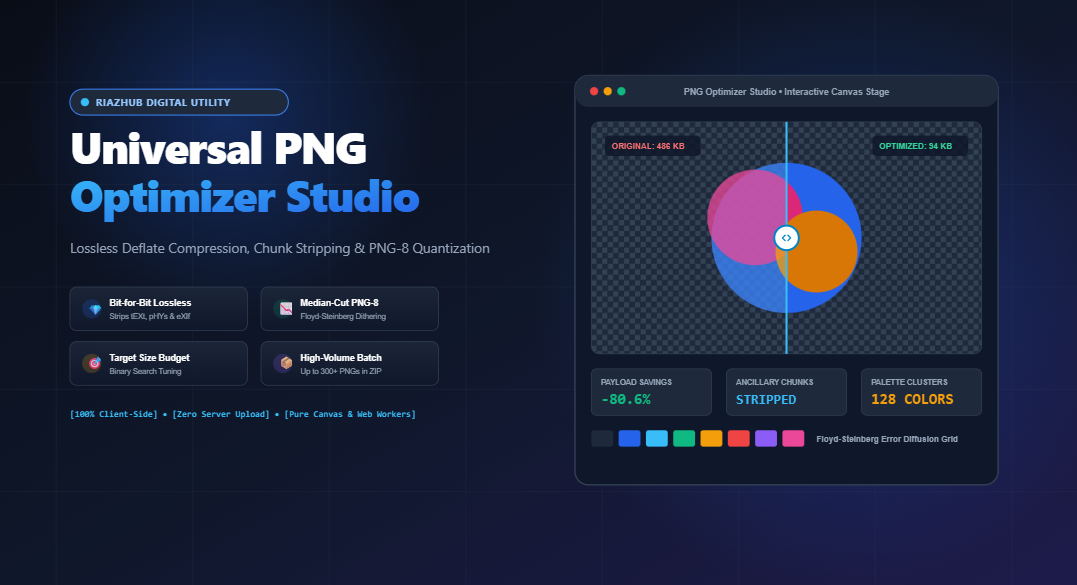
To tackle this payload bottleneck without sacrificing quality or privacy, developers can leverage modern client-side compression tools like the Universal PNG Optimizer & Lossless Deflate Studio. In this deep dive, we explore the internal architecture of PNG binary streams, the mathematics behind Median-Cut color clustering and Floyd-Steinberg error diffusion, and how you can achieve massive Core Web Vitals improvements right in the browser.
⚡ Interactive Online Tool
Looking to shrink heavy PNGs, strip ancillary software chunks, or solve strict 100 KB App Store budget constraints immediately?
1. Understanding the Anatomy of a PNG Bitstream
A compliant PNG file begins with an immutable 8-byte magic signature (89 50 4E 47 0D 0A 1A 0A in hexadecimal), followed by a sequence of independent binary data packets called chunks. Each chunk is structured with four contiguous segments:
- Length (4 bytes): An unsigned big-endian integer defining the byte count of the chunk data.
- Chunk Type (4 bytes): An ASCII alphanumeric code identifying chunk semantics (e.g.,
IHDR,IDAT). - Chunk Data: The actual payload of the specified length.
- CRC-32 (4 bytes): An ISO 3309 cyclic redundancy check calculated over the chunk type and data fields.
Critical vs. Ancillary Chunks
The PNG standard establishes a clear divide between critical chunks (necessary for rendering the image) and ancillary chunks (optional metadata):
| Chunk Type | Classification | Functional Role | Optimization Action |
|---|---|---|---|
IHDR |
Critical | Image dimensions, bit depth, color type, compression & filter method | Preserved intact |
PLTE |
Critical (Indexed) | Color palette table containing 1 to 256 RGB triplets | Optimized & quantized |
IDAT |
Critical | Filtered and zlib/deflate compressed pixel scanlines | Re-compressed / Re-encoded |
tRNS |
Critical / Ancillary | Alpha transparency values for indexed palettes or color keys | Retained for cutouts |
IEND |
Critical | Marks the end of the PNG bitstream | Preserved |
tEXt / zTXt / iTXt |
Ancillary | Software credits, author notes, timestamps, XML tags | Completely stripped |
pHYs |
Ancillary | Physical pixel dimensions & print DPI ratios | Completely stripped |
eXIf |
Ancillary | Camera metadata, GPS coordinates, device tags | Completely stripped |
Graphics design software regularly inserts 5 KB to 80 KB of non-essential ancillary metadata into every PNG. By using the bit-for-bit lossless scrubbing pipeline in the PNG Optimizer Studio, you can immediately strip away these bloat chunks without modifying a single pixel of your artwork.
2. Dual Optimization Pipelines: Lossless vs. Lossy PNG-8 Quantization
Compressing PNG files requires choosing between two distinct topological pipelines depending on the visual nature of your imagery:
💎 Bit-for-Bit Lossless Stripping
Maintains the exact 32-bit TrueColor RGBA pixel matrix (1.00 SSIM fidelity). It parses raw byte arrays, discards ancillary metadata blocks, and cleans invisible alpha color bleed without altering rendering output.
📉 High-Efficiency PNG-8 Quantization
Clusters 16.7 million 24/32-bit colors down to an indexed palette of 2 to 256 optimal entries. Drastically slashes uncompressed buffer sizes by 75% before Deflate compression, yielding up to 80% byte reductions.
The Mathematics of Median-Cut Color Stratification
In TrueColor mode, each pixel occupies 4 bytes (Red, Green, Blue, Alpha). For a 1920×1080 graphic, the raw uncompressed matrix requires over 8.29 MB of memory. Indexed PNG-8 replaces each pixel with a single 1-byte index reference pointing to a discrete palette:
$$\text{Uncompressed 32-bit} = W \times H \times 4\text{ bytes} \quad \longrightarrow \quad \text{Indexed PNG-8} = (W \times H \times 1\text{ byte}) + (K \times 3\text{ bytes})$$
To compute the optimal palette, the engine employs the Median-Cut algorithm:
- All non-transparent pixels are bounded inside an RGB 3D Euclidean bounding box.
- The color channel (Red, Green, or Blue) exhibiting the largest dynamic range is calculated.
- Pixels are sorted along this dominant axis, and the box is split into two equal sub-boxes at the median index.
- This recursive division continues until $K$ discrete color clusters (e.g., $K = 64, 128, 256$) are formed.
- The centroid of each cluster becomes an entry in the output palette.
3. Eliminating Color Banding with Floyd-Steinberg Dithering
When reducing smooth gradients to a 128 or 64-color palette, harsh step-like artifacts known as color banding can appear. The Universal PNG Optimizer mitigates this by implementing classic Floyd-Steinberg error diffusion dithering.
For each pixel $(x, y)$, the quantization error between the original TrueColor value and the nearest palette centroid is calculated:
$$\mathbf{E} = \text{Pixel}(x, y) – \text{Palette}_{\text{nearest}}$$
This fractional residual error is then diffused to neighboring unprocessed pixels using directional spatial coefficients:
- Right Pixel $(x+1, y)$: receives $\frac{7}{16} \times \mathbf{E}$
- Bottom-Left Pixel $(x-1, y+1)$: receives $\frac{3}{16} \times \mathbf{E}$
- Bottom Center Pixel $(x, y+1)$: receives $\frac{5}{16} \times \mathbf{E}$
- Bottom-Right Pixel $(x+1, y+1)$: receives $\frac{1}{16} \times \mathbf{E}$
// Fast 15-Bit Spatial Hash Nearest Color Lookup
function findNearestPaletteColor(r, g, b, palette, cache) {
    const key = ((r >> 3) << 10) | ((g >> 3) << 5) | (b >> 3);
    if (cache.has(key)) return cache.get(key);

    let bestDist = Infinity;
    let bestMatch = palette[0];

    for (let i = 0; i < palette.length; i++) {
        const p = palette[i];
        // Human eye weighted distance: 2*R^2 + 4*G^2 + 3*B^2
        const dr = r - p[0], dg = g - p[1], db = b - p[2];
        const dist = dr * dr * 2 + dg * dg * 4 + db * db * 3;
        if (dist < bestDist) {
            bestDist = dist;
            bestMatch = p;
            if (dist === 0) break;
        }
    }
    cache.set(key, bestMatch);
    return bestMatch;
}
By dialing the dither slider between 0% and 100%, users can tailor the output for flat graphics (0% dither for razor-sharp logos) or photographic captures (70%–90% dither for smooth sky gradients).
4. Target File Size Budget Solver: Auto-Tuning via Binary Search
App stores (Apple iOS App Store, Google Play Store), Discord upload limits, and strict Core Web Vitals thresholds frequently demand image assets under exact byte thresholds (e.g., ≤ 100 KB or ≤ 50 KB). Manually guessing palette sizes and image scales to meet a target size can be time-consuming.
The RiazHub PNG Optimizer introduces an automated Binary Search Palette Solver. By checking iterative quantization configurations across $K \in [4, 256]$, the engine converges on the maximum color count that guarantees your output PNG remains strictly beneath your specified KB ceiling.
📦 Batch Process Over 300+ PNGs in Browser Memory
Process hundreds of screenshots or product icons concurrently. Download each asset individually or bundle the entire batch into a clean, uncompressed ZIP archive with zero external server dependencies.
5. Visual Inspection: Split-Screen Sliders, Loupe Magnification & Multi-Backdrop Stage
Quality assurance is paramount when optimizing branding assets. To give developers complete transparency into compression results, the studio provides five specialized inspection environments:
- Live Inspection Stage: Full pan and zoom viewport ($25\%\text{–}500\%$) to scrutinize edge detail.
- Split-Screen Comparison Slider: An interactive 60 FPS slider using dynamic CSS clip-paths to contrast raw vs. optimized output side by side.
- 200% / 400% Zoom Loupe: A floating circular magnifying lens designed to inspect fine line anti-aliasing and font legibility.
- Color Palette Swatches HUD: An interactive readout displaying every indexed hex code alongside transparent cutout indicators.
- Batch Matrix Table: Real-time telemetric breakdown detailing original size, optimized size, percentage savings, and dimensional bounds.
Furthermore, users can toggle between Checkerboard, Dark Slate, and Pure White backdrops to immediately spot edge halos or stray alpha pixels.
6. Step-by-Step Guide to Optimizing PNGs for Maximum Performance
Follow this 4-step workflow to maximize savings while preserving visual fidelity:
- Ingest Source Images: Navigate to the PNG Optimizer Studio. Drag and drop your PNG, APNG, or WebP files, select an entire folder, or paste directly from your clipboard (
Ctrl+V). - Select Optimization Profile:
- For UI icons and cutouts, choose the Website UI Icon preset (PNG-8, 64 colors, 0% dither).
- For photographic captures or complex screenshots, select Detailed Screenshot (128 colors, 75% dither).
- For strict benchmark adherence, activate the Target File Size Budget Solver and specify your limit (e.g., 100 KB).
- For medical or archival preservation, select Archival Lossless to strip metadata without re-quantizing pixels.
- Inspect Visual Quality: Switch to the Split-Screen or Zoom Loupe tab to verify that typography and edge boundaries remain sharp.
- Export & Bundle: Download your optimized PNGs individually, copy them directly to your clipboard, or click Download All as ZIP to receive a clean in-memory archive alongside a CSV audit log.
7. Privacy First: 100% Client-Side In-Browser Processing
Most commercial image compression APIs require uploading internal company screenshots, proprietary app mockups, and confidential graphics to cloud servers. The Universal PNG Optimizer & Lossless Deflate Studio operates entirely within your browser’s local sandbox using modern Web APIs:
- HTML5 Canvas & OffscreenCanvas: High-performance hardware-accelerated 2D rasterization.
- Typed Arrays (
Uint8ClampedArray&DataView): Direct bitstream byte manipulation and chunk decoding. - Pure In-Memory PKZIP Packaging: Direct byte-level compilation of ZIP file headers, CRC-32 checksums, and directory structures.
No image data, filenames, or analytical telemetry are ever transmitted across the network, making the utility ideal for privacy-sensitive enterprise workflows.
Conclusion
High-performing web applications require lightweight media. By eliminating unnecessary ancillary metadata chunks, leveraging Median-Cut color stratification, and diffusing error with Floyd-Steinberg dithering, you can dramatically accelerate page loads, improve Largest Contentful Paint (LCP), and reduce bandwidth costs.
Ready to streamline your image workflow? Experience the Universal PNG Optimizer & Lossless Deflate Studio on RiazHub today.
Universal PNG Optimizer & Lossless Deflate Studio
Shrink PNG payload weights by up to 80%, strip bloated metadata chunks, quantize color palettes with Floyd-Steinberg dithering, solve target size limits, and bundle optimized batches into ZIP archives right in your browser.
PNG Specification, Deflate Mechanics & Optimization Architecture
⚡ PNG Deflate Compression (LZ77 + Huffman)
PNG images utilize the zlib Deflate algorithm combined with pre-compression line filtering (None, Sub, Up, Average, Paeth). By quantizing colors and zeroing dirty alpha channels, neighboring pixels become repetitive, allowing the Deflate sliding window to achieve dramatically higher byte compression ratios.
🎨 Indexed PNG-8 vs. TrueColor 32-bit RGBA
Standard TrueColor PNGs store 4 bytes per pixel (Red, Green, Blue, Alpha = 32 bits). Indexed PNG-8 uses a discrete color palette of 2 to 256 colors with an auxiliary tRNS transparency table, cutting uncompressed pixel buffer requirements by 75% before Deflate even begins.
🧹 Ancillary Metadata Chunk Scrubbing
Graphics software embeds unneeded auxiliary metadata chunks such as tEXt (software comments), zTXt, pHYs (print DPI), tIME (timestamps), and eXIf. Stripping these chunks retains pure bit-for-bit rendering fidelity while liberating 5 KB to 80 KB of useless bloat.
🔒 100% Client-Side Privacy Guarantee
All binary chunk parsing, color clustering, Floyd-Steinberg error diffusion, and in-memory PKZIP archive compilation happen strictly within your local browser's JavaScript sandbox. Zero photos, logos, or telemetry are ever dispatched across the network.