
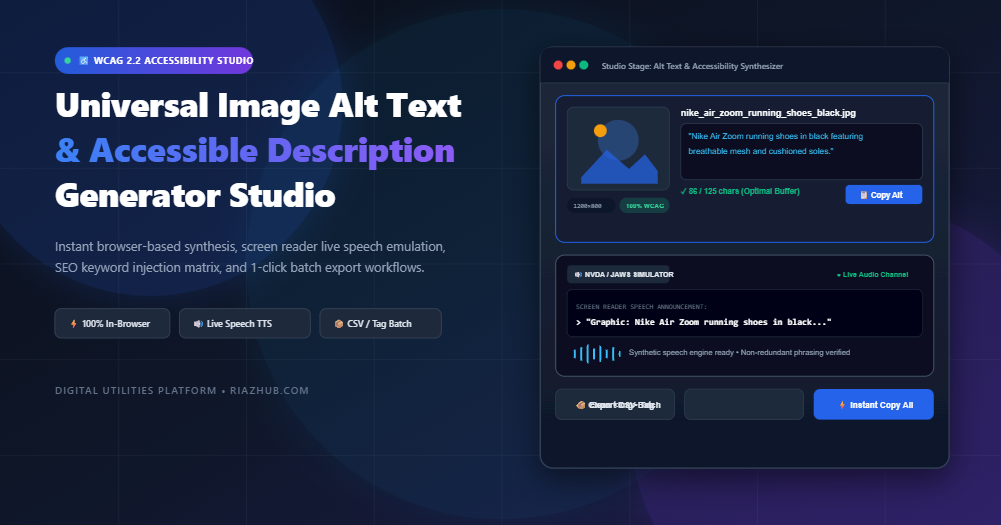
Mastering Web Accessibility & Image SEO: How to Generate Compliant, High-Ranking Image Alt Text in Real Time
In modern web publishing, visual media accounts for over 65% of total page payload and drives substantial discoverability through Google Images. Yet, despite decades of accessibility advocacy, over 55% of the world’s top one million websites still fail fundamental WCAG non-text content criteria. In this comprehensive guide, we examine how proper image descriptions bridge the gap between assistive technologies and modern search algorithms, and how you can streamline your entire workflow using the Universal Image Alt Text & Accessible Description Generator.
1. The Dual Purpose: Human Accessibility Meets Algorithmic Indexing
Alternative text (commonly referred to as the alt attribute) is often misunderstood as a minor afterthought or merely a place to cram promotional keywords. In truth, image descriptions serve two critical, interconnected roles on the modern web:
- Assistive Technology Translation (WCAG 2.2 Compliance): For blind, visually impaired, or neurodivergent internet visitors utilizing screen readers like NVDA, JAWS, or Apple VoiceOver, the alt attribute is the sole auditory representation of what an image communicates. If the alt attribute is missing, the screen reader is forced to read aloud raw, unformatted filenames like
IMG_2026_08_shoes_black.jpg, resulting in an unintelligible and frustrating browsing experience. - Contextual Topic Relevance for Search Engines (Image SEO): Search engine crawlers cannot “see” graphics the way humans do. While computer vision models have evolved, search engines like Google and Bing rely on clean, semantic alt text, figure captions, and contextual anchor keywords to understand image subject matter, rank visuals in Google Image Search, and calculate topical authority across your entire domain.
When you use the Universal Image Alt Text Generator on RiazHub, you balance both imperatives automatically—generating descriptions that satisfy human accessibility requirements while giving search engine algorithms clear ranking signals.
2. The Four Most Destructive Alt Text Mistakes Webmasters Make
Before exploring best practices, let’s examine the common blunders that hurt your accessibility score and search performance:
1. The “Image of / Picture of” Clutter Mistake
Writing “Photo of a black running shoe” is redundant. Screen readers automatically announce the HTML element type before reading the text—speaking “Graphic: Photo of a black running shoe”. Omitting words like “photo of,” “image of,” or “graphic of” saves cognitive listening time for assistive device users.
2. Keyword Stuffing
Shoving disjointed phrases like “shoes, cheap shoes, buy black sneakers online, best running shoe 2026” into an alt attribute degrades accessibility and triggers search engine spam algorithms. Google explicitly warns against keyword stuffing in alt attributes.
3. Exceeding the 125-Character Buffer Threshold
Popular screen readers, including JAWS, break descriptions longer than 125 characters into separate buffers. This forces assistive tech users to press multiple keystrokes just to finish hearing about a single graphic. The sweet spot for general web imagery is 80 to 125 characters.
4. Neglecting Decorative Images (The Missing alt=””)
If an image is purely decorative—such as a background gradient, aesthetic divider line, or abstract icon—it must carry an empty alt="" attribute. Omitting the attribute entirely tells screen readers that the image has not been audited, prompting them to announce the raw file path. An explicit alt="" instructs assistive tools to quietly skip the asset.
To avoid these pitfalls effortlessly, you can test and sanitize your graphics in the RiazHub Accessible Description Generator Studio, which features built-in guardrails to trim clutter and verify character thresholds in real time.
3. Tailoring Descriptions with 5 Context-Aware Persona Profiles
A photograph of a sneaker requires entirely different phrasing depending on whether it appears on an e-commerce catalog, a medical orthotics whitepaper, or a lifestyle blog. The Universal Alt Text Generator includes five specialized persona engines:
- Strict WCAG Accessibility: Highly objective, non-promotional, and concise. It focuses strictly on the visible subject, orientation, and functional purpose of the element without fluff.
- SEO Boost: Naturally blends your target focus keywords, surrounding article topics, and primary entities into conversational, syntactically sound sentences that search spiders can index cleanly.
- E-Commerce Product Focus: Highlights critical consumer attributes including brand names, physical materials, primary colors, model lines, and distinctive design traits (e.g., “Waterproof full-grain leather hiking boots with Vibram rubber lug soles”).
- Technical & Data Diagram: Designed for flowcharts, bar graphs, and system architectures. Identifies the chart type, independent variables, and the primary takeaway or trend illustrated.
- Editorial & Social Media: Context-rich, expressive, and engaging, capturing mood, human expressions, and narrative context suitable for news publications and digital magazines.
4. Comparison: Manual Creation vs. Generic AI vs. RiazHub Studio
Here is how traditional approaches to alt text creation compare with the workflow provided by the RiazHub Accessible Description Generator Studio:
| Evaluation Criteria | Manual Writing | Cloud AI APIs (ChatGPT / Cloud Vision) | RiazHub Alt Text Studio |
|---|---|---|---|
| Privacy & Security | 100% Private | ❌ Images sent to third-party cloud servers | ✅ 100% In-Browser Pure Client-Side |
| Processing Speed | Slow (1–2 mins per image) | Moderate (Network latency + rate limits) | ⚡ Instantaneous (Sub-millisecond ES6+) |
| Screen Reader Speech Simulator | ❌ None | ❌ None | ✅ NVDA, JAWS & VoiceOver Audio TTS |
| Cumulative Layout Shift (CLS) Prevention | Manual measurement | Usually omitted | ✅ Auto-detects width/height attributes |
| Batch Export Capabilities | Manual copy/paste | Requires complex custom scripts | ✅ 1-Click CSV, JSON & HTML snippets |
| Cost | Time-intensive | API token fees / Subscriptions | 🎉 100% Free Forever |
5. Experiencing Your Assets Through the Screen Reader Simulator
The standout feature of the Universal Image Alt Text Generator is its interactive Screen Reader Speech Simulator.
Accessibility guidelines can feel theoretical until you hear firsthand how assistive devices navigate a webpage. By selecting from profiles such as NVDA for Windows, JAWS, Apple VoiceOver, or Android TalkBack, the studio translates your alt text into an exact acoustic visual transcript.
With support for the native Web Speech API (TTS), you can press “Speak Announcement” to have your browser synthesize the simulated announcement aloud. This lets you immediately verify whether your text sounds natural, clear, and non-repetitive before deploying it to production.
6. Step-by-Step Workflow: From Cryptic Filename to Clean HTML in Seconds
Here is how to optimize a batch of graphics using the image alt text generator tool:
- Import Your Image Batch: Drag and drop up to 25 image files (supporting JPG, PNG, WEBP, AVIF, SVG, and GIF) directly onto the upload zone. You can also click “Load Sample Photo Batch” to test with pre-configured demonstration images.
- Define Your Context Parameters: Select your desired generation persona (e.g., SEO Boost or Strict WCAG). Optionally enter your focus keywords (e.g.,
wireless earbuds, bluetooth 5.3, noise cancellation), your brand name, and the surrounding page context. - Tune Your Guardrails: Ensure “Strict Length Limit” is enabled to maintain the 125-character buffer sweet spot. Verify that “Strip ‘Image of’ Clutter” is active to eliminate redundant phrasing.
- Review and Fine-Tune: Examine the generated cards in the studio. Each card displays an editable alt text field, character counter with real-time color feedback, and a WCAG audit badge.
- Export Code or Spreadsheets: Use the action toolbar to “Copy All Alt Texts”, grab production-ready
<img>tags equipped with width, height, and lazy-loading attributes, or download a structured batch CSV report for your content management team.
7. Inspecting the Generated HTML Snippets
The accessible description generator produces clean, standards-compliant HTML snippets designed to prevent Cumulative Layout Shift (CLS) and maximize loading performance:
<img src=”wireless-noise-cancelling-headphones.webp”
alt=”Matte black wireless noise cancelling over-ear headphones by RiazHub”
width=”900″
height=”900″
loading=”lazy”
decoding=”async”><!– Editorial Figure with Caption –>
<figure>
<img src=”alpine-mountain-lake-sunset.jpg”
alt=”Vibrant orange sunset reflecting over calm alpine lake surrounded by pine forests”
width=”1920″
height=”1080″
loading=”lazy”
decoding=”async”>
<figcaption>Sunset over Lake Louise during peak autumn foliage in 2026.</figcaption>
</figure>
8. Complete Privacy: Why Zero-Server Uploads Matter
In an era of strict enterprise data governance and privacy regulations, uploading internal charts, unpublished product photography, or proprietary creative assets to remote third-party AI APIs can represent a compliance risk.
The RiazHub Universal Alt Text Generator Studio operates entirely on client-side browser execution. Using pure HTML5 FileReaders, the HTML Canvas API, and native ES6+ regex tokenizers, zero bytes of image data, filenames, or generated text are ever sent to an external server. You can safely audit proprietary assets with complete peace of mind.
9. Frequently Asked Questions (FAQ)
Does alt text help my website rank higher on Google?
Yes. Descriptive, keyword-relevant alt text helps search engine crawlers understand image content and context, directly improving your rankings in Google Image Search and strengthening overall topical relevance for your core web pages.
Should I use alt text on social media share graphics or decorative icons?
No. Decorative icons, geometric separators, and abstract background patterns should have an empty alt="" attribute so screen readers bypass them cleanly. You can toggle the “Mark All as Decorative” option in the online alt text utility to generate these tags automatically.
Why does the tool recommend keeping descriptions under 125 characters?
Assistive tools like JAWS segment long alternative text into chunks of approximately 125 characters, requiring users to navigate multiple times to finish reading. Staying within 80–125 characters provides comprehensive context without triggering buffer fragmentation.
Can I use the tool for bulk image migrations or eCommerce catalogs?
Yes. The batch processing mode allows you to import up to 25 images simultaneously, apply tailored brand and keyword parameters, and immediately export the results into a CSV spreadsheet or pre-formatted HTML tags for one-click CMS integration.
Universal Image Alt Text & Accessible Description Generator
Create WCAG-compliant, SEO-optimized alternative text descriptions for images with screen reader live speech simulation and 1-click batch export in real time. 100% private, browser-based processing.
Source Images & Context Batch up to 25 items
📚 Web Accessibility (WCAG 2.2) & Image SEO Best Practices Universal standards guide
<img> tag with the word "Graphic" or "Image". Adding "Photo of..." creates redundant announcements like "Graphic: Photo of...", which wastes cognitive listening time for blind and low-vision visitors.